
 FREE — yours forever
 Professional (PRO) — one-time lifetime purchase
 Publisher (PUB) — the gold standard
1. Getting Started
▼Go to My Books > Add New in your WordPress admin. Give the book a title, then use the metaboxes below the editor to add your cover image, formats and pricing, buy links, author, series, and description. Click Publish when ready. The book will immediately appear on your site.
FREE gives you a complete, fully functional book catalog — not a stripped demo. Five layout styles, series reading order, genre taxonomy, ARC reviewer tracking (1 active ARC book at a time, up to 5 reviewers per book), CSV import, ISBN lookup, reader reviews, buy links to 10+ retailers, and full theme compatibility. No credit card. No expiry.
Professional (PRO) adds 4 advanced layouts (Slider, Flip, Filter, Popup — 9 total), the Book Bible XLSX workbook, geo-redirected buy links, a one-click press kit, Amazon PA-API import, EPUB import, 11 email platform integrations, WooCommerce, Coming Soon badges, Universes, Book Club Resources, and ARC management for unlimited books with up to 25 reviewers per book. 1 site per key.
Publisher (PUB) includes everything in Professional (PRO) plus ONIX 2.1, 3.0, and 3.1 import and export, unlimited BISAC and Thema codes, unlimited ARC reviewers, multi-location point-of-sale inventory, the Activity Log with team feed, and an 8-tab Book Bible workbook with supply chain fields. 3 sites per key.
FREE keys are generated at dmrstech.com — enter your email address and your key is emailed to you immediately. Professional (PRO) and Publisher (PUB) keys are delivered by email after you complete your purchase via Stripe. Stripe is PCI DSS Level 1 certified — your card details are entered directly on Stripe’s servers and never reach our systems. Store your key somewhere safe — if you lose it, visit dmrstech.com to have a fresh key generated and emailed to you.
In your WordPress admin go to My Books > Settings > License. Paste your license key into the activation field and click Activate. The plugin will contact the license server, confirm your key, and display your current tier and site slot usage. If activation fails, see the Troubleshooting section.
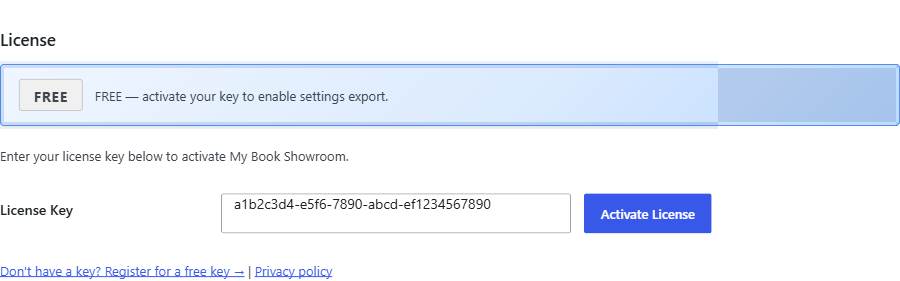
Purchase a Professional (PRO) license at dmrstech.com. You will receive a new Professional (PRO) license key by email. In your WordPress admin go to Settings > License, deactivate your current FREE key, then enter and activate your Professional (PRO) key. All your books, settings, and data are preserved — nothing is deleted when you switch keys.
Yes. My Book Showroom is a WordPress plugin and your book data is stored in your WordPress database. If you deactivate the plugin your book pages and shortcodes will stop working until the plugin is reactivated. Deactivating does not delete your data.
No. MBS installs and runs on the FREE tier with no key — you can add books, install the sample catalog, and display your full catalog out of the box. A free key (no card, no expiry) is optional: it unlocks Settings Export/Import and removes the registration notice. Professional (PRO) and Publisher (PUB) keys add the paid features.
Updates are delivered through the WordPress.org plugin update system. Updating is in-place and never changes your tier or deletes any data.
From the My Book Showroom dashboard, the Tutorial Data tile installs a complete sample catalog in one click — around nine books with series, collections, a universe, multiple formats, audio/video, endorsements, awards, classification codes, and a Coming Soon title — with no key required. Reinstall refreshes it; Remove Tutorial Data deletes only the samples and their media. Your own books and settings are never touched.

2. Adding and Managing Books
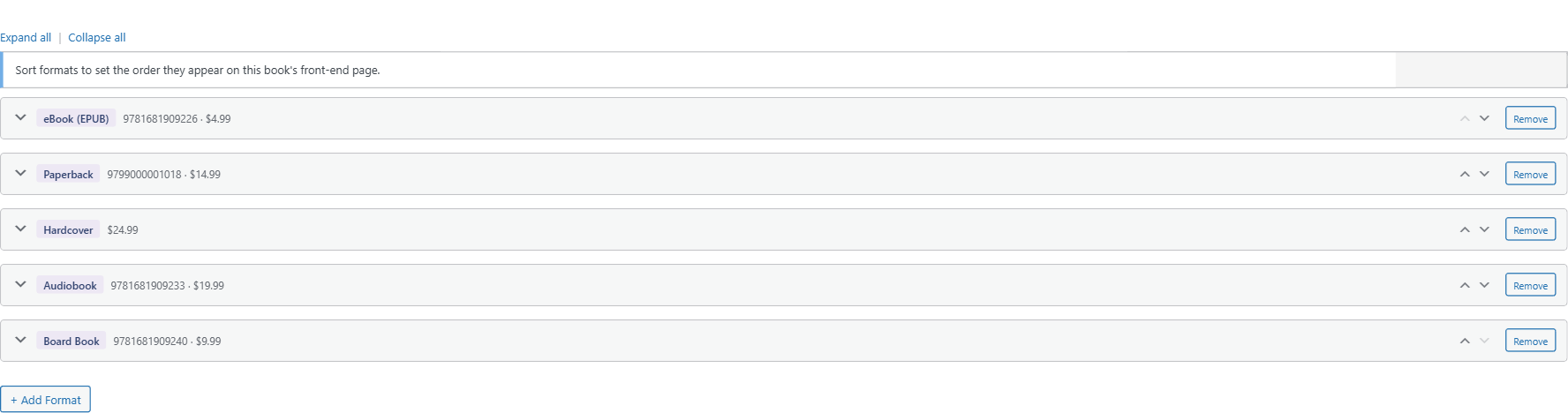
▼In the book editor, find the Formats and Pricing metabox. Click Add Format to add a new row and select the format type: Ebook, Hardcover, Paperback, Audiobook, Board Book, Special Edition, or Other. Each format row has its own ISBN-13, price, page count, and buy links. A book with multiple formats displays format-switching tabs on the front end automatically.
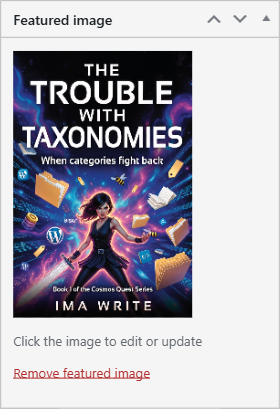
Use the Book Default Cover field in the book editor’s Book Header metabox. Click Upload Cover to open the WordPress media library and select or upload your cover; this is the book’s WordPress featured image. For format-specific covers — for example a square audiobook cover alongside a portrait print cover — use the cover field inside each individual format row in the Formats and Pricing metabox. Format-specific covers are a Professional (PRO) feature.
The Buy Links metabox appears in the book editor. Add a row for each retailer, select the platform from the dropdown (Amazon, Apple Books, Barnes and Noble, Kobo, Google Play, Gumroad, BookFunnel, and more), and paste your buy URL. You can also add format-specific buy links inside each format row for titles available at different retailers per format.
Go to My Books > Settings > Authors. Click Add Author, enter the author name, bio, website, and photo. Once created, authors are available to assign to any book via the author field in the book editor.

In the Book Header metabox at the top of the book editor, use the Publication Date field. You can set both a date and a time. The publication date drives Coming Soon badge behavior and release pipeline display on the dashboard.
In the Formats and Pricing metabox, each format row has an Out of Print checkbox. Checking it marks that specific edition as out of print. This field is available on all tiers and is included in ONIX exports on Publisher (PUB) installs.
Lifecycle state describes the book's publishing status: Preorder, Out of Print, Out of Stock, Draft, or Discontinued (all FREE), plus Coming Soon (Professional (PRO)). WordPress book status (Published, Draft, Scheduled) controls whether the book appears on your site at all. Both exist independently. Use lifecycle state to communicate accurate publishing information to readers; use WordPress status to control site visibility.
The Endorsements metabox in the book editor lets you add a quote, attribution name, attribution title, and a visibility toggle for each endorsement. Endorsements display in the Endorsements section on the single book page.
The Extended Metadata section of the book editor contains an Awards and Accolades area. Add the award name, year, and status — Winner, Finalist, Nominee, Honorable Mention, or Longlist. Awards display in the Awards and Accolades section on the book page and are available on all tiers.
In the Formats and Pricing metabox, the Audio Sample field appears on Audiobook format rows. Upload an audio file via the WordPress media library or paste a direct audio URL.
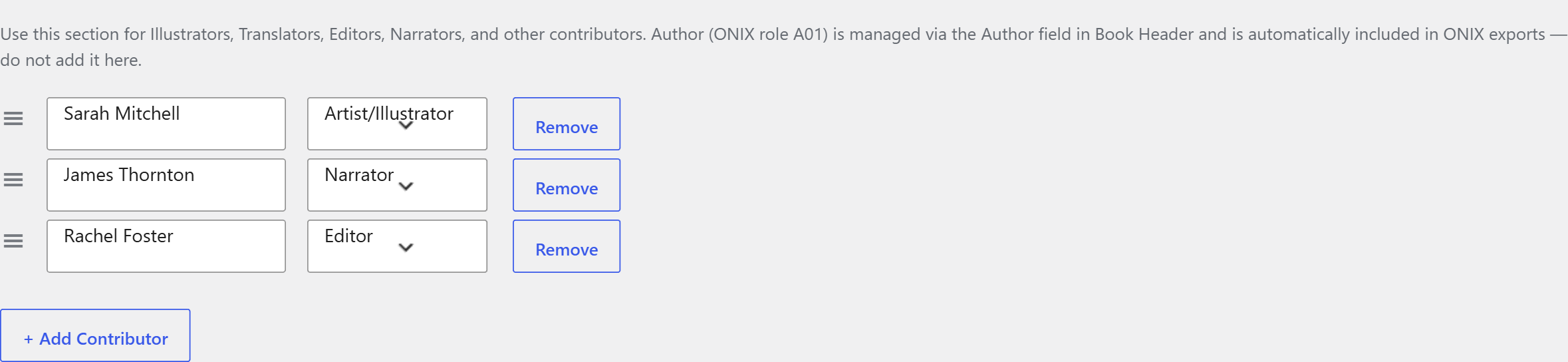
The Contributors metabox in the book editor lets you build an ordered list of contributors. Select the contributor from the directory and assign their role — Illustrator, Editor, Translator, Narrator, and 17 additional ONIX-standard roles are available. Reorder the list by dragging the grip handle, or with the up and down arrow buttons. Contributors are managed in the Contributors tab in Settings.
In the Book Header metabox, scroll to find the GoodReads URL and StoryGraph URL fields. Paste your book-specific links and they will render as branded buttons in the Social section on the single book page. Available on all tiers.
The Classification metabox in the book editor includes a BISAC code typeahead search. Start typing a subject to see matching codes. FREE installs display 1 BISAC code publicly; Professional (PRO) installs display up to 10; Publisher (PUB) installs have no limit. All codes you enter are stored regardless of tier — upgrading your license immediately reveals the additional codes without re-entering them.
In the book editor, find the Section Order metabox. On all tiers you can reorder sections with the up and down arrow buttons; on Professional (PRO) and Publisher (PUB) you can also drag rows by their grip handle. Click Update to save. Changes apply only to that individual book.
The Book Details metabox in the book editor contains a Table of Contents field. Enter your chapter list or structure as free text. It displays in the Look Inside section on the single book page.
Use the main WordPress content editor at the top of the book editor page. This is the primary book description and displays in the About the Book section on the front end.
In the Book Header metabox, check the Coming Soon checkbox. Set a future publication date so the badge can display a countdown or arrival date. Coming Soon is a Professional (PRO) feature — the checkbox is not shown on FREE installs. You can customize the badge colors in Settings > Appearance.
Three conditions must all be true: the Coming Soon badge setting must be enabled in Settings > Appearance, the Coming Soon checkbox must be checked on the individual book, and the book's publication date must be set to a future date. If any one of these is missing the badge will not appear.
In the Book Header metabox, the Book Trailer field accepts a file upload or embed URL. A play button appears on the book cover on the front end. This is a Professional (PRO) feature.
The Author(s) field in the Book Header is the Author taxonomy — your primary authors, each with an archive page and each exported to ONIX as role A01. The Contributors metabox is for secondary roles (illustrator, editor, translator, narrator, and other ONIX-standard roles). Do not re-add a primary author as a contributor, or you will get duplicate author entries in ONIX output. The per-contributor Statement field is Publisher-only.
The Professional (PRO) Book Club Resources panel in the book editor adds a rich-text discussion guide, a drag-orderable numbered discussion-questions list, and downloadable files with optional labels. A "Show on front end" toggle lets you stage privately, and the section auto-hides if all three fields are empty. The panel is hidden on FREE installs.
3. Series, Collections, and Universes
▼Go to My Books > Settings > Series. Click Add Series, give it a name and an optional cover image, then add a description. Assign books to the series using the Series field in each book editor. You can set reading order from the series card in Tab 7.
In Settings > Series, each series card shows a list of its books. Use the up and down arrow buttons to set reading order — these work on all tiers. On Professional (PRO) and Publisher (PUB), drag books by their grip handle instead. You can also set a series number on each book directly from the book editor using the Series Number field.
Every series automatically gets a WordPress archive page at your-site.com/mbs_series/series-slug/. You can link to it from your menu, embed it on any page using the shortcode [mbs_series slug="your-series-slug"], or use the mbs/series Gutenberg block. The page shows the series description, reading order, and all books in the series.
A Series is a sequential reading-order grouping — books that follow on from each other such as a trilogy or ongoing series.
A Collection is a themed grouping without a strict reading order, for example Holiday Reads or Award Winners.
A Universe (Professional (PRO)) is a shared story world that can span multiple series and standalone books, with its own reading order layer for readers who want the full chronological experience.
Two conditions must both be true: your license must be Professional (PRO) or Publisher (PUB), and the Universe opt-in toggle in Settings > Advanced must be enabled. If either is missing the tab does not appear.
Yes. Collections are many-to-many — a single book can belong to multiple collections simultaneously. You can also set a different position number for the book in each collection it belongs to.
Every collection automatically gets a WordPress archive page. You can also use [mbs_collection slug="your-collection-slug"] or the mbs/collection block to embed a collection on any page.
First enable Universes in Settings > Advanced by turning on the Universe opt-in toggle. The Universes tab then appears in Settings. Click Add Universe to create one and assign books to it. The toggle must stay on for Universe pages and the Universe block to be visible on your site.
4. Front-End Display and Layouts
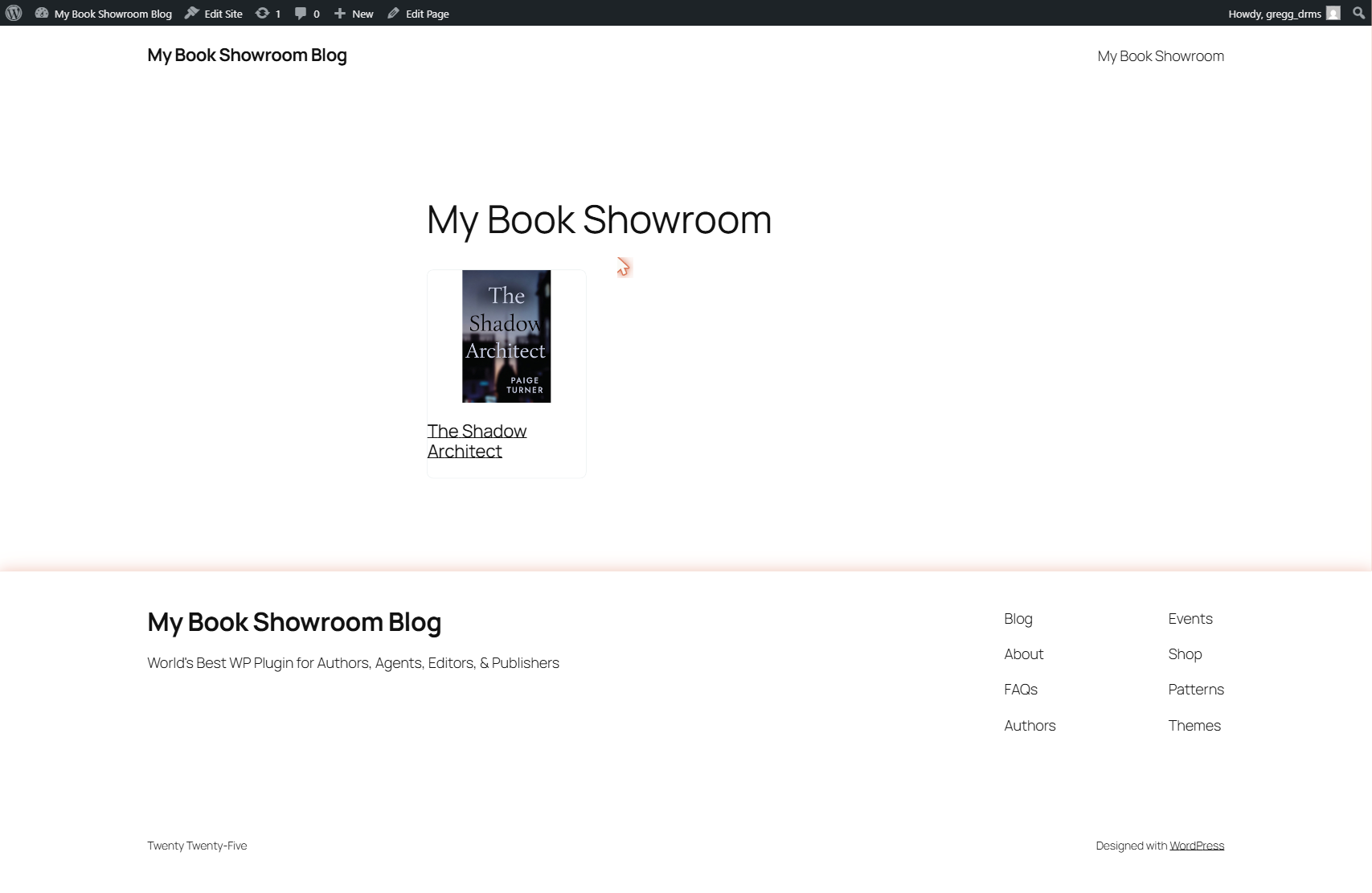
▼Place the shortcode [mbs_books] on any page or post, or use the mbs/catalog Gutenberg block. This displays your full book catalog using the layout configured in Settings > Formatting.
Go to Settings > Formatting. Select a layout thumbnail: Hero, Grid, Card, Masonry, or List on all tiers; Slider, Flip, Filter, or Popup on Professional (PRO) and Publisher (PUB). A description panel below the thumbnails explains each layout and what it is best suited for.
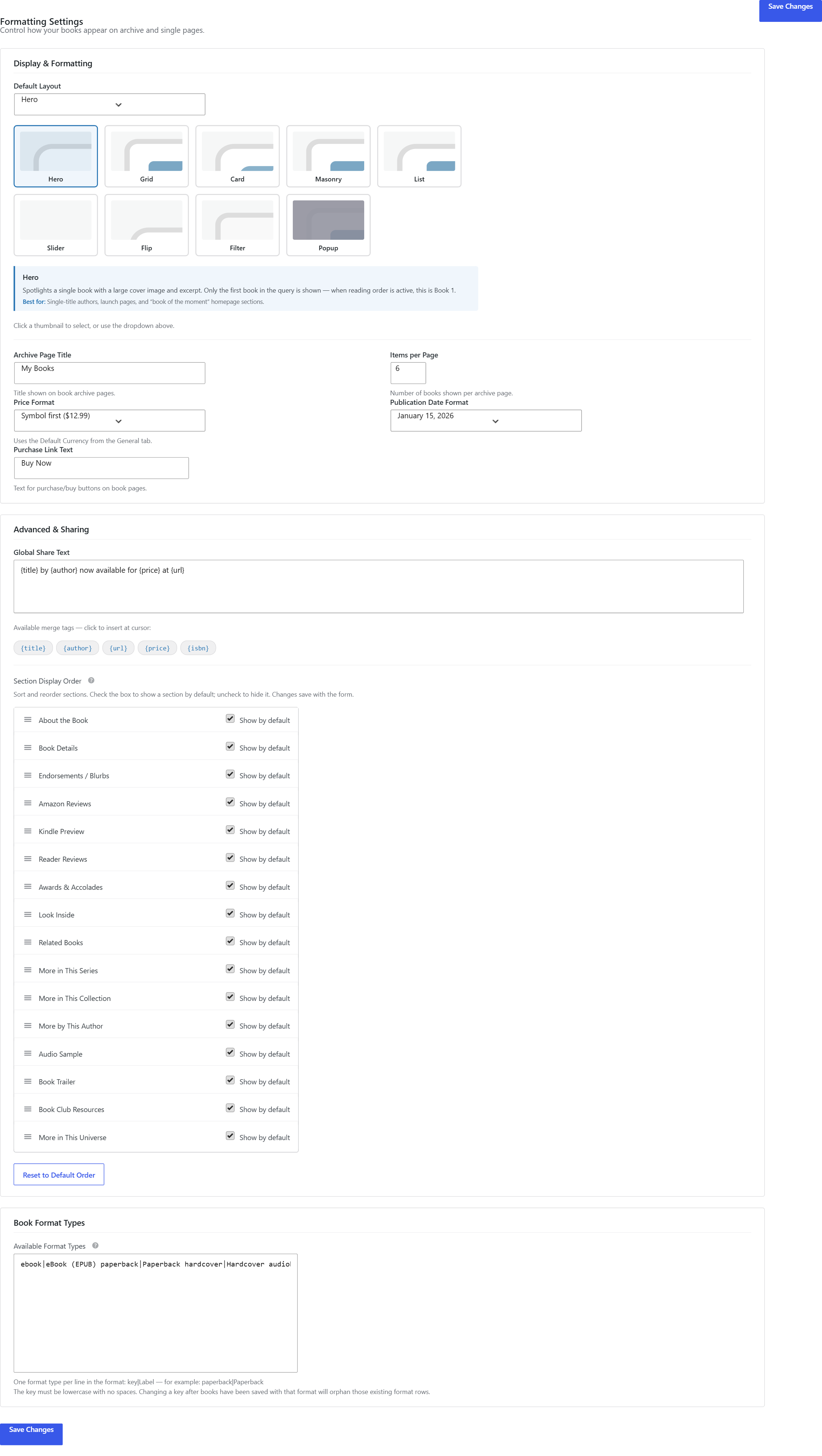
FREE layouts: Hero (featured single book banner), Grid (photo grid), Card (card stack), Masonry (Pinterest-style), List (compact list with details).
Professional (PRO) layouts: Slider (carousel), Flip (3D cover-flip on hover), Filter (live client-side filtering by genre, series, or format), Popup (click-to-expand modal with full book detail).
Go to Settings > Appearance. Set your accent and button colors with the color pickers — four color tokens on FREE, with 16 additional tokens on Professional (PRO). Changes apply immediately to all MBS front-end output across your site.
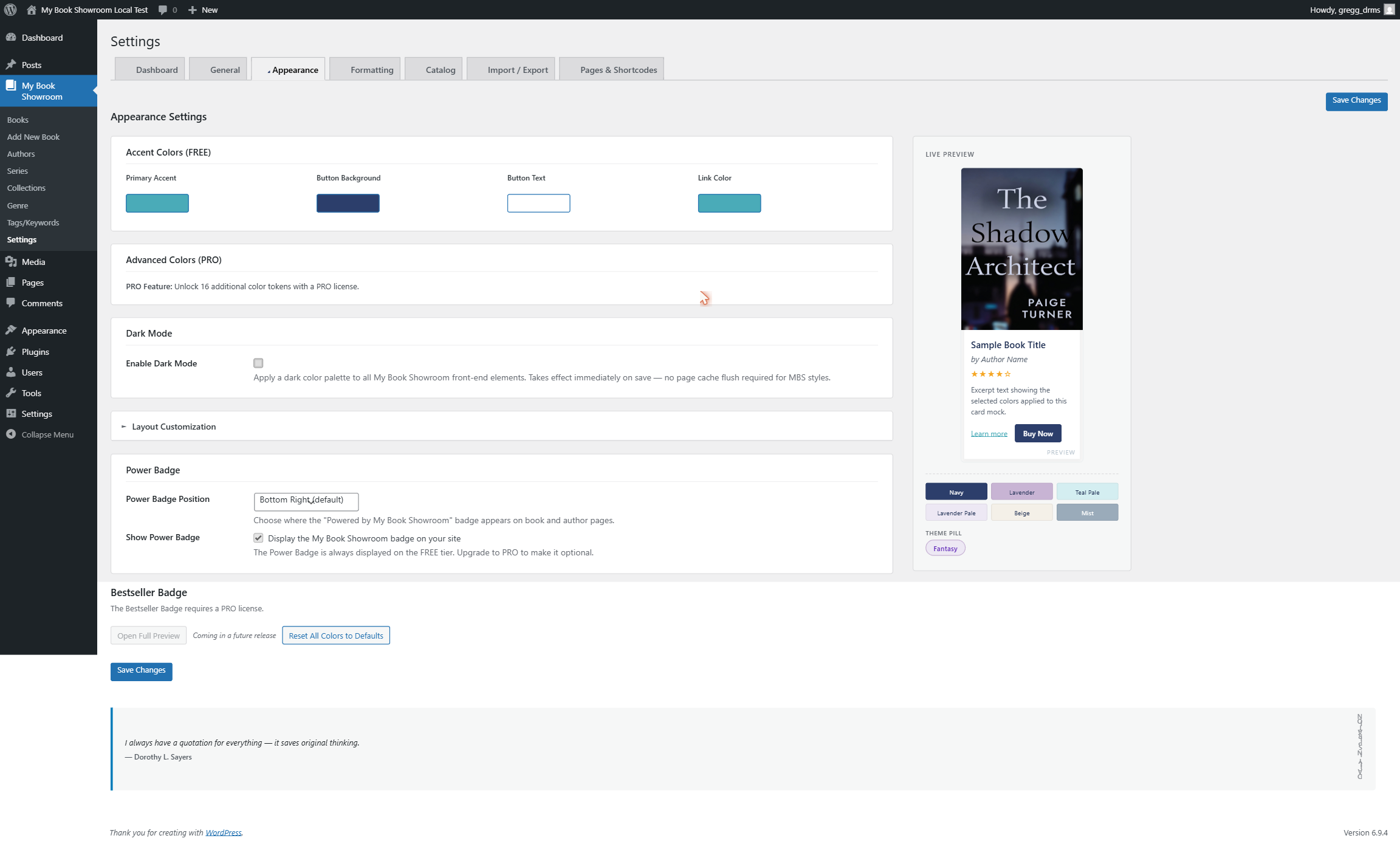
Settings > Appearance — toggle Dark Mode on. Dark mode applies to all MBS-rendered output on your site.
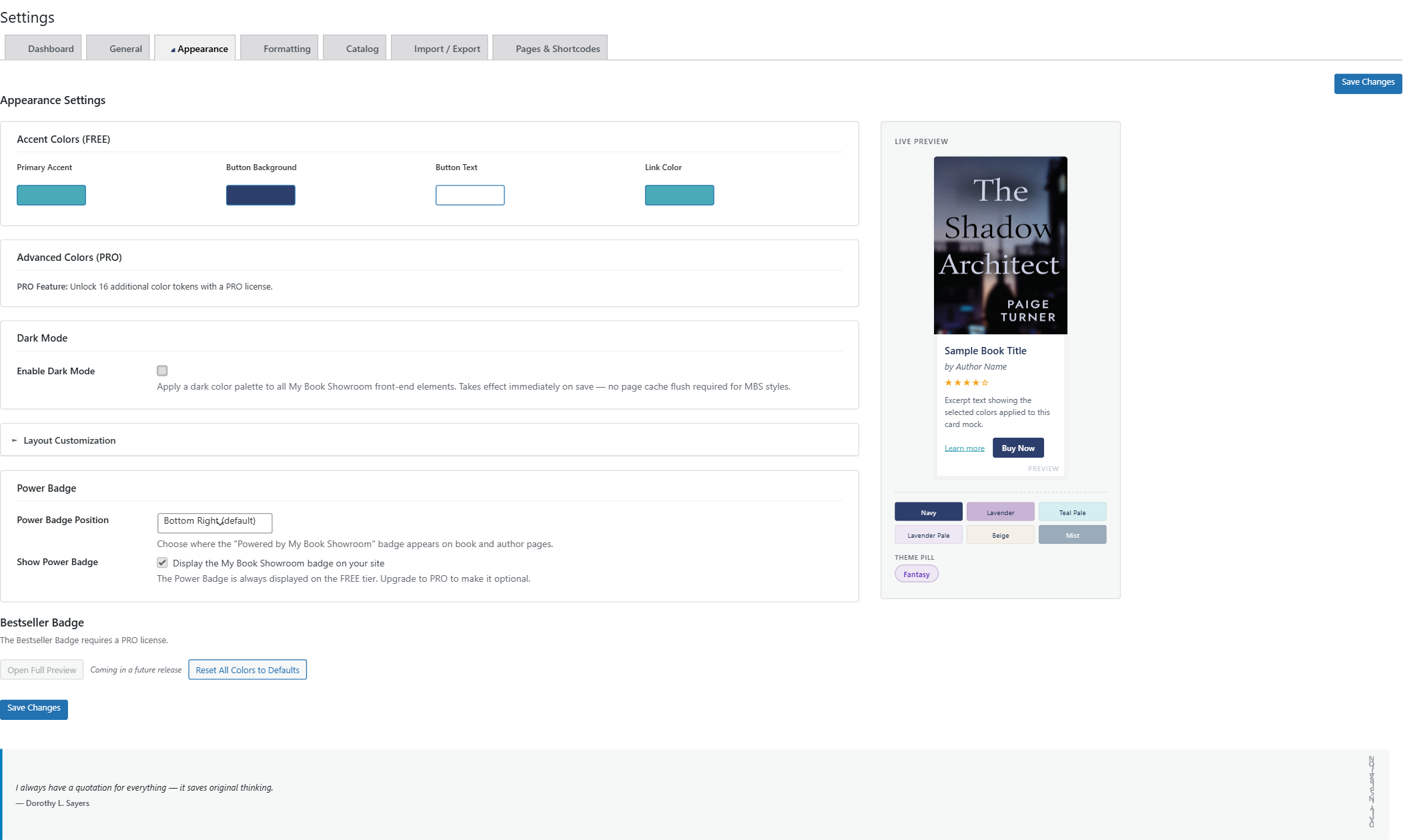
Check that you have set a cover image in the Book Default Cover metabox in the book editor. The Book Default Cover is the book’s WordPress featured image. If no cover is set, MBS shows a placeholder image.
In the book editor, open the Section Order metabox. Each section has a visibility toggle. Turn off the sections you do not want to display for that book.
Check that: (1) you have added at least one buy link in the Buy Links metabox with a complete URL, (2) the Buy Links section is enabled in the Section Order metabox for that book, and (3) the section has not been moved to a hidden position. If buy links are present but the affiliate rewriter is replacing the URL, confirm your affiliate tag in Settings > Affiliate / Earn More.
Every genre automatically gets a WordPress archive page at your-site.com/mbs_genre/genre-slug/. You can also embed a genre on any page using [mbs_genre slug="your-genre-slug"] or the mbs/genre block.
Every author automatically gets a WordPress archive at your-site.com/mbs_author/author-slug/. You can also embed an author on any page using [mbs_author slug="author-slug"] or the mbs/author block, which includes the author bio, social links, and book grid.
Yes, on Professional (PRO) and Publisher (PUB). Each series, author, collection, and universe card in Settings has its own layout picker. The selected layout applies to that term's archive page and any shortcode embed for that term. FREE installs see the layout picker but selections are limited to FREE-only layouts.
On Professional (PRO) and Publisher (PUB), each buy link can carry locale-specific URLs for six markets — US, UK, Canada, Australia, Germany, and Japan. Enter the per-market URL on the buy-link row; when a visitor’s browser language matches a market, MBS serves that locale’s URL (this works for any retailer, not just Amazon). Rows left blank fall back to the default URL.
Genres are broad, hierarchical marketing categories (Romance, Fantasy — you can nest subgenres). Tags are flat, free-form keywords for tropes, settings, or recurring characters. Assign both in the book editor's Discovery section. Each gets its own automatic archive page, and both feed the Genre Cloud and Term List blocks.
Yes, on Professional (PRO) and Publisher (PUB). Settings > Appearance has a Custom CSS field that is loaded inline on MBS front-end pages. Scope your rules to the .mbs-showroom wrapper so they do not affect the rest of your theme; stable selectors include .mbs-book-card, .mbs-buy-btn, and .mbs-book-page, and you can override color tokens such as --mbs-primary-accent. There is no live preview — save and reload the front end.
5. Shortcodes and Blocks
▼FREE shortcodes:
[mbs_books]— full catalog with chosen layout[mbs_book id="123"]— single book embed[mbs_search]— live AJAX search widget[mbs_genre_cloud]— genre tag cloud[mbs_series slug="..."]— single series with reading order[mbs_collection slug="..."]— single collection[mbs_genre slug="..."]— single genre with book grid[mbs_author slug="..."]— author bio, social links, and book grid[mbs_timeline]— chronological publication timeline
Professional (PRO) shortcodes:
[mbs_author_directory]— full author grid with A-Z filter[mbs_universe slug="..."]— universe reading order[mbs_series_directory]— full accordion of all series[mbs_esp_signup]— email subscriber widget[mbs_bestseller]— bestseller badge or list
Use [mbs_book id="123"] where 123 is the book's WordPress post ID. You can find the post ID in the URL when editing the book in your admin. Alternatively, use the mbs/single-book Gutenberg block and pick the book from the dropdown.
Use [mbs_genre slug="fantasy"] to display all books in a specific genre, or [mbs_series slug="the-chronicles"] to display a specific series. For a full catalog with live filtering controls, use [mbs_books] with the Filter layout (Professional (PRO)) which lets readers filter by genre, series, and format on the page.
Place [mbs_search] or the mbs/search block on any page. As the reader types (minimum 3 characters) a live dropdown appears showing matching books with cover thumbnails and teaser text.
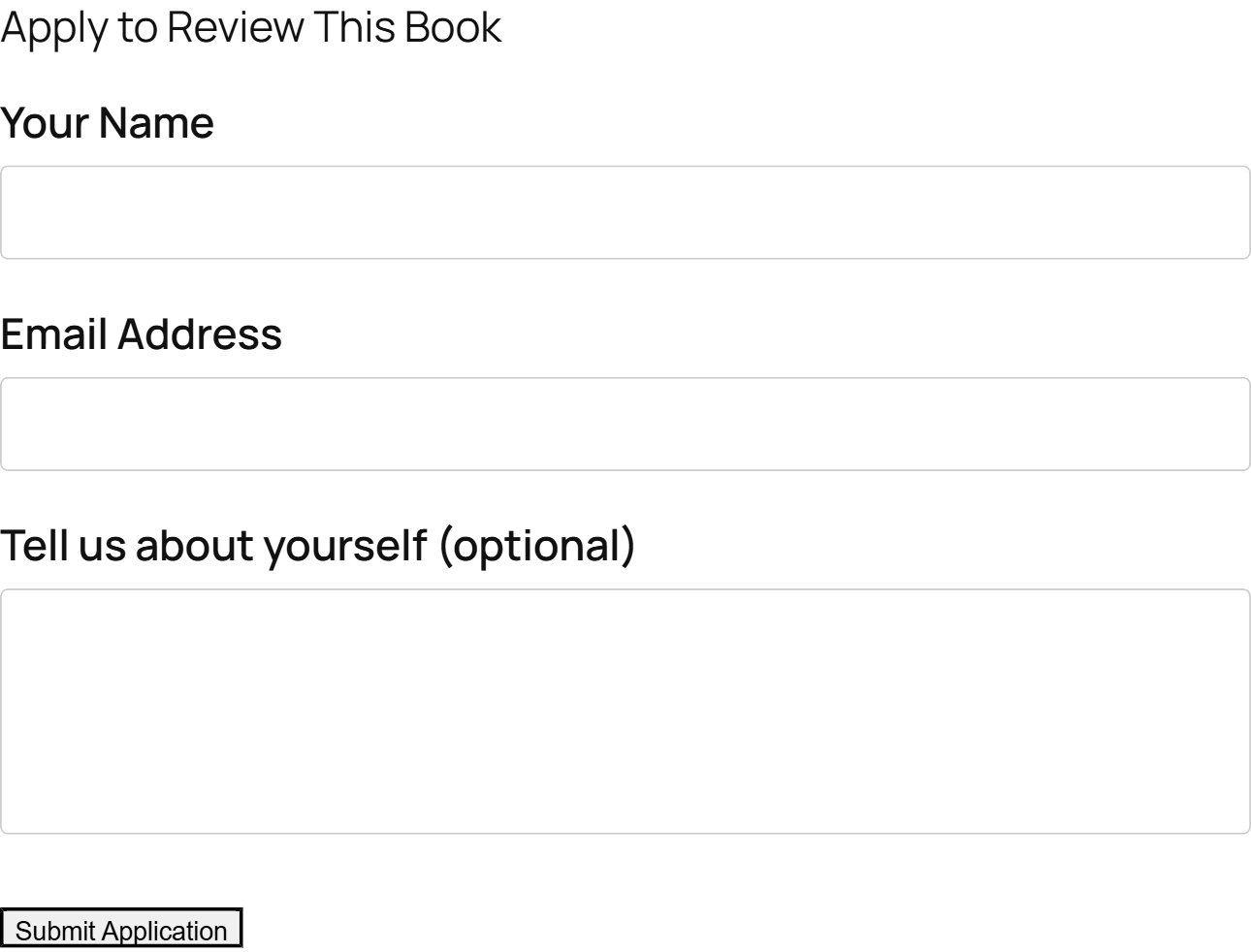
Add the My Book Showroom → ARC Signup block (mbs/arc-signup) to any page or post and choose the book. Readers submit their name, email, and an optional message and appear as pending applicants in that book’s ARC metabox. The ARC Signup block is a Professional (PRO) feature.
Go to Settings > Blocks and Shortcodes. A shortcode builder lets you configure attributes and copy the completed shortcode to your clipboard. All available shortcodes and blocks are listed there.
Use [mbs_esp_signup] on any page or post. First configure your email service provider in Settings > Email / Newsletter. MBS supports Mailchimp, MailerLite, ConvertKit, Brevo, ActiveCampaign, GetResponse, Campaign Monitor, Moosend, Sendy, Flodesk, and Author.Email — 11 platforms in total.
Every MBS block lives under a single My Book Showroom category in the block inserter; most render a live preview in the editor and have a settings panel (limit, columns, order, filters). The Book Catalog block is the block form of [mbs_books] and works in Full Site Editing templates. Several blocks have no shortcode equivalent — New Releases, Coming Soon (PRO), Related Books (PRO), Book Cover, Book Teaser, Term List, and Reading Order (PRO). PRO blocks appear in the inserter on FREE but only render fully with a PRO license.
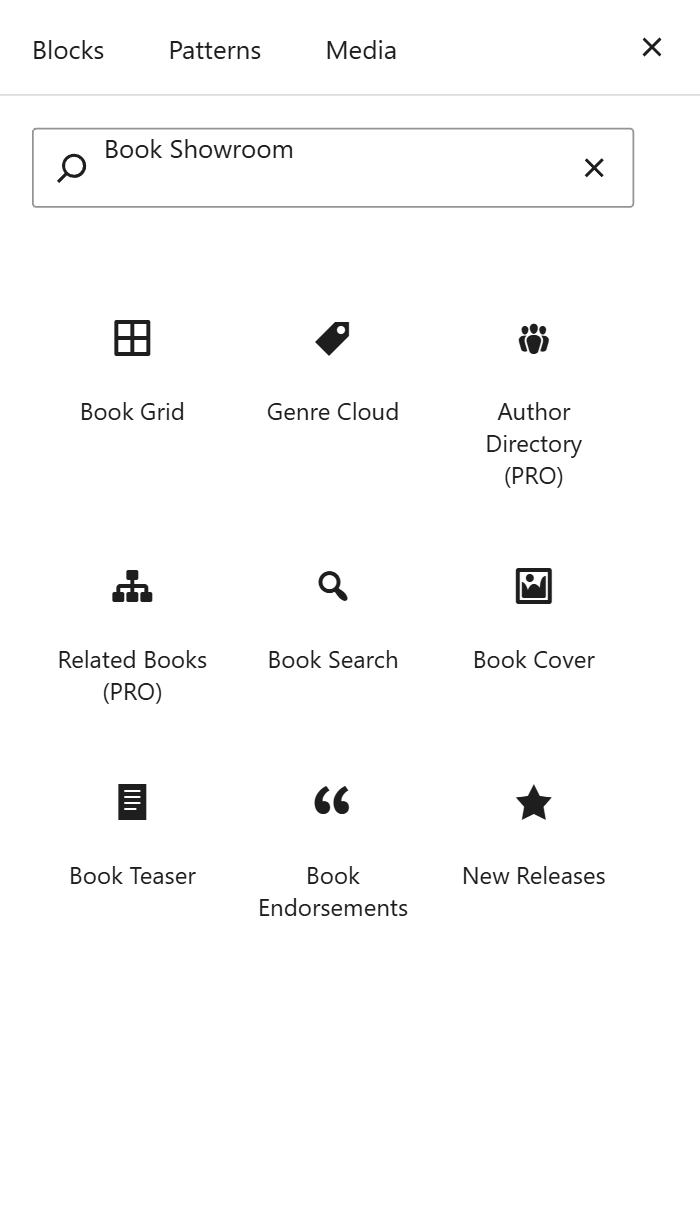
The New Releases block shows books published within the last N days (default 30) and is free. The Bestseller block — and the [mbs_bestseller] shortcode — ranks books by Amazon sales data and is a Professional (PRO) feature. Both are inserter blocks with their own sidebar controls.
6. Import and Export
▼Go to Settings > Import/Export and select the CSV importer. Download the sample CSV template, fill in your book data — one row per format edition — and upload it. The importer automatically groups rows with the same title and author into a single book with multiple format editions.
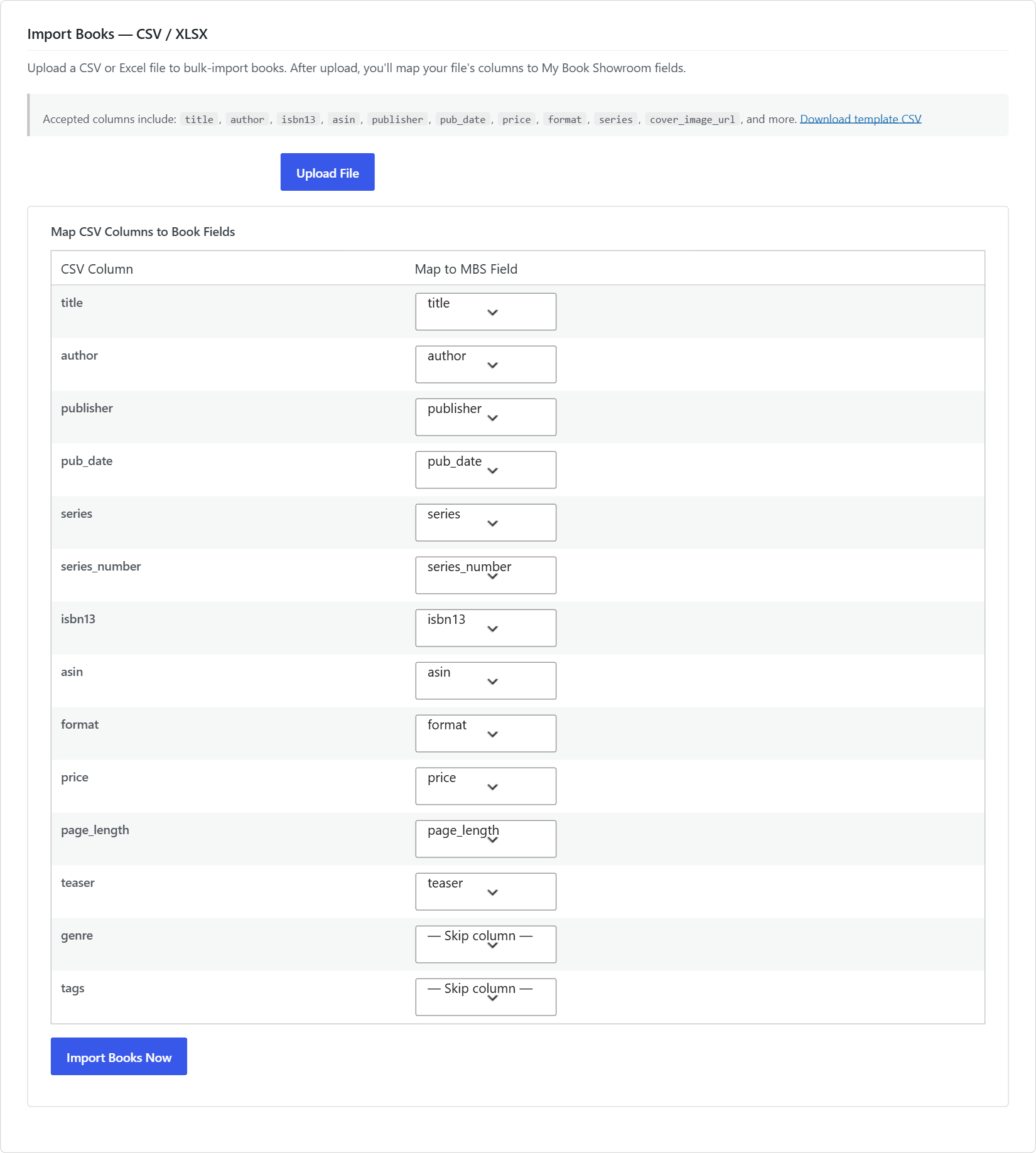
In Settings > Import/Export, use the ISBN Lookup importer. Enter one or more ISBN-13 numbers and MBS fetches matching metadata from Google Books and Open Library automatically. Available on all tiers.

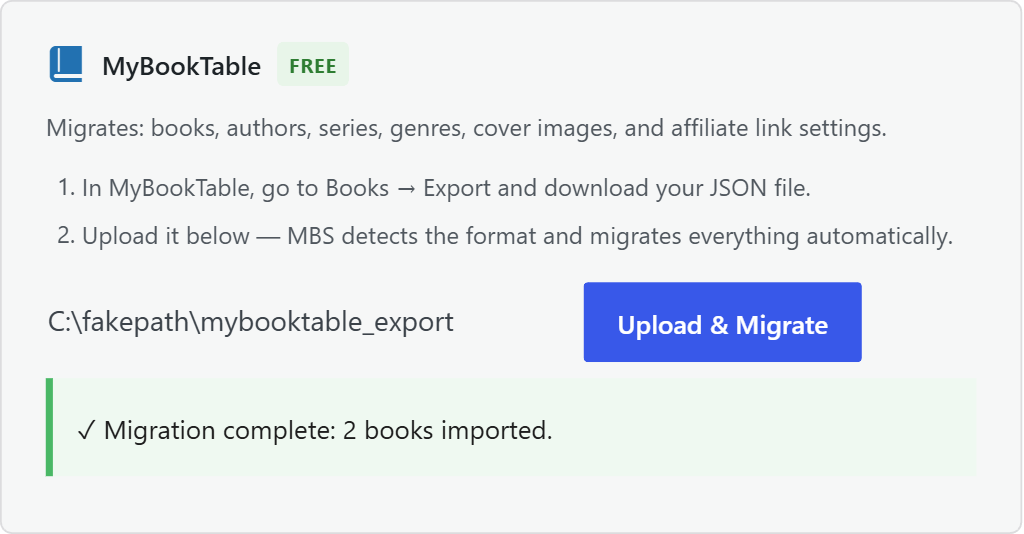
Export your MyBookTable library as a JSON file from your MyBookTable settings, then use the MyBookTable importer in Settings > Import/Export. Authors, series hierarchy, and affiliate settings are carried across automatically.
Settings > Import/Export offers book-data export as CSV or XLSX on Professional (PRO) and Publisher (PUB) installs (one row per format edition; the CSV is compatible with the CSV importer for round-trip portability). CSV import is free on all tiers.
Yes. Settings > Import/Export includes a Settings JSON export and import. Security and license keys are excluded from exports automatically — you will need to re-enter your license key, PA-API credentials, and payment settings on the new install. All display preferences, layout choices, and affiliate tags are included.
MBS extracts the following fields from an EPUB file on import: title, description, publisher, publication location, LCCN, ISBN-13, series name, contributors (with automatic role mapping), BISAC, BIC, and Thema classification codes, table of contents, and cover image. Fields absent from the EPUB's internal metadata will be blank after import — this is common with older EPUB files and files produced by some writing tools. You can fill in any missing fields manually after import from the book editor.
Use the ISBN Bulk Lookup in Settings > Import/Export: paste one ISBN per line and MBS fetches matching metadata from Google Books or Open Library, previews the results, and skips duplicates before import. This is free on all tiers.
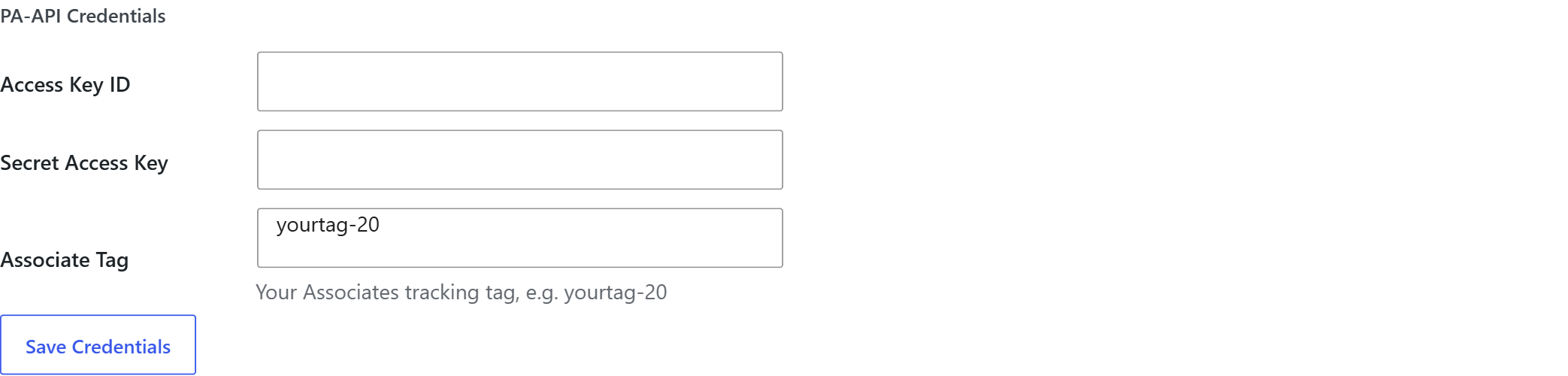
Go to Settings > Import/Export and enter your Amazon PA-API Access Key and Secret Key. Once saved you can look up and import a book by ASIN. Your PA-API credentials are stored encrypted in your WordPress database and are never transmitted to any DMRS Tech server — they go directly from your site to Amazon only.
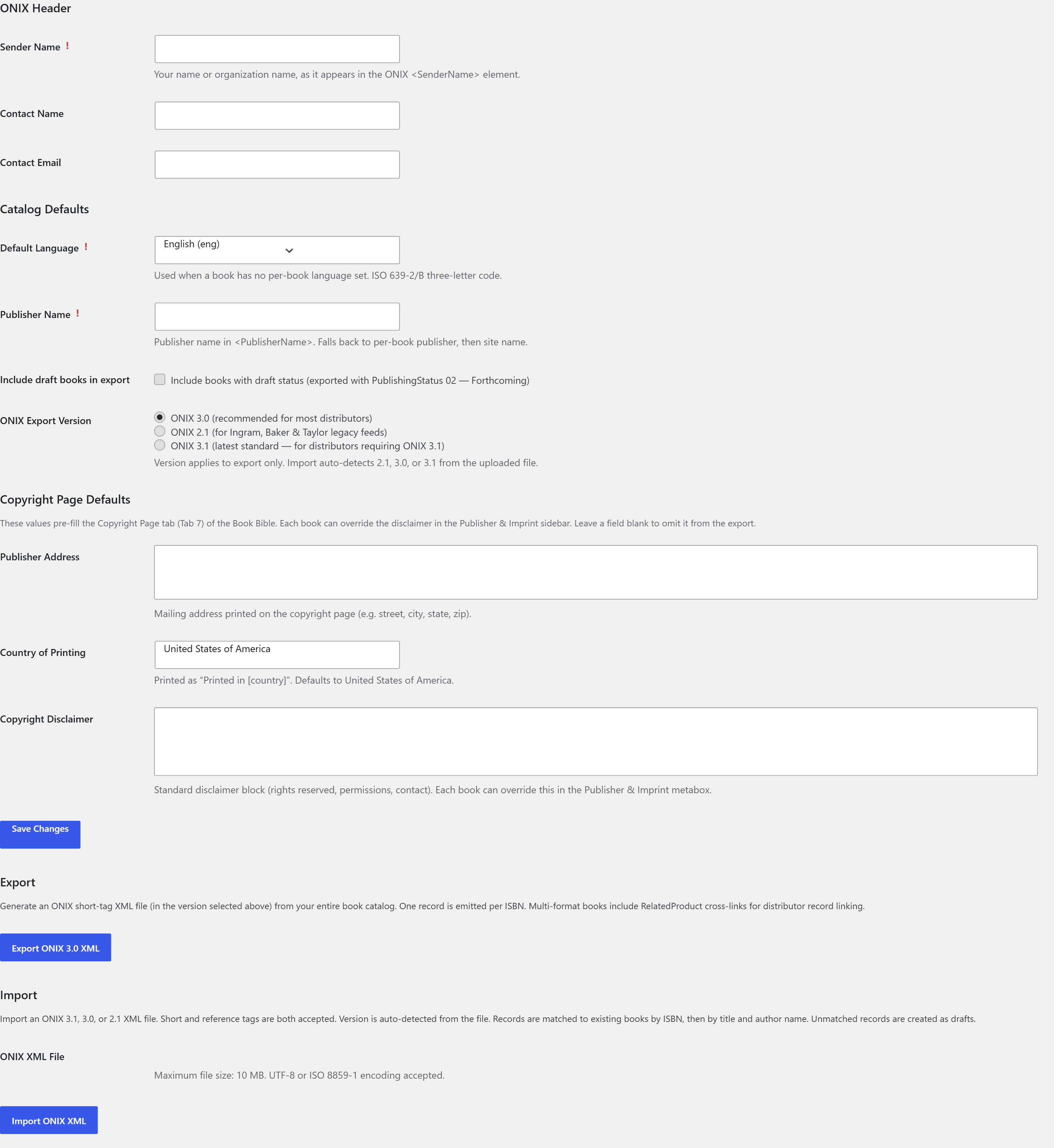
ONIX 2.1, 3.0, and 3.1 export and import are available to Publisher (PUB) license holders on the dedicated ONIX tab (My Book Showroom > Settings > ONIX / Publisher Tools). Set your ONIX version and sender/publisher details for export; on import, MBS auto-detects the version from the file structure and matches books by ISBN-13.
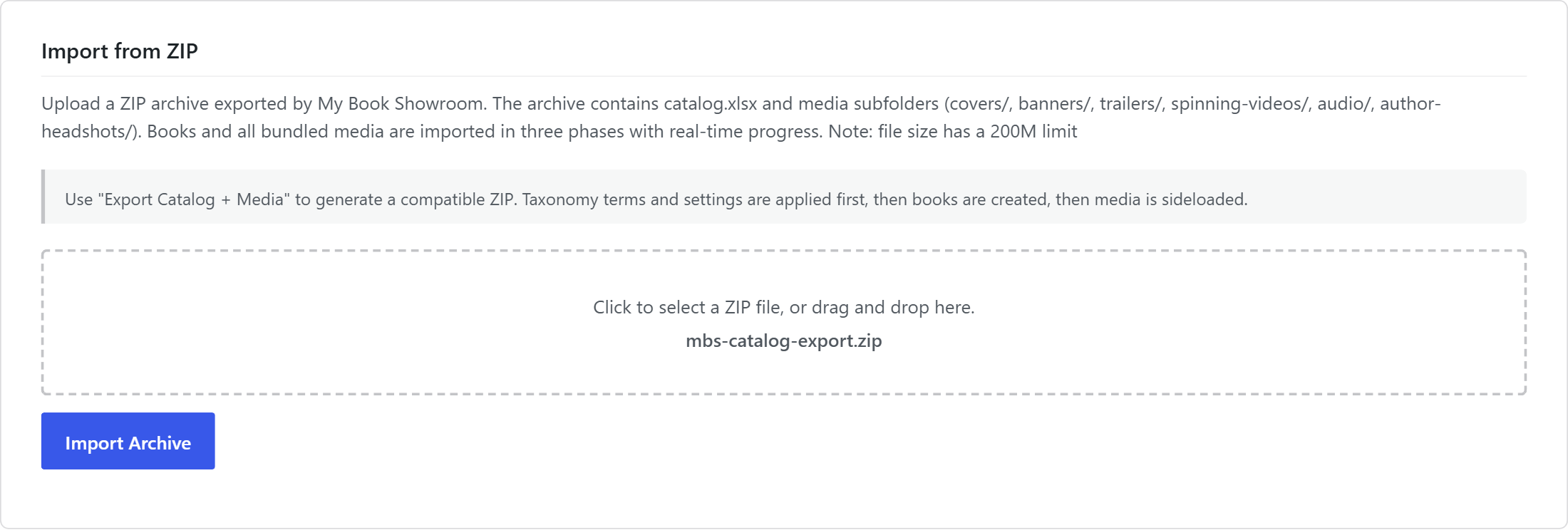
On Professional (PRO) and Publisher (PUB), Settings > Import/Export has an Export Catalog + Media card that packs every book plus all media (covers, banners, trailers, audio, author headshots, and book-club files) into a single ZIP — a multi-tab catalog.xlsx plus media subfolders. On the destination PRO/PUB site, the Import from ZIP card recreates each book, restores taxonomy terms first, then sideloads the media into the new media library. The archive upload limit is 200 MB.
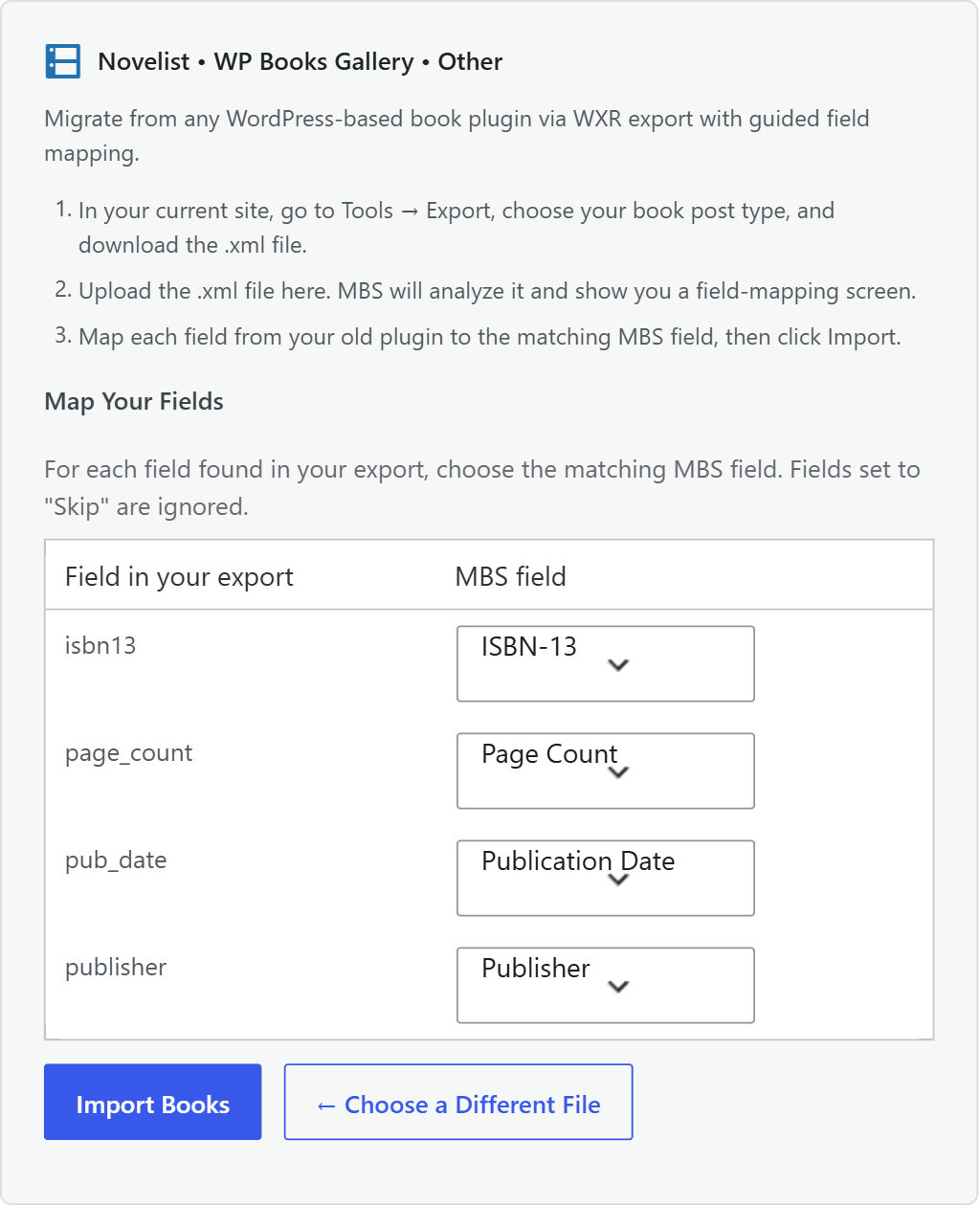
My Book Showroom reads a standard WordPress export file (a WXR .xml). It ships zero-mapping importers for MyBookTable, Novelist, WP Books Gallery, Genesis / Osom Author Pro, RS WP Books Showcase, and GS Books Showcase. For any other plugin, upload the .xml on the WXR path and MBS analyzes it, then shows a guided field-mapping screen so you match each source field (Publisher, ISBN-13, Series, and so on) to the matching MBS field. All competitor migration is free — it is never gated behind a license.
From a book's Export Book Bible metabox, Professional (PRO) and Publisher (PUB) users download a print-ready XLSX dossier for that one title. PRO produces six tabs (Title & Overview, Marketing, Classification, Contributors, Formats & Retail, Production Notes); Publisher (PUB) adds two more — a Chicago-style copyright-page draft and a ready-to-paste EPUB OPF metadata block. A completeness badge reflects how fully the book is filled in. The export requires the PHP zip extension.
Publisher (PUB) exports short-tag ONIX in versions 2.1, 3.0, and 3.1. Book lifecycle maps to ONIX PublishingStatus automatically — Active maps to 04, Coming Soon / Pre-Order to 02 (Forthcoming), and Out of Print to 07. Set your sender and publisher details on the ONIX tab first. On import, MBS reconciles records by ISBN-13; books without one are skipped.
7. ARC Management
▼ARC (Advance Reader Copy) management lets you track review copies of your books. From the book editor you record reviewer names and emails, copy count, target review date, and whether a review has been received. You can add an ARC self-signup form to your site so readers can apply directly.
In the book editor, open the ARC Management metabox. Set the status to Active, enter your target date and copy count, and add reviewer rows with names and email addresses. To let readers apply themselves, add the ARC Signup block (mbs/arc-signup, Professional (PRO)) to any page on your site.

FREE installs can manage 1 active ARC book at a time with up to 5 reviewers per book. Professional (PRO) installs support unlimited active ARC books with up to 25 reviewers per book. Publisher (PUB) installs have no limit on active books or reviewers.
In the ARC Management metabox, click Export and choose XLSX, CSV, or JSON format. Export is available on Professional (PRO) and Publisher (PUB) installs; FREE installs do not have export. The full ARC Campaign Overview dashboard — with conversion percentage and overdue flags — is available on Publisher (PUB) installs.
In the ARC Management metabox, change the status from Active to Closed. Closed campaigns are preserved in your records but do not count against your active book limit.
Add the ARC Signup block (mbs/arc-signup, Professional (PRO)) to a book page so readers can self-nominate; on FREE the block outputs nothing. It includes a hidden honeypot and a rate limit of three applications per book per IP per hour, plus optional reCAPTCHA v3, hCaptcha, or Cloudflare Turnstile. Applicants land in that book's ARC metabox as pending for you to approve, and can auto-sync to your ESP's ARC reviewer list.
8. Buy Links and Affiliates
▼Go to Settings > Affiliate / Earn More. Enter your Amazon Associates tag. On Professional (PRO) and Publisher (PUB), MBS automatically appends your affiliate tag to Amazon buy links at render time; on FREE, buy links are shown unmodified.
Yes. Settings > Affiliate / Earn More lets you set per-retailer URL overrides and add custom store rows for retailers not in the standard list. Like the affiliate tag, these overrides are applied at render time on Professional (PRO) and Publisher (PUB).
MBS includes branded support for Amazon, Apple Books, Barnes and Noble, Kobo, Google Play, Gumroad, BookFunnel, and Shopify. You can also add signed copy, library, and fully custom link types. Shopify Buy Button embed code is supported for direct storefront integration.
Yes — available on all tiers at no extra cost. Go to Settings > General and select your Default Currency. Natively supported cryptocurrencies are Bitcoin (BTC), Ethereum (ETH), Litecoin (LTC), and Dogecoin (DOGE), each with the correct currency symbol. If you use a different cryptocurrency or token, select Other / Custom and enter your own symbol. The selected currency applies to price display throughout your catalog. MBS displays the price — your chosen payment platform (WooCommerce, Gumroad, or any custom integration) handles the transaction.
Buy link click analytics are available on Professional (PRO) and Publisher (PUB) installs. On click, readers are routed through a transparent redirect that logs the retailer and link before sending them to the destination. Go to My Books > Buy Link Analytics for a date-filtered report grouped by link.
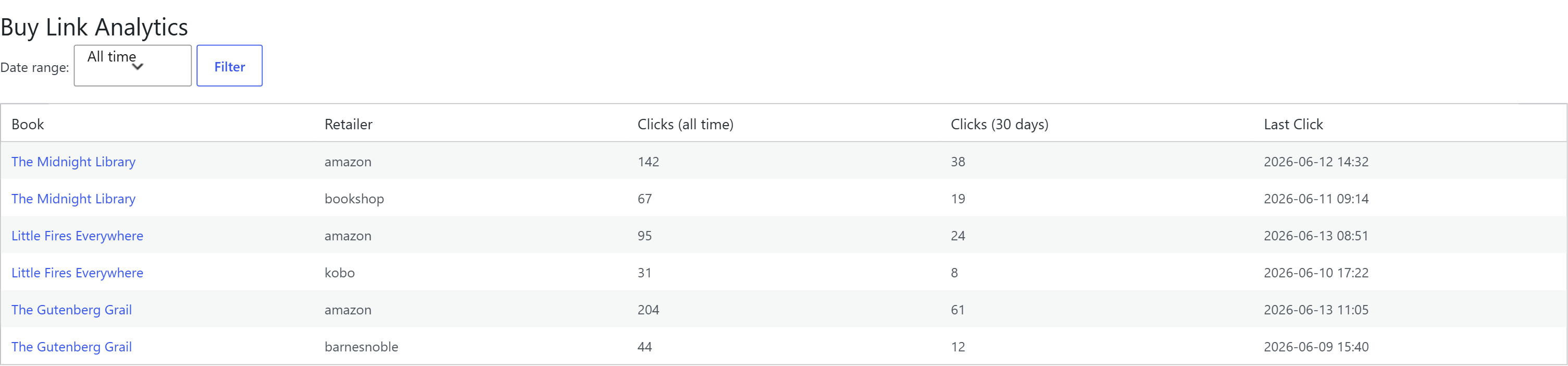
Professional (PRO) and Publisher (PUB) installs can connect each book to a WooCommerce product. Enable the WooCommerce toggle on the book editor, link or auto-create the corresponding product, and MBS displays an Add to Cart button on the book page alongside buy links.

The Reader Links > Reader Platforms tab is pre-seeded with Goodreads, BookBub, and StoryGraph rows — paste your book's page URL into each one you want, and blank rows are hidden. Use + Add Platform for custom communities. These render as "add to shelf / follow" buttons in their own discovery zone, stored and displayed separately from your retailer buy links. Branded icons are free; custom icons are a PRO enhancement.
9. Email and Newsletter Integration
▼MBS supports Mailchimp, MailerLite, ConvertKit, Brevo, ActiveCampaign, GetResponse, Campaign Monitor, Moosend, Sendy, Flodesk, and Author.Email — 11 platforms in total. Configure your platform in Settings > Email / Newsletter.

Place [mbs_esp_signup] on any page. Readers enter their name and email and consent to your list. MBS passes the signup to your configured ESP automatically. You can tag subscribers by book title, series, or genre using toggles in Settings > Email / Newsletter. Double opt-in is supported on platforms that offer it.
Yes. The New Release Broadcast feature in Settings > Email / Newsletter queues a campaign when a new book is published. You review and send it manually using the Send button — MBS does not send emails automatically without your confirmation.
10. Theme and Plugin Compatibility
▼Yes. MBS includes a Divi compatibility file that prevents Divi styles from overriding MBS book layouts and restores the MBS single book template when the Divi Visual Builder is active on a book page.
Yes. A dedicated Avada compatibility file prevents Avada’s CSS from overriding MBS display elements.
Yes — compatibility files are included for all five themes. MBS loads the appropriate file automatically when one of these themes is active.
First temporarily switch to a default WordPress theme (Twenty Twenty-Four or similar) and check if MBS displays correctly. If it does, the issue is a CSS or JavaScript conflict with your theme. The most common cause is the theme applying aggressive heading, paragraph, or link styles inside content areas that override MBS styles. Contact support with your theme name and a description of what looks wrong.
MBS shortcodes and blocks can be placed inside most page builders using a shortcode widget or HTML block. Full builder-specific compatibility has been confirmed for Divi and Avada. For other builders, placing [mbs_books] in a shortcode element is the most reliable approach.
Yes. Professional (PRO) and Publisher (PUB) installs can link books to WooCommerce products, sync the lowest format price to the WooCommerce regular price, set the SKU to the book's ISBN-13, and display an Add to Cart button alongside buy links on the single book page.
11. License and Account
▼Go to dmrstech.com and enter the email address you used when you registered or purchased. A fresh key is generated and emailed to you automatically — the old key is revoked at the same time. Your active sites continue working without interruption.
FREE licenses allow 1 active site per key, but you can generate unlimited keys at no cost. Professional (PRO) licenses also allow 1 active site per key. Publisher (PUB) licenses allow 3 active sites per key — enough for a live site, a staging environment, and a development install. You can see how many slots are in use in Settings > License.
Go to Settings > License on your old site and click Deactivate. This frees the slot. Then install MBS on your new site, enter your license key, and activate. If you no longer have access to the old site, contact support to have the slot freed manually.
The FREE tier is your trial — and it is a real one. It is not a time-limited demo, a feature-crippled teaser, or a bait-and-switch. It is a fully functional book catalog you can run on as many websites as you want for as long as you want, at no cost. We built it that way deliberately so that no one ever needs to spend a dollar on MBS until they are genuinely confident it does what they need.
Because of that, all sales are final and we do not offer refunds. We think that is a fair position: by the time you purchase Professional (PRO) or Publisher (PUB), you have already used the product. You know what it does.
A few other things worth knowing:
- There is no subscription. Professional (PRO) and Publisher (PUB) are one-time purchases. No monthly fees, no renewal charges, no expiry date.
- You are not locked into your tier. If you start on Professional (PRO) and later decide you need Publisher (PUB) features, the upgrade is $30 — not a full repurchase.
- We are here if something is not working. Contact us before you decide the plugin is not right for you — we would rather help you succeed than lose you.
Yes. The upgrade costs $30.00 USD. Purchase the Publisher (PUB) upgrade at dmrstech.com; you will receive a new Publisher (PUB) key by email. In Settings > License, deactivate your current Professional (PRO) key, then activate the new Publisher (PUB) key. All your books, settings, and data are preserved. If you need assistance, contact support@dmrstech.com.
Contact support@dmrstech.com to request an email transfer. License keys are associated with the email address used at registration or purchase.
A Publisher (PUB) key activates on up to three WordPress sites — paste the same key on each site's License tab, and the dmrstech.com API tracks the count and blocks a fourth activation. To move a slot, Deactivate on the old site first. Publisher also unlocks the Publishers and Imprints taxonomies and the per-book Publisher & Imprint metabox.
12. Analytics and Tracking
▼Go to Settings > Appearance. Enable the analytics toggle, select your provider (GA4 or Plausible), and enter your GA4 Measurement ID or your Plausible domain. MBS injects the tracking code site-wide on your front end automatically.
Only if you explicitly opt in to telemetry — you are asked once during setup and can change your answer at any time in Settings. If opted in, MBS sends once per week: your WordPress version, PHP version, MBS plugin version, total book count, which layouts are active, and which features are enabled. It never sends book titles, author names, ISBNs, cover images, buy link data, or any information that identifies you or your readers.
No. Your Amazon PA-API Access Key and Secret Key are stored encrypted in your WordPress database only. They are used exclusively to query Amazon's servers directly from your site. They are never transmitted to any DMRS Tech server — this is a hard architectural rule, not just a policy.
Brand Monitor — available on Professional (PRO) and Publisher (PUB), not Publisher-only — tracks web mentions of your name or titles via RSS, typically Google Alerts feeds. Add up to two feed URLs in Settings > Dashboard > Brand Monitor, and a dashboard widget shows recent mentions (title, source, date, and a Read link) with a manual Refresh.
13. Troubleshooting
▼Drag-and-drop sort handles are available on Professional (PRO) and Publisher (PUB) only. On FREE, reorder sections with the up and down arrow buttons. If you are on PRO or Publisher and the drag handles are not appearing, JavaScript may be disabled or a theme or plugin conflict is interfering; with JavaScript off, use your keyboard arrow keys (shown under the “No JavaScript?” note) to reorder. If the issue persists, contact support with your theme name and any installed page builder plugins.
The most common cause is that your server cannot make outbound connections to the license server. Ask your host to confirm that outbound HTTPS POST requests are not blocked by a firewall or security plugin. Also confirm your server clock is accurate — the license system rejects requests with timestamps more than 5 minutes out of sync with the server.
BISAC code display is capped by tier: FREE shows 1, Professional (PRO) shows up to 10, Publisher (PUB) shows all. All codes you enter are stored regardless of tier. Upgrading reveals the additional codes immediately without re-entering them.
This is usually caused by a stale cached version check. Go to Tools > Site Health in your WordPress admin to run a fresh check, or deactivate and reactivate the plugin. The notice should clear on the next page load.
The Universe opt-in toggle in Settings > Advanced must be enabled. Professional (PRO) license plus enabled toggle = Universes tab visible. If the toggle is off, the tab is hidden even on Professional (PRO) installs.
Go to Settings > Permalinks in WordPress and click Save Changes without changing anything. This flushes the rewrite rules and registers MBS's custom post type and taxonomy archives. You should only need to do this once after installation.
The CSV importer groups rows into a single book by matching title and author name. If the same book appears more than once after import, check that the title and author name are spelled identically across all format rows for that book. Differences in capitalization, spacing, and punctuation are normalized and ignored when matching, so they will not split a book. Genuinely different wording — a different author-name form, or a typo in the actual words — is what creates separate books.