Series vs. Collections vs. Universes
MBS provides three grouping tools with distinct purposes:
- Series — an ordered sequence (a trilogy, a numbered saga). Each book
belongs to at most one series, and each has a position number (Book 1, Book 2, ...).
- Collection — a flexible, non-sequential grouping for boxed sets, anthologies,
omnibus editions, reading challenges, or bundles. One book can belong to multiple collections.
- Universe — a shared fictional world spanning multiple series (PRO). Not
required for most authors.
Step 1 — Create a series
- Go to My Book Showroom → Series in the WordPress left sidebar
- Type the series name in the Name field under Add New Series
- Click Add New Series
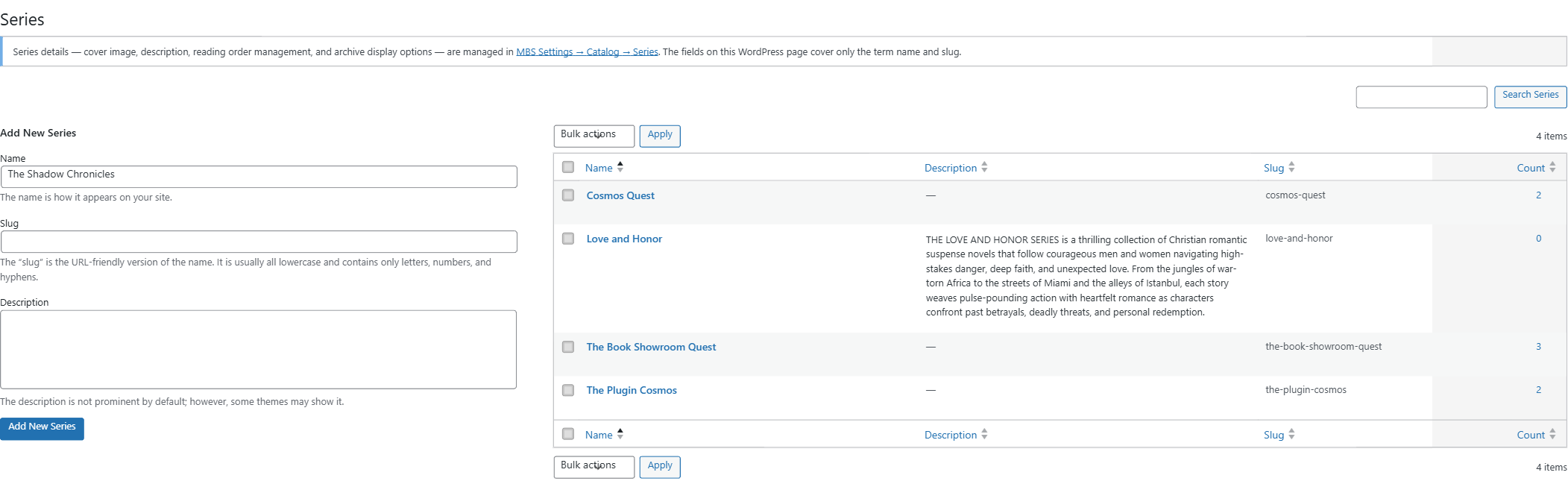
The series appears in the list. You can rename it or edit its slug by clicking the series name.
You can also create a series on the fly from the book editor — type a new name in the Series panel and it is created when you save. Use the Settings tab when adding several series at once or when you need to set a custom slug.
Step 2 — Assign a book to the series
- Open a book in the editor (My Book Showroom → Books → Edit)
- Click the Book Details tab, then the Discovery sub-tab
- In the Part of section, choose your series from the Series dropdown
To set the reading-order position, enter a number in the Series Position field directly below the Series dropdown. Book 1 = 1, Book 2 = 2, etc.
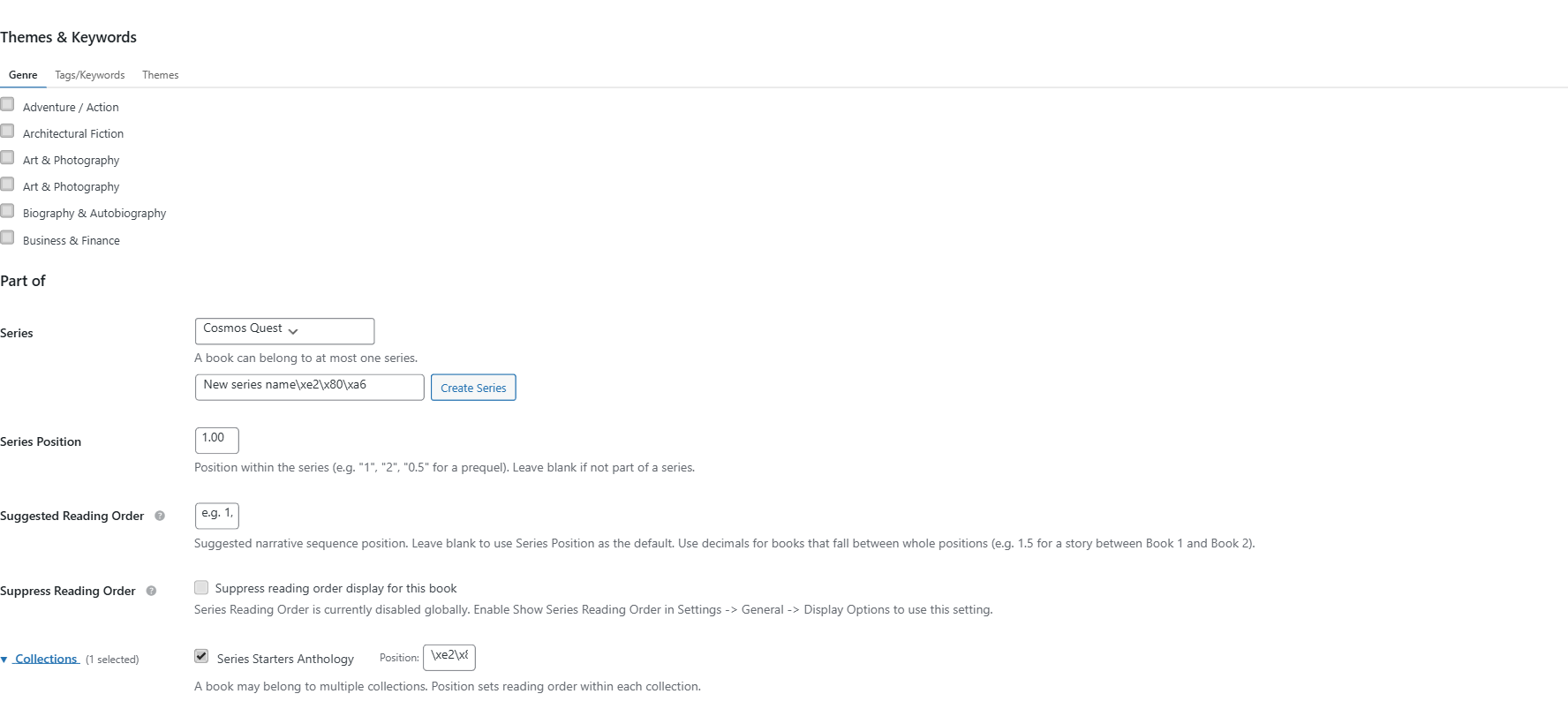
Set the position for every book in the series. Books without a position sort after all numbered entries on the series archive page.
Step 3 — Check the series archive page
Each series automatically gets a public archive at a URL like /mbs_series/your-series-slug/. The page shows a reading-order grid with position badges on each cover.
You do not need to create or configure this page — MBS registers the series taxonomy and its archive template at activation.
Step 4 — Create a collection
Collections are for groupings where order is optional and a book can appear in more than one group.
- Go to My Book Showroom → Collections in the WordPress left sidebar
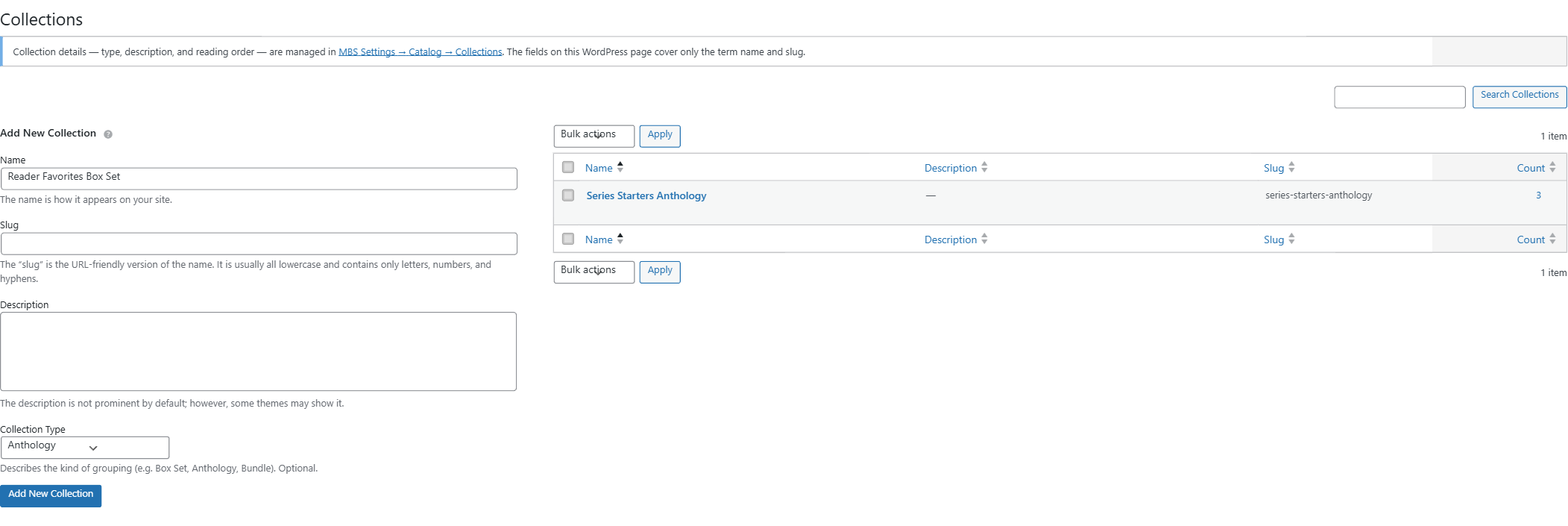
- Type the collection name in the Name field under Add New Collection
- Choose a Collection Type from the dropdown (optional): Anthology, Box Set,
Bundle, Omnibus, Book Club / Reading Challenge, and 11 other standard types
- Click Add New Collection
Step 5 — Add books to the collection
- Open any book in the editor
- Click the Book Details tab, then the Discovery sub-tab
- In the Part of section, check one or more collection names under Collections
Unlike Series, a single book can belong to multiple collections simultaneously. If the collection has a meaningful display order (for example a numbered omnibus), enter a Position value in the field that appears next to each checked collection.
Universes (PRO)
A Universe groups series from different sequences that share a fictional world (for example a large fantasy setting that spans four separate series). Universe management requires a PRO license. Contact support for activation details after upgrading.