
What you will need
- My Book Showroom PRO license activated on your site
- A book you want to mark as coming soon or available for pre-order
- The confirmed publication date for the book (recommended)
Step 1 — Open the book editor and find the Publication section
Edit the book in question (My Book Showroom → Books → edit a book). At the top of the page, inside the Book Header metabox, locate the Publication section. This section contains the lifecycle and date controls.
Step 2 — Set the Lifecycle State
In the Publication section, find the Book Status dropdown. The options available depend on your tier:
| Option | Available to | |---|---| | (blank — normal) | All tiers | | Out of Print | All tiers | | Out of Stock | All tiers | | Coming Soon | PRO only | | Pre-Order | PRO only |
Select Coming Soon for a book that is announced but not yet released. Select Pre-Order for a book that is available for pre-order purchase.
If you do not see Coming Soon or Pre-Order in the dropdown, confirm your PRO license is active under My Book Showroom → Settings → License.
Step 3 — Set the release date
Still in the Publication section, click the Release Date field and use the date picker to set the actual publication date.
MBS checks this date automatically. When you set a future release date on the admin screen, the Coming Soon state is indicated automatically via JavaScript. When that date arrives, MBS automatically clears the Coming Soon flag — no manual action required.
Always set the Release Date to the actual pub date, even if you are also manually selecting the Coming Soon lifecycle state. The date drives the automatic flag-clearing logic and ensures the badge disappears on launch day without any intervention.
Step 4 — Add a pre-order link
When Pre-Order is selected as the Lifecycle State, a Preorder Link field appears in the Publication section. Enter the full URL where readers can pre-order the book (for example, your Amazon, Barnes & Noble, or direct sales pre-order page).
On the front-end book page and book card, this URL renders as a prominent Pre-Order Now buy button — styled distinctly from standard buy buttons so readers immediately recognize the pre-order status.
Step 5 — Configure the Coming Soon badge appearance
Badge visibility: go to My Book Showroom → Settings → General and find the Show Coming Soon Badge toggle. When enabled (the default), the badge is rendered on coming-soon book cards in the showroom grid and on the full book page.
Badge colors: go to My Book Showroom → Settings → Appearance and locate the Coming Soon Background and Coming Soon Text color tokens. Click each swatch to set your preferred colors.
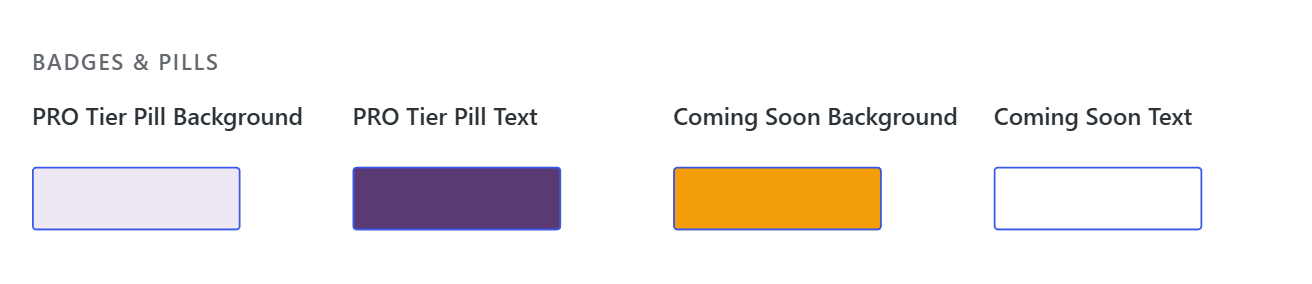
Use a color that contrasts with your card background for the Coming Soon badge — high contrast makes it immediately scannable for readers browsing your catalog.
Step 6 — Monitor pre-order and coming soon counts
The MBS Dashboard (main WordPress dashboard screen) shows a Catalog Stats widget with live counts for Pre-Order books, Coming Soon books, and Future (scheduled) books. Use these counts to track your upcoming release pipeline at a glance.
Step 7 — Understand how lifecycle states appear in ONIX exports
Books with a Coming Soon or Pre-Order lifecycle state are exported in ONIX feeds with PublishingStatus set to 02 Forthcoming — the correct ONIX status for announced but not yet released titles. This signals to distributors and retailers that the book is available for pre-order listing or catalog inclusion ahead of publication.
ONIX export requires the Publisher license. If your license does not include ONIX, the lifecycle state is still stored correctly and will be included in exports when you upgrade.