
What you will need
- My Book Showroom PRO or Publisher license activated on your site
- At least one book added as an
mbs_bookpost - An SMTP plugin configured in WordPress (e.g. WP Mail SMTP, FluentSMTP) so
reviewer invite emails can be delivered
- Reviewer names and email addresses on hand
Step 1 — Open the ARC metabox on your book
Navigate to My Book Showroom → Books and open the book you want to run an ARC campaign for. On the book editor page, scroll down until you see the ARC / Pre-Release metabox. It appears on every mbs_book post.

On the FREE tier, the metabox shows a locked state when any other book already has an Active campaign. Only one book at a time can be Active on FREE. Upgrade to PRO to run unlimited Active campaigns simultaneously.
Step 2 — Configure the campaign fields
Fill in the four campaign fields at the top of the metabox:
| Field | Description | |---|---| | Status | Choose Not Started, Active, or Closed | | Distribution Date | Date you plan to send copies to reviewers | | Close Date | Date the review window ends | | Target Review Date | Deadline you want reviewers to post their review by | | Copy Count | Number of ARCs being distributed |
Set Status to Active to open the campaign.
Step 3 — Add reviewers manually
In the Reviewer table below the campaign fields, click Add Reviewer. Enter the reviewer's Name and Email address, then choose an initial Status from the dropdown: Invited, Sent, Received, Reviewed, or Declined.
Repeat for each reviewer. Click Update (or Save) on the book post to commit the list.
Reviewer limits by license tier:
| Tier | Active campaigns | Reviewers per book | |---|---|---| | FREE | 1 | 5 | | PRO | Unlimited | 25 | | Publisher | Unlimited | Unlimited |
Step 4 — Send reviewer invite emails
MBS composes invite emails automatically using the book title, author name, and Distribution Date you set in Step 2. Email delivery runs through your site's configured SMTP plugin via wp_mail.
To customize the email template, go to My Book Showroom → Settings → Email tab and edit the ARC invite template fields there.
After saving the book, click Send Invites in the metabox to dispatch invite emails to all reviewers whose Status is Invited.
Adjust the email template in Settings → Email before sending your first batch. Include the book title, download instructions, and your preferred reply-to address.
Step 5 — Accept public ARC applications via shortcode
To let readers apply for an ARC through your website, add the following shortcode to any WordPress page or post:
[mbs_arc_signup book_id="123"]Replace 123 with the actual WordPress post ID of your mbs_book. The shortcode renders a public form where visitors submit their name and email address to request a copy.
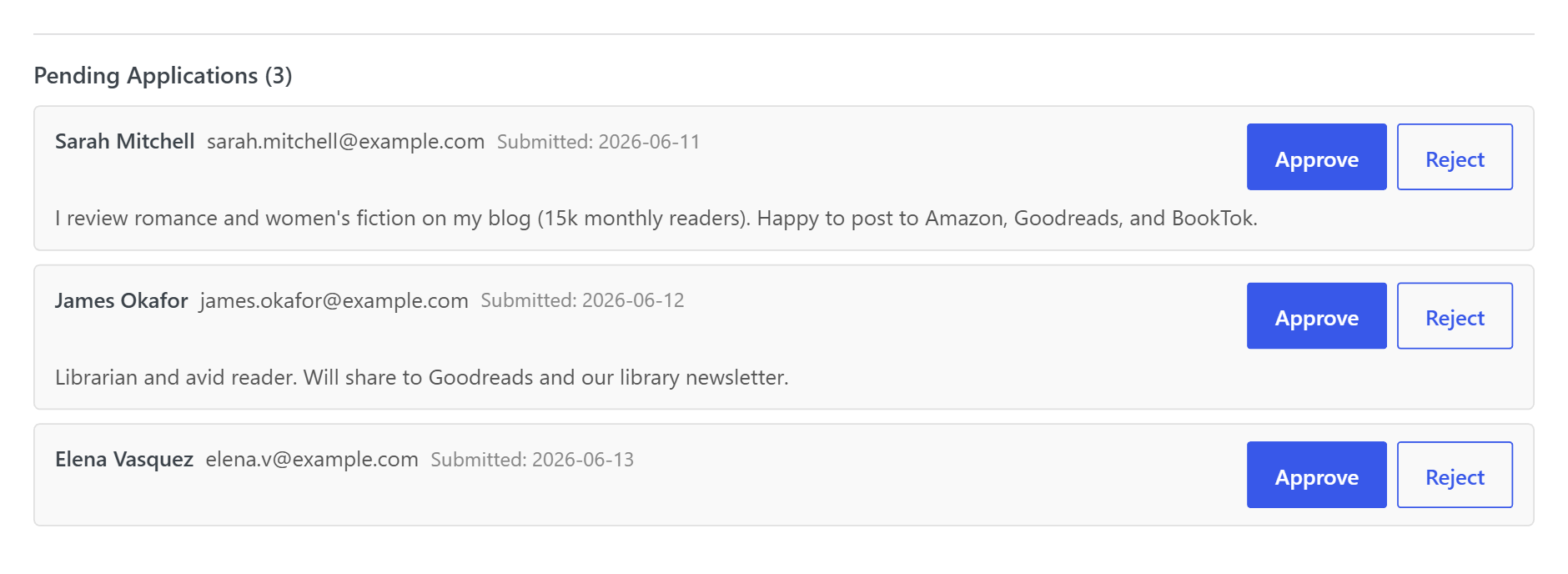
Submitted applications appear in the Pending Applicants section inside the ARC / Pre-Release metabox on the book editor page. From there you can Approve or Decline each applicant. Approved applicants are added to the reviewer table automatically with Status set to Invited.
Step 6 — Export the reviewer list
PRO and Publisher licenses can export the full reviewer list. In the ARC / Pre-Release metabox, click the Export Reviewers button and choose from:
- XLSX — Excel-compatible spreadsheet
- CSV — comma-separated plain text
- JSON — structured data for programmatic use
The export includes all reviewer rows: name, email, and current status.
Step 7 — Close the campaign when the window ends
When the review period is over, set Status to Closed and click Update. This removes the campaign from the Active queue and keeps your dashboard tidy.
Close campaigns promptly after the review window ends. A clean dashboard makes it easy to spot which books have campaigns that still need attention.