My Book Showroom comes in three tiers — FREE, PRO, and Publisher. When you are ready for more features or more sites, you upgrade by purchasing the higher tier at dmrstech.com and activating the new key. This guide covers that upgrade path and then explains how plugin updates reach your site.
What you will need
- My Book Showroom installed and activated
- WordPress admin access
- An email address where you can receive your license key
Step 1 — Know which tier you are on
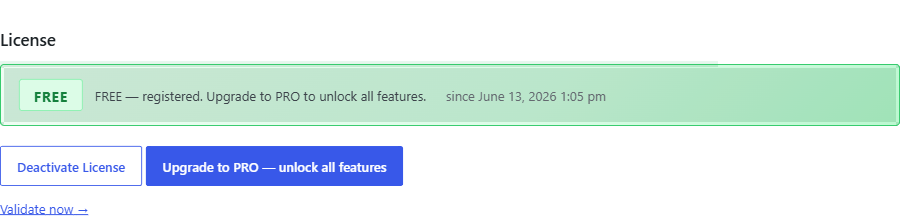
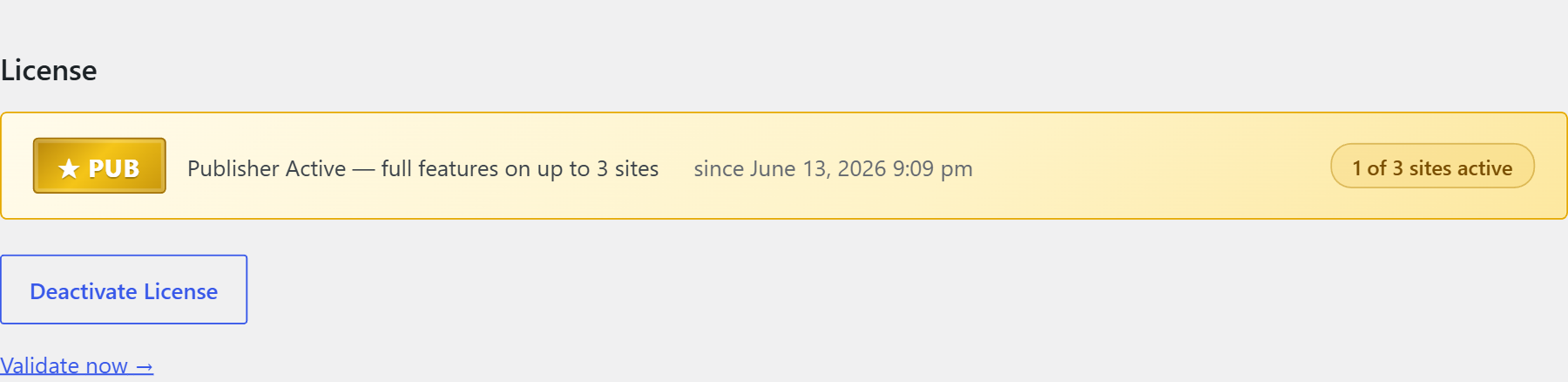
In your WordPress admin, go to My Book Showroom → Settings and open the License tab. The status hero at the top shows your current tier as a large badge: FREE, PRO, or a gold-starred PUBLISHER.
- FREE — the core showcase features on one site; a free key is optional.
- PRO — the full feature set on one site.
- Publisher — the full feature set on up to three sites.
Step 2 — Purchase the higher tier
Upgrading is a purchase, not a setting. From the License tab you can jump straight to the store:
- On a FREE install, click Upgrade to PRO — unlock all features.
- On a PRO install, click Upgrade to Publisher — run on up to 3 sites.
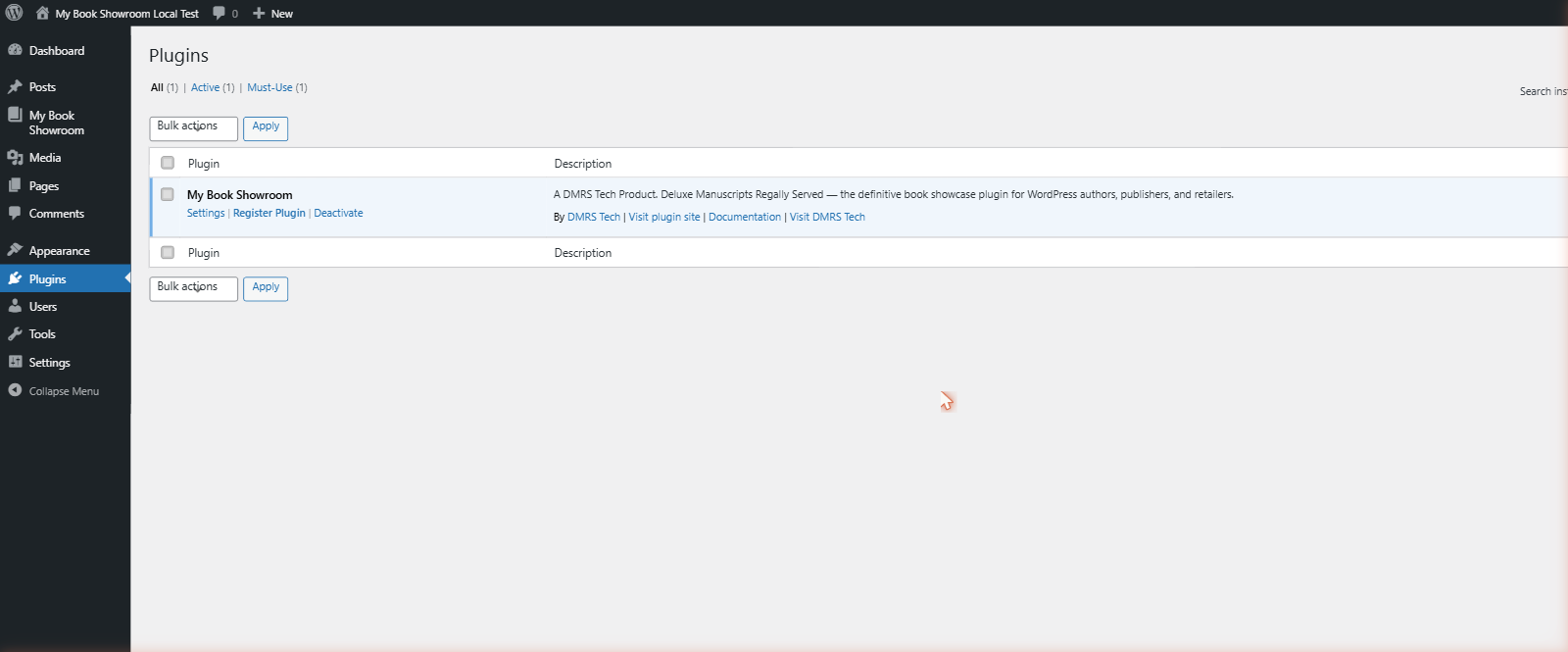
Each button opens dmrstech.com in a new tab, pre-selected for the tier you are moving to. You will also find an Upgrade to PRO link next to My Book Showroom on the WordPress Plugins screen when you are on the FREE tier.
You are always upgrading, never reinstalling. The plugin files stay exactly as they are — an upgrade simply unlocks more features once the new key is activated.
Step 3 — Receive your new key
Complete the purchase on dmrstech.com. Your new license key is emailed to the address you used at checkout. Keep that email handy — you will paste the key into the plugin in the next step.
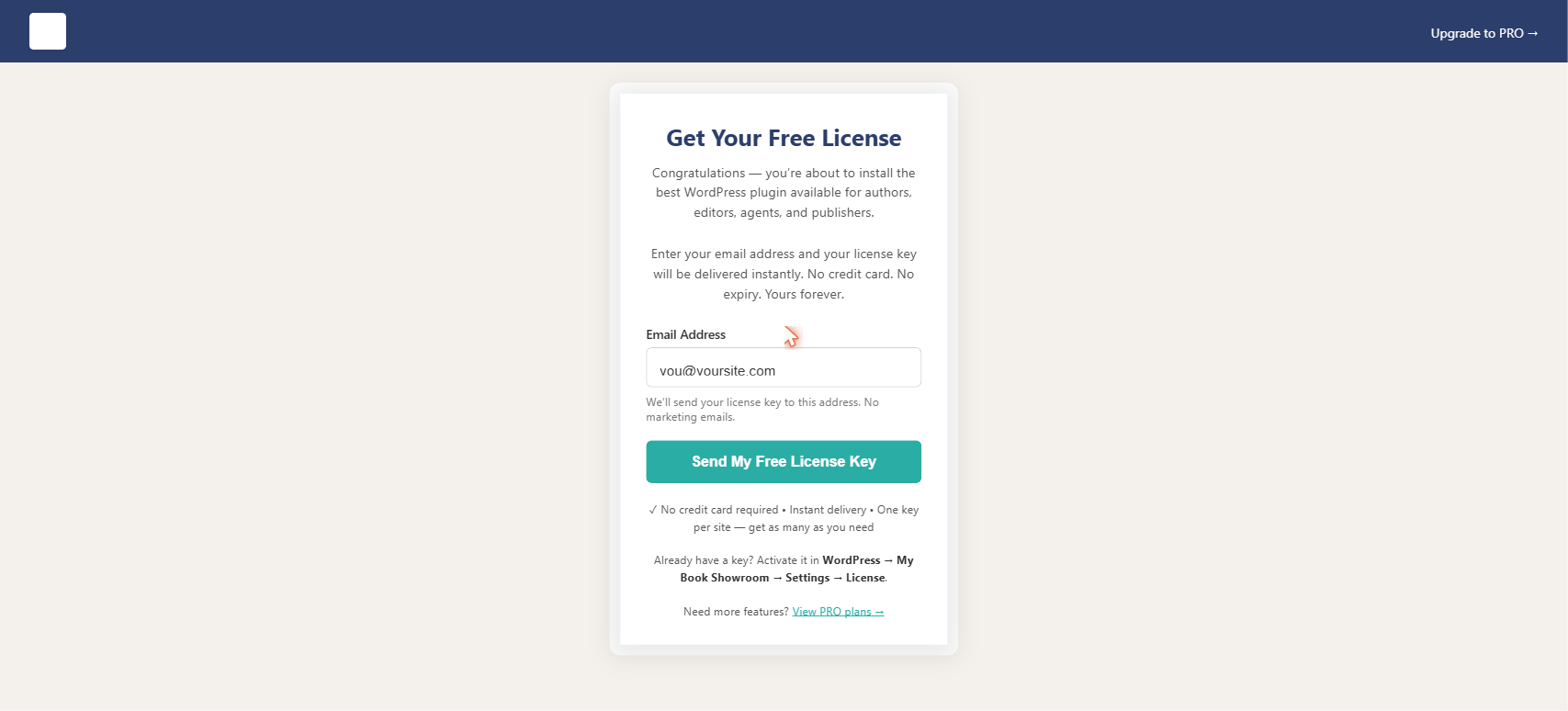
The activation flow is identical for every tier. Whether you are activating a free key, a PRO key, or a Publisher key, you paste it into the same field on the License tab and click the same button. There is nothing different to learn when you move up.
Step 4 — Activate the new key
Back on the License tab, paste your new key into the License Key field and click Activate License. If a key is already active, click Deactivate License first, then activate the new one.
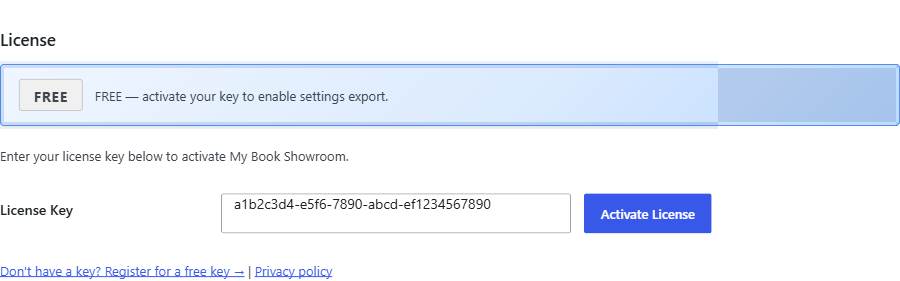
When activation succeeds, the status hero updates to your new tier — for example, the gold PUBLISHER badge reading "Publisher Active." The features that tier unlocks become available immediately, with no reinstall needed.
Step 5 — How plugin updates reach your site
Upgrading your tier is separate from updating the plugin to a newer version. Updates use WordPress's normal mechanism: when a newer version of My Book Showroom is available, the Plugins screen shows the familiar "There is a new version available" notice with an update now link. One click installs it, exactly like any other plugin.
How the notice gets there depends on how you installed the plugin:
- Registered installs (any active key — free, PRO, or Publisher) receive
update notices directly from dmrstech.com. The plugin's built-in update checker asks the dmrstech server whether a newer version exists and, if so, feeds that information into WordPress's native update system so the standard prompt appears.
- Installs from the WordPress.org directory receive update notices through the
directory itself, the same way every other WordPress.org plugin does.
The built-in update checker does nothing on an install with no active key. It makes no outside request and changes nothing in WordPress until a license key is activated, so an unregistered install is never contacted in the background.
Step 6 — Apply an update
When the update notice appears, go to Plugins and click update now in the My Book Showroom row, or update it from Dashboard → Updates. WordPress installs the new version in place. Your books, settings, and license stay intact — updating the plugin never changes your tier or your data.
As with any site change, take a backup before applying a major update if you run a live, public site. Updates are designed to be safe and in-place, but a current backup is always the sensible precaution.
A note on keeping your license valid
Your active key checks in with dmrstech.com about once a day to confirm it is still valid — the same connection that lets registered installs learn about new versions. As long as your site can reach dmrstech.com, both your tier features and your update notices keep working on their own.