
The Book Bible is the single most complete snapshot My Book Showroom can produce for one title. It is a formatted, print-ready XLSX workbook that gathers everything about a book — publication data, marketing copy, classification codes, contributor details, format and retail information, and production notes — into one organised file. Think of it as the source-of-truth dossier you hand to a designer, a distributor, or a co-author, or keep on file for your own records. The more fields you fill in on the book, the richer the Book Bible becomes.
What you will need
- A PRO (or PUB) license
- WordPress admin access
- A book record with as many fields populated as possible
Step 1 — Open the book and find the Book Bible metabox
In your WordPress admin, open the book you want to export (My Book Showroom → Books, then click the title). In the right-hand sidebar of the editor, find the Export Book Bible metabox.
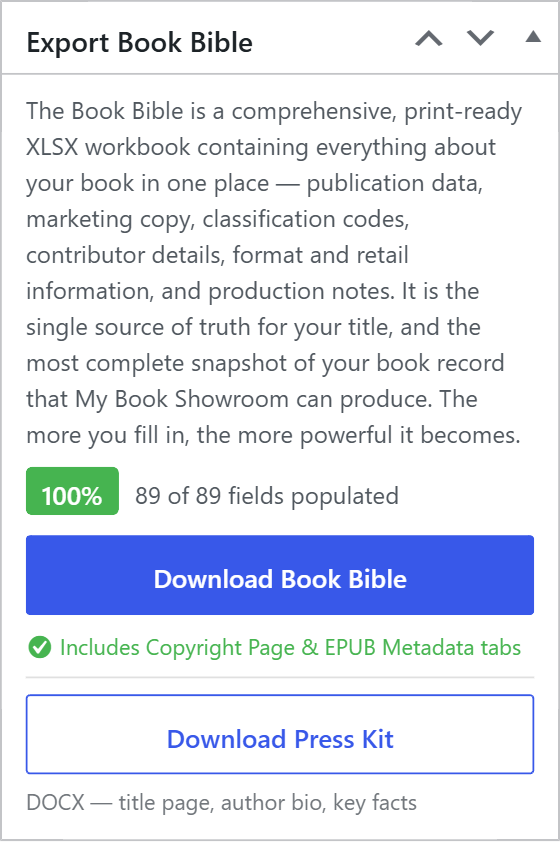
The metabox is visible to every tier so you can always see how complete your book is, but the download button itself requires a PRO license.
Step 2 — Check the completeness score
At the top of the metabox is a coloured completeness badge showing a percentage and an "X of Y fields populated" count. The color is a quick health check:
- Green (over 90%) — ready to export.
- Amber (61–90%) — usable, but consider adding more before you export.
- Red (60% or under) — too many fields are missing; export is not
recommended yet.
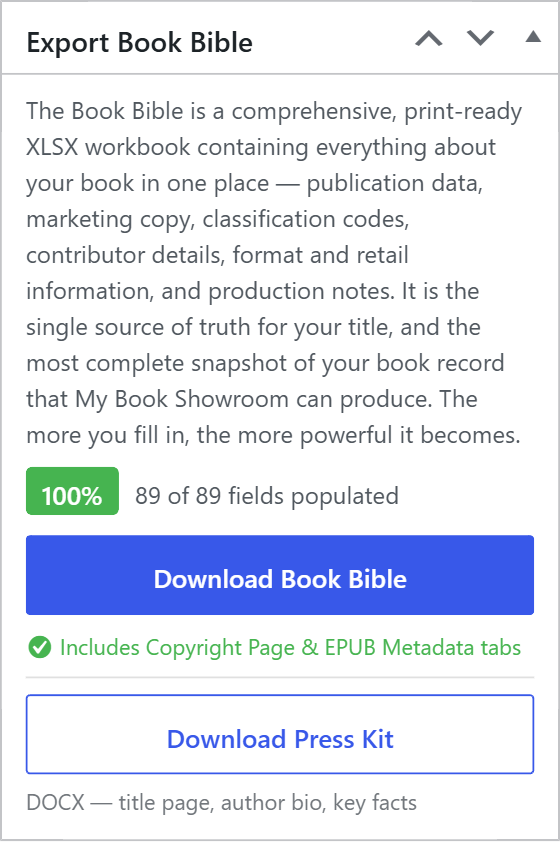
The badge reflects the last saved state of the book. If you have just filled in new fields, save or update the book first so the score and the export pick up your changes.
Step 3 — Download the Book Bible
Click Download Book Bible. My Book Showroom gathers the book's data, builds the workbook in memory, and streams it straight to your browser — no file is left on the server. The download is named after the book, for example my-title-book-bible-{date}.xlsx.
The export needs the PHP zip extension (XLSX files are ZIP archives internally). Virtually every WordPress host enables this by default. If you see a message about php_zip not being enabled, ask your host to switch it on, then try again.
Step 4 — What the tabs contain
A PRO Book Bible has six worksheet tabs:
- Title & Overview — publication data (title, tagline, publisher,
imprint, pub date, copyright year, series, LCCN) plus a completeness summary.
- Marketing — tagline, teaser, synopsis / back-cover copy, genre and
tags, and seven KDP keyword slots with a length check.
- Classification — BISAC, Thema, BIC, and Bowker codes with decoded
descriptions, audience and age range, and a Library of Congress CIP block.
- Contributors — primary author(s) with inverted name, birth year, and
bio, plus a table of additional contributors and their roles.
- Formats & Retail — one block per edition (ISBN-13, ASIN, page
count, edition details, supply-chain fields), a buy-links table, and reader platform links.
- Production Notes — publisher reference, related products / reading
order, and a manual print-production specs section with trim-size, paper, binding, and finish dropdowns.
A hidden Specs lookup sheet drives the trim-size dropdown; you do not need to touch it.
Step 5 — The two extra PUB tabs
If you hold a PUB license, the Book Bible includes two additional tabs built for publishers preparing files for print and ebook:
- Copyright Page — a ready-to-use copyright page draft following Chicago
Manual of Style conventions: copyright notice, rights statement, publisher block, identifiers, CIP block, production credits, disclaimer, and country of printing.
- EPUB OPF Metadata — a ready-to-paste XML
<metadata>block for an
EPUB content.opf file, plus a field-by-field reference table so you can verify every element before pasting.
The metabox tells you which tier you are on: PUB users see a green note confirming the extra tabs are included, while PRO users see an option to upgrade for them.
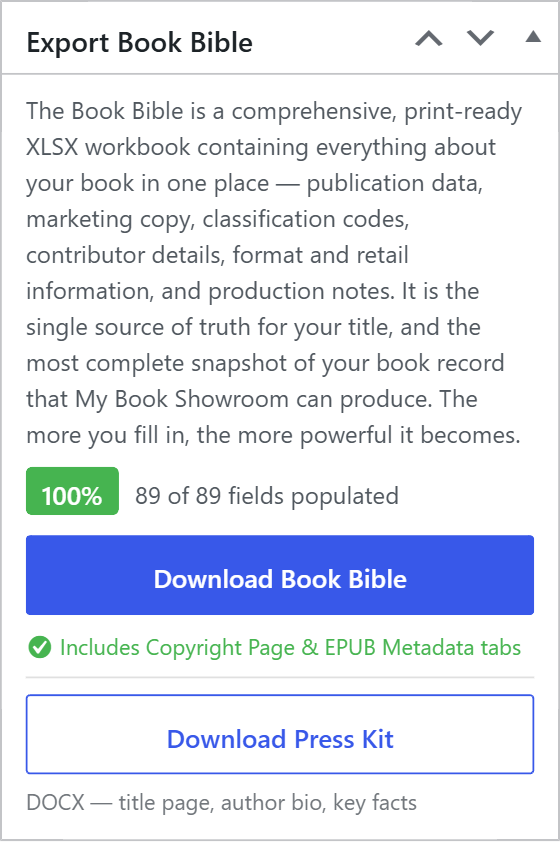
The Book Bible fills in what it can from your book record, but some cells are intentionally left for you. Fields shown in amber — such as an EPUB UUID or manual print specs — are placeholders you complete from your own tools or print provider. They are not data My Book Showroom stores.
Putting it to work
Generate a fresh Book Bible whenever a title is ready for hand-off: send the PRO tabs to a cover designer or distributor, use the PUB Copyright Page draft in your interior layout, and paste the EPUB metadata block straight into your ebook build. Because it is a standard XLSX file, anyone can open it in Excel, Google Sheets, or Numbers without My Book Showroom installed.