
What you will need
- My Book Showroom Publisher license activated on your site
- Books in your MBS catalog with complete metadata (ISBN-13, title, author,
description, BISAC codes, pricing per format)
- The name and email address of the contact person your distributor should reach
for ONIX queries
- Your distributor's preferred ONIX version (2.1, 3.0, or 3.1)
The ONIX tab is visible only to Publisher license holders. If you are on the FREE or PRO tier, the tab does not appear in My Book Showroom → Settings. Upgrade to Publisher to access it.
Step 1 — Open the ONIX settings tab
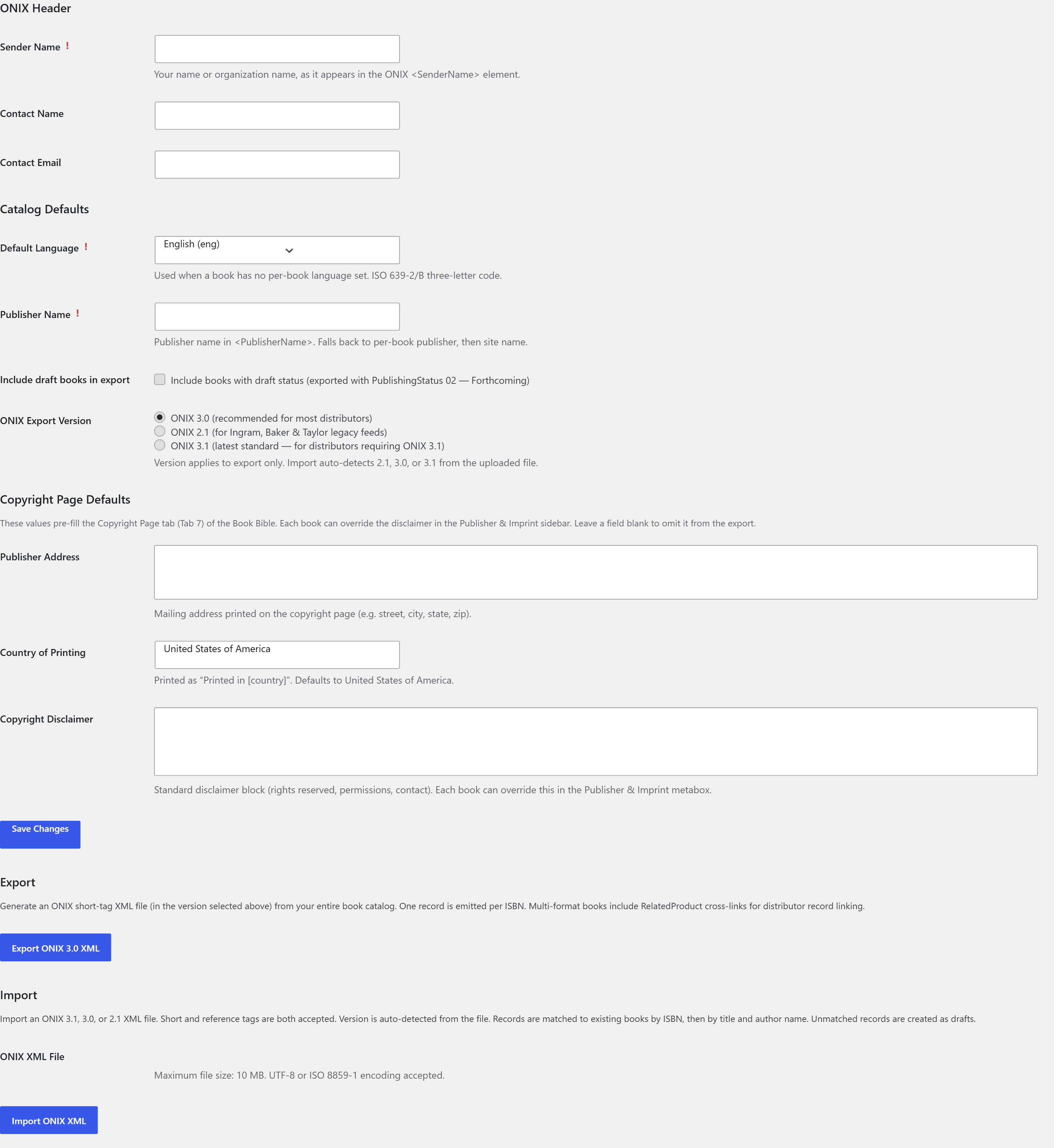
Go to My Book Showroom → Settings and click the ONIX tab. You will see the ONIX configuration panel.
Step 2 — Configure sender and publisher details
Fill in the fields in the ONIX Settings section. These values are written into the ONIX XML header and are required by distributors to identify the data sender:
| Field | Description | |---|---| | Sender Name | Your company or author name (maps to ONIX SenderName) | | Sender Contact | Name of the contact person | | Sender Email | Contact email address | | Default Language | ISO 639-2/B code for your catalog's primary language (e.g. eng, fre, ger, spa) | | Publisher Name | Global publisher name applied to all books (can be overridden per book in the book editor) |
Click Save Changes before proceeding.
Step 3 — Choose your export options
Still in the ONIX tab, set the two export-time options:
ONIX Version — select 2.1, 3.0, or 3.1 to match what your distributor accepts. MBS exports short-tag XML format for all three versions.
Include Drafts — toggle this on if you want draft-status books included in the export, or leave it off to export only published books.
Ask your distributor which ONIX version they require before your first export. Ingram Content Group and Baker & Taylor both accept ONIX 3.0. Smaller regional distributors may still require 2.1.
Step 4 — Review how book lifecycle states map to ONIX
MBS reads the status you have set on each book and writes the corresponding ONIX PublishingStatus code automatically:
| MBS book state | ONIX PublishingStatus | |---|---| | Active / Published | 04 Active | | Coming Soon / Pre-Order | 02 Forthcoming | | Out of Print | 07 Out of print |
No manual mapping is needed. Verify that your books have the correct status set in the book editor before exporting.
Step 5 — Export the ONIX file
Click the Export ONIX button. MBS assembles the XML and streams it to your browser as a download.
The filename follows this pattern: mbs-onix-YYYY-MM-DD.xml (for example, mbs-onix-2026-06-13.xml).
The exported XML includes the following fields for each book where data is available: ISBN-13, title, subtitle, series name and position, author, additional contributors (using ONIX List 17 role codes), publisher, imprint, description, edition, language, BISAC subject codes, Thema subject codes, publication date, page count, lifecycle state, and pricing per format and territory.

Run a test export and validate the resulting XML with your distributor's ONIX validator tool before submitting a live feed to Ingram, Baker & Taylor, or any other channel. Most distributors provide a free online validator or an FTP sandbox environment for this purpose.
Step 6 — Import an ONIX file to reconcile your catalog
To bring an existing ONIX feed into MBS — for example, when migrating from another system — click Choose File in the Import ONIX section of the same tab and select your ONIX XML file. MBS accepts ONIX 2.1, 3.0, and 3.1 on import.
Click Import. MBS parses the file and reconciles records against your catalog:
- If a book with a matching ISBN-13 already exists, MBS updates its metadata
fields.
- If no match is found, MBS creates a new
mbs_bookpost.
A summary message appears after the process completes, listing the number of books created, updated, and skipped (records with missing or invalid ISBN-13 values are skipped).
Import matching is by ISBN-13 only. Books without an ISBN-13 in the ONIX file cannot be reconciled and will be skipped.