
What you will need
- A PRO license (or higher) activated on this site — Buy Link Analytics
requires PRO; it is not Publisher-exclusive
- At least one book with buy links set up (see
Guide 04: Buy Links and Retailer Setup →)
- Readers who have clicked at least one buy button so there is data to view
This guide appears in the Publisher section of the documentation, but Buy Link Analytics is available on PRO and Publisher licenses. If you are on PRO without a Publisher upgrade, you have full access to this feature.
How click tracking works
Every buy button rendered by MBS routes through a WordPress AJAX handler. When a reader clicks a buy button, MBS logs the click — book ID, retailer slug, and timestamp — to the mbs_buy_link_clicks custom database table, then immediately redirects the reader to the retailer URL. The redirect is transparent; readers arrive at the retailer without noticing the tracking step.
On the FREE tier, click recording is disabled. The Analytics page shows an upgrade call-to-action instead of data.
Step 1 — Open the Buy Link Analytics page
From the MBS Dashboard, click the Buy Link Analytics tile in the action bar.

Step 2 — Read the report table
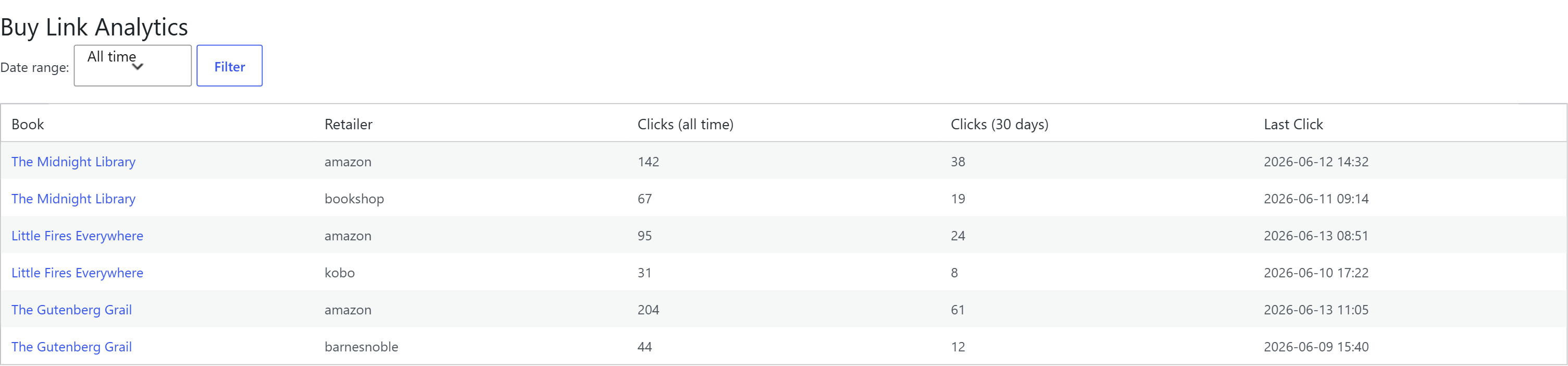
The report displays one row per book–retailer combination. The columns are:
| Column | What it shows | |---|---| | Book Title | The book name, linked to the book editor | | Retailer | The retailer slug (e.g. amazon, bookshop, kobo) | | Clicks (All Time) | Total recorded clicks since MBS was installed | | Clicks (Last 30 Days) | Clicks in the rolling 30-day window | | Last Click Date | The date and time of the most recent click |
Step 3 — Filter by date range
Use the Date Range dropdown above the table to change the reporting window. Three options are available:
- All Time — every click ever recorded
- Last 30 Days — the rolling 30-day window
- Last 7 Days — the rolling 7-day window
Select an option and the table refreshes to show counts for that window.
Step 4 — Sort the table
Click any column header to sort the report by that column. Click the same header again to reverse the sort direction. Sorting by Clicks (Last 30 Days) descending is a fast way to see your highest-performing retailer right now.
Check the Last 30 Days filter at least once a week. When one retailer consistently leads in clicks, move that retailer's buy link to the first position in the format row order for that book. Readers who see the most relevant option first are more likely to click through.
A note on exporting analytics data
The Analytics page is view-only — there is no export button on this screen. If you need raw click data for a spreadsheet or report, use My Book Showroom → Settings → Import/Export tab and run a CSV export of your catalog data.