What you will need
- A PRO license (or higher) activated on this site — Brand Monitor requires
PRO; it is not Publisher-exclusive
- One or more Google Alerts RSS feed URLs (or any RSS feed URL you want to monitor)
- A Google account to create Google Alerts (free)
This guide appears in the Publisher section of the documentation, but Brand Monitor is available on PRO and Publisher licenses. If you are on PRO without a Publisher upgrade, you have full access to this feature.
Step 1 — Create a Google Alert RSS feed
Brand Monitor works with any RSS feed URL, but the primary use case is Google Alerts. Follow these steps to create an alert for your author name or book title:
- Go to google.com/alerts
- Type your author name or book title into the search field
- Click Show options
- In the Deliver to dropdown, select RSS feed
- Adjust other options (frequency, sources, region) to your preference
- Click Create Alert
- On your Alerts list page, click the RSS icon next to the alert you
just created
- Copy the feed URL from your browser's address bar
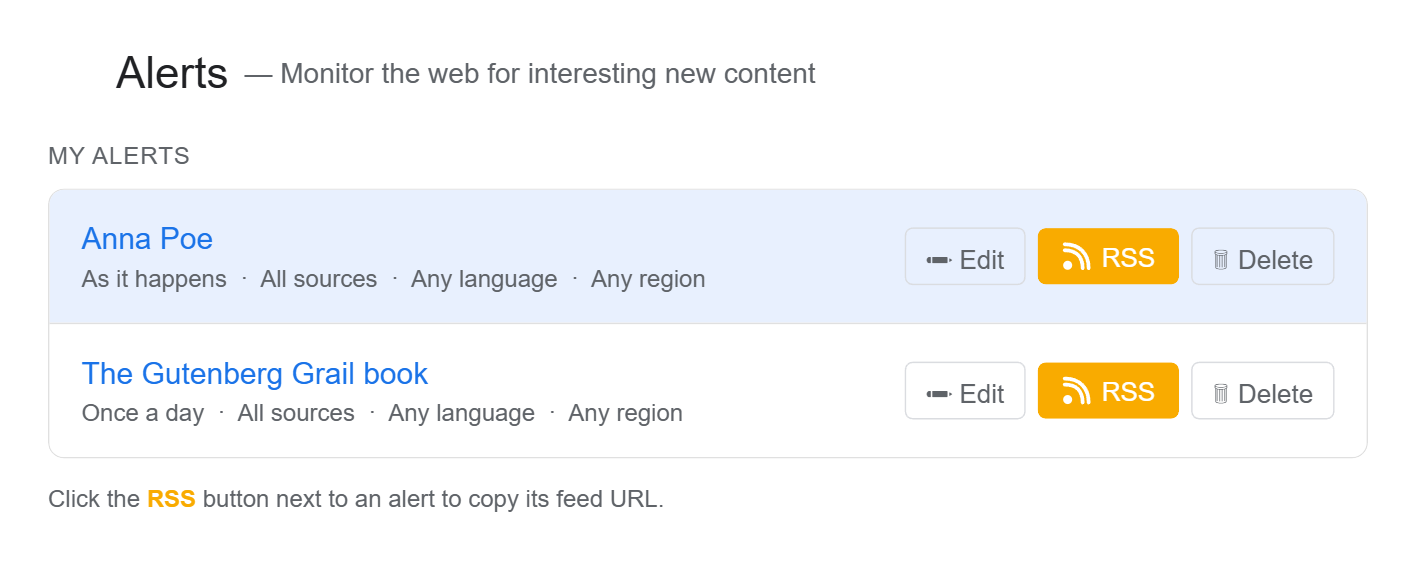
Repeat for any other author names, pen names, or book titles you want to track. MBS supports up to 2 feed URLs in Brand Monitor.
Set up one alert for your author name and one for your most-searched book title. That gives you broad name coverage plus targeted title coverage — the most common search patterns readers use when looking for you online.
Step 2 — Add the feed URL in MBS Settings
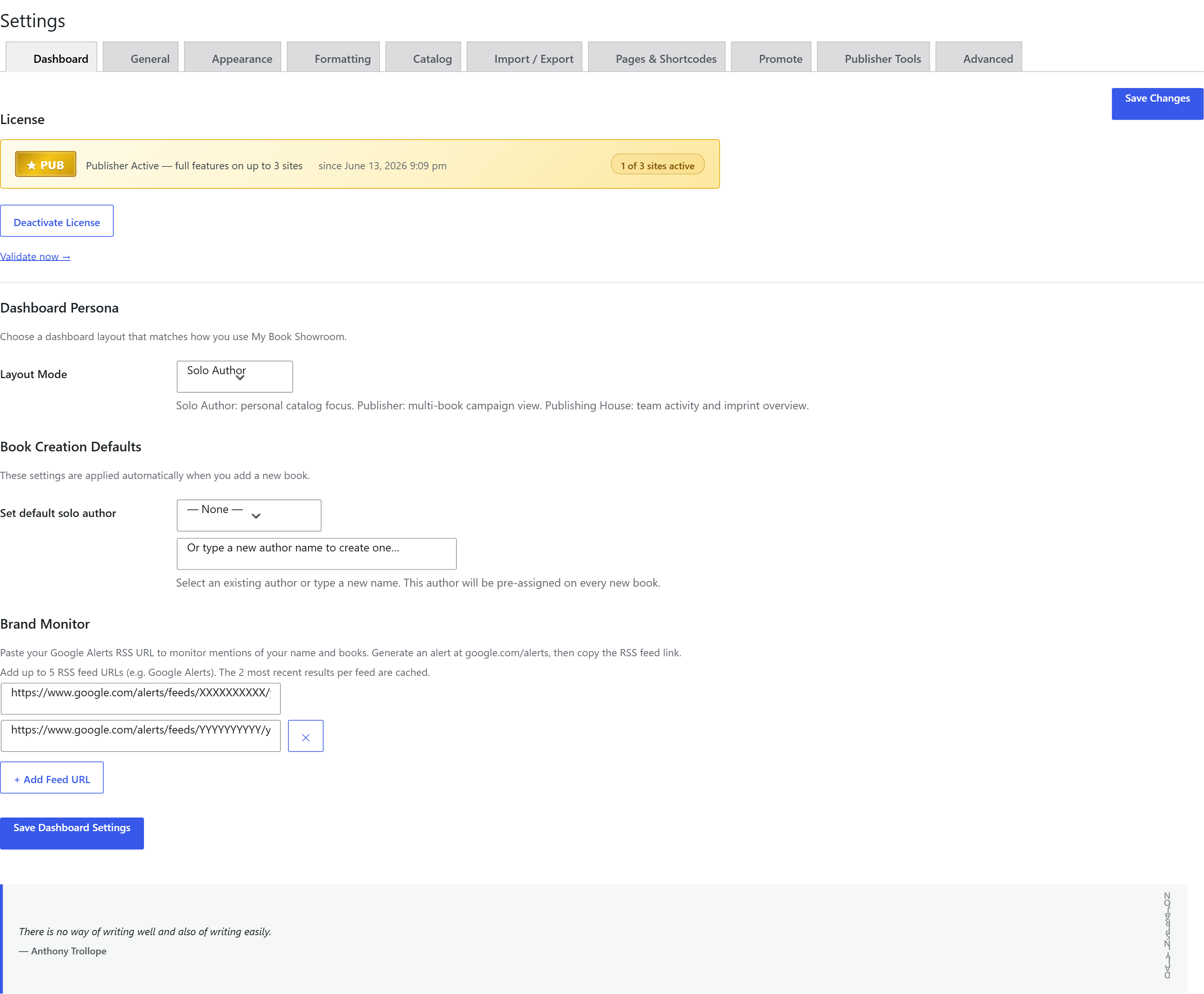
- Go to My Book Showroom → Settings
- Click the Dashboard tab
- Scroll to the Brand Monitor section
- Paste your Google Alerts RSS feed URL into the first URL field
- Paste a second feed URL into the second URL field if you have one (one URL
per line)
- Click Save Changes
If you previously used a single-URL Brand Monitor field before upgrading, MBS automatically migrates your existing URL to the new multi-URL list. You will not see any data loss.
Step 3 — View the Brand Monitor dashboard widget
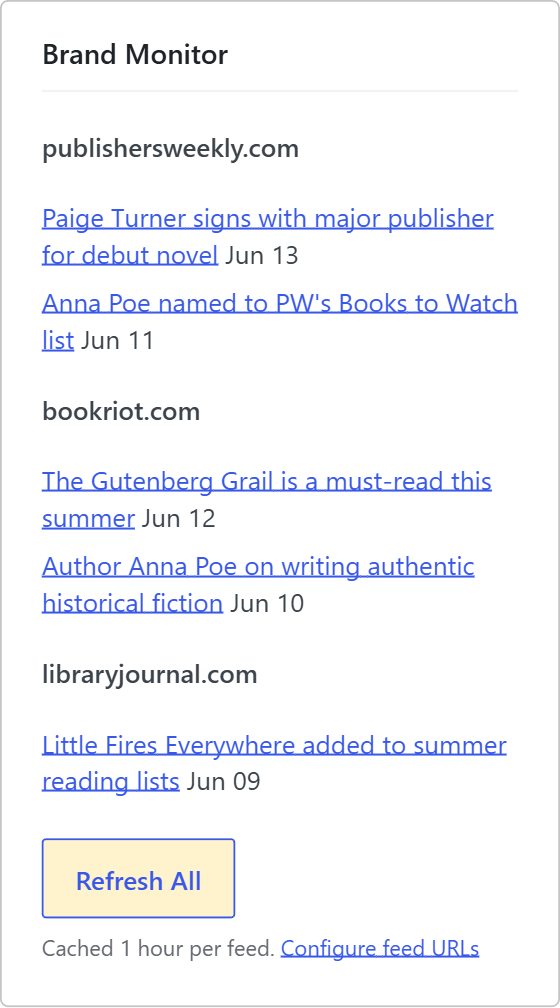
Go to My Book Showroom in the WordPress left sidebar to open the MBS Dashboard. Scroll to the Brand Monitor widget.
The widget displays the latest items from all your configured feeds in reverse chronological order. Each item shows:
- Title — the headline of the mention
- Source — where the mention appeared
- Date — when it was published
- Read link — opens the full article in a new tab
Step 4 — Refresh the feed manually
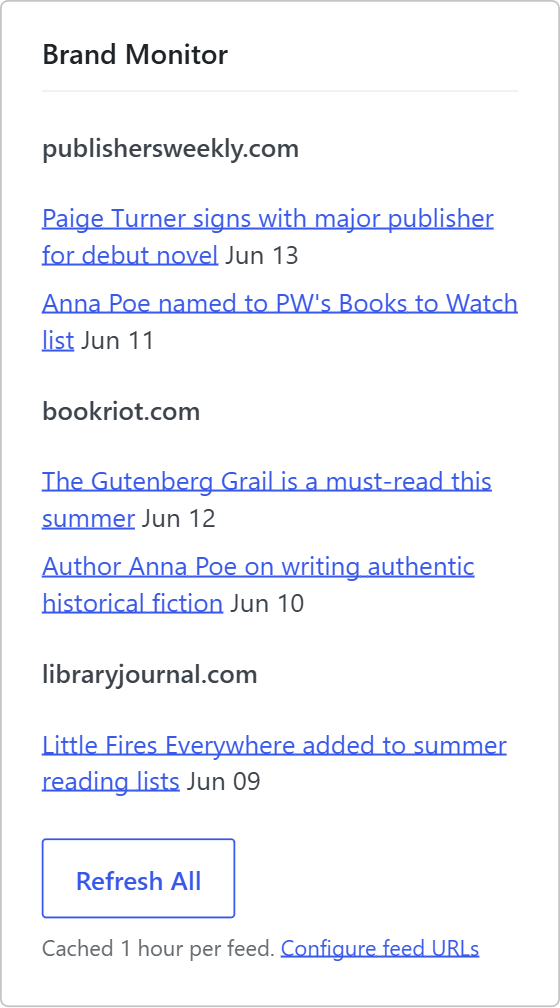
MBS caches each RSS feed in WordPress transients to avoid fetching on every page load. If you want to see the very latest mentions without waiting for the cache to expire, click the Refresh button at the top of the Brand Monitor widget.
The widget clears its cached data, re-fetches all configured feeds, and redisplays the results.