
What you will need
- A registered license (free registration or any paid tier) — Settings
Export / Import does not require PRO or Publisher
- WordPress admin access on the source site (for export) and on any destination
site (for import)
This guide appears in the Publisher section of the documentation, but Settings Export and Import is available to all registered license tiers, including the free registration key. If you have not yet registered, see Guide 09: Register Your Free License Key →.
What the export includes (and what it does not)
The settings export captures all your MBS configuration choices:
Included: Appearance colors and dark mode settings, layout defaults and card spacing, formatting options (buy button label, format display preferences), affiliate codes, general settings, email templates, custom CSS, and section order (the order of sections on your showroom page).
Not included: Your license key, encrypted credentials (Amazon PA-API keys, email service provider API keys), and your book catalog (books, series, authors, and contributors are not exported here).
The license key and encrypted credentials are intentionally excluded from the export for security. You must re-enter them manually after importing settings on a new site.
Step 1 — Export your settings
- Go to My Book Showroom → Settings
- Click the Import / Export tab
- Find the Export Settings scenario card
- Click the Export Settings button
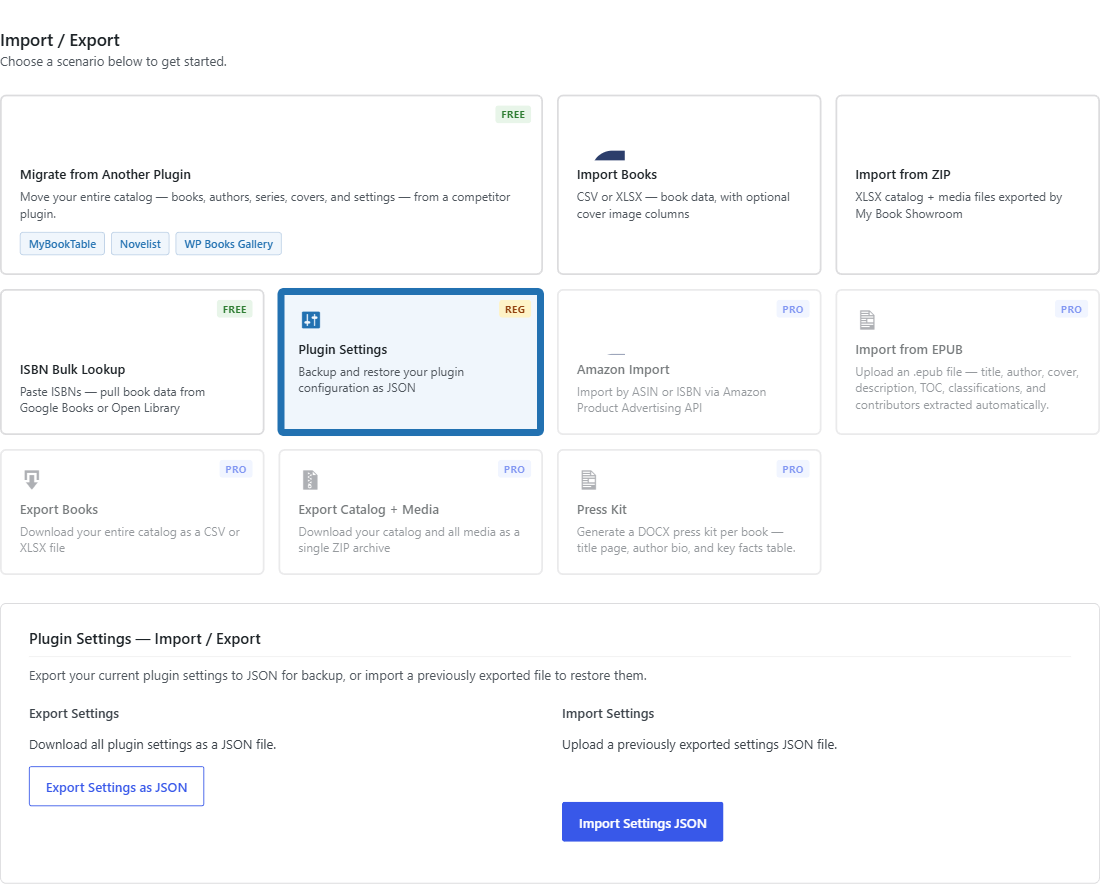
Your browser downloads a file named mbs-settings-YYYY-MM-DD.json where the date reflects today. Save this file somewhere safe.
Run an export immediately after you finish finalizing your showroom design. That JSON file becomes your snapshot — if a future change goes wrong, you can restore your known-good configuration in seconds by importing it.
Step 2 — Inspect or edit the JSON (advanced, optional)
The export file is plain JSON and can be opened in any text editor. Each key in the file corresponds to one mbs_setting_* option stored in the WordPress options table. Keys that MBS does not recognize are silently ignored on import — they do not cause errors.
If you are not comfortable editing JSON, skip this step entirely.
Step 3 — Import settings on the destination site
- Log in to the destination WordPress site
- Go to My Book Showroom → Settings
- Click the Import / Export tab
- Find the Import Settings scenario card
- Click Choose File and select the
.jsonfile you exported - Click Import
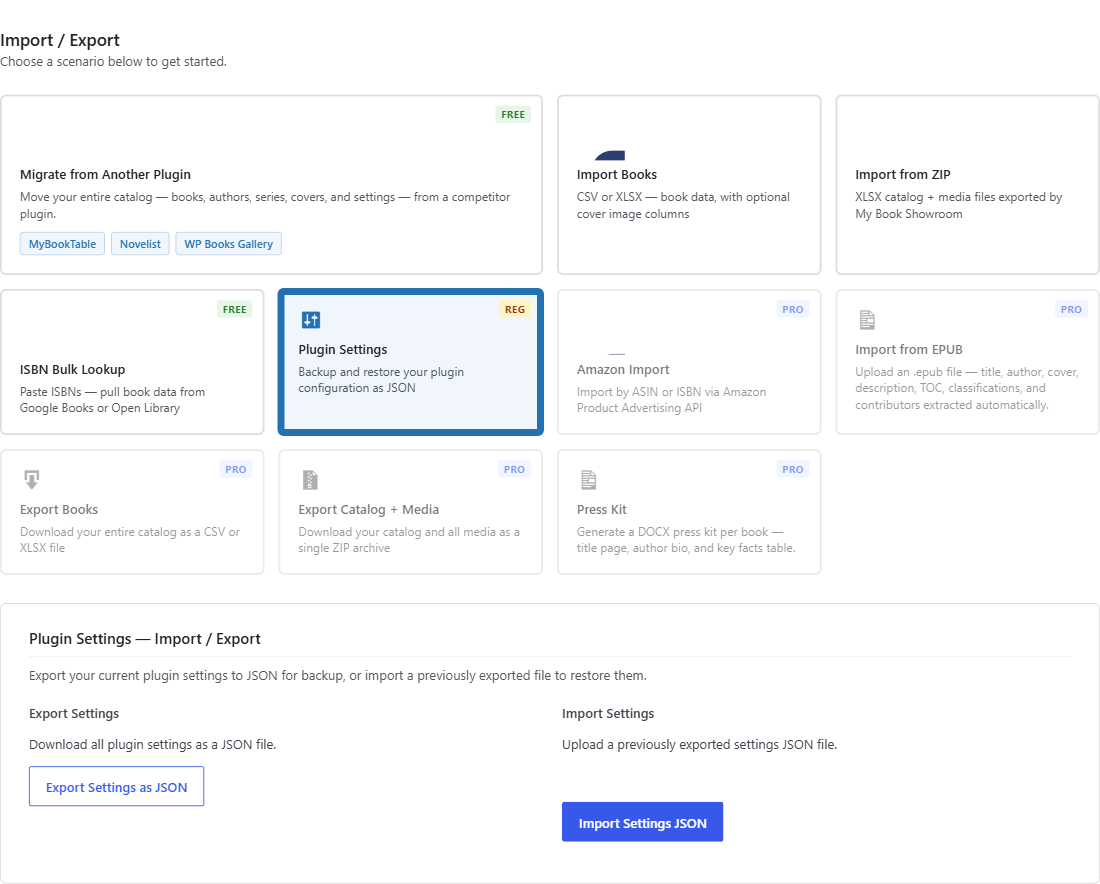
MBS reads the JSON, validates each key, and applies every setting. Existing settings on the destination site are overwritten by the imported values.
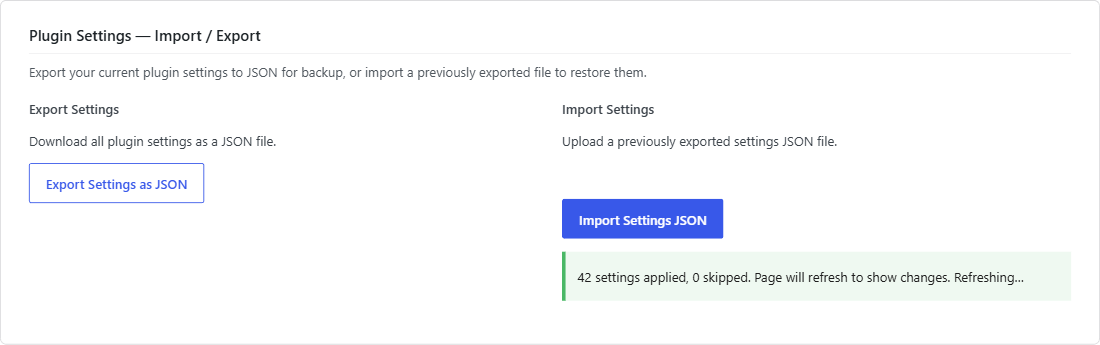
When the import finishes, a confirmation notice appears at the top of the page telling you how many settings were imported.
Step 4 — Re-enter credentials on the destination site
After importing, go to each settings tab that holds credentials and re-enter them manually:
- License tab — activate your license key on the new site
- Earn More tab — re-enter your Amazon PA-API keys if you use the ISBN
lookup or affiliate features
- Email tab — re-enter your email service provider API key if you use
ARC or mailing list integrations
These values were not carried over by the export, so the destination site starts without them.
Common use case: cloning your showroom to a second site
The most common use for Settings Export/Import is copying a finished showroom design from a staging or primary site to a second site:
- Finalize your design on site A
- Export from site A (Step 1)
- Install and register MBS on site B
- Import on site B (Step 3)
- Re-enter credentials on site B (Step 4)
Your second site will have identical colors, layouts, formatting options, section order, and custom CSS from the moment import completes.