The tutorial catalog is a complete set of sample books — covers, blurbs, series, collections, audio clips, video trailers, endorsements, awards, and classification codes — that you can install with a single click to explore every My Book Showroom feature with realistic data. When you are done, remove it just as easily. Nothing in the tutorial catalog affects your own books or settings.
What you will need
- My Book Showroom installed and activated (no license key required)
- WordPress admin access
Step 1 — Open the dashboard
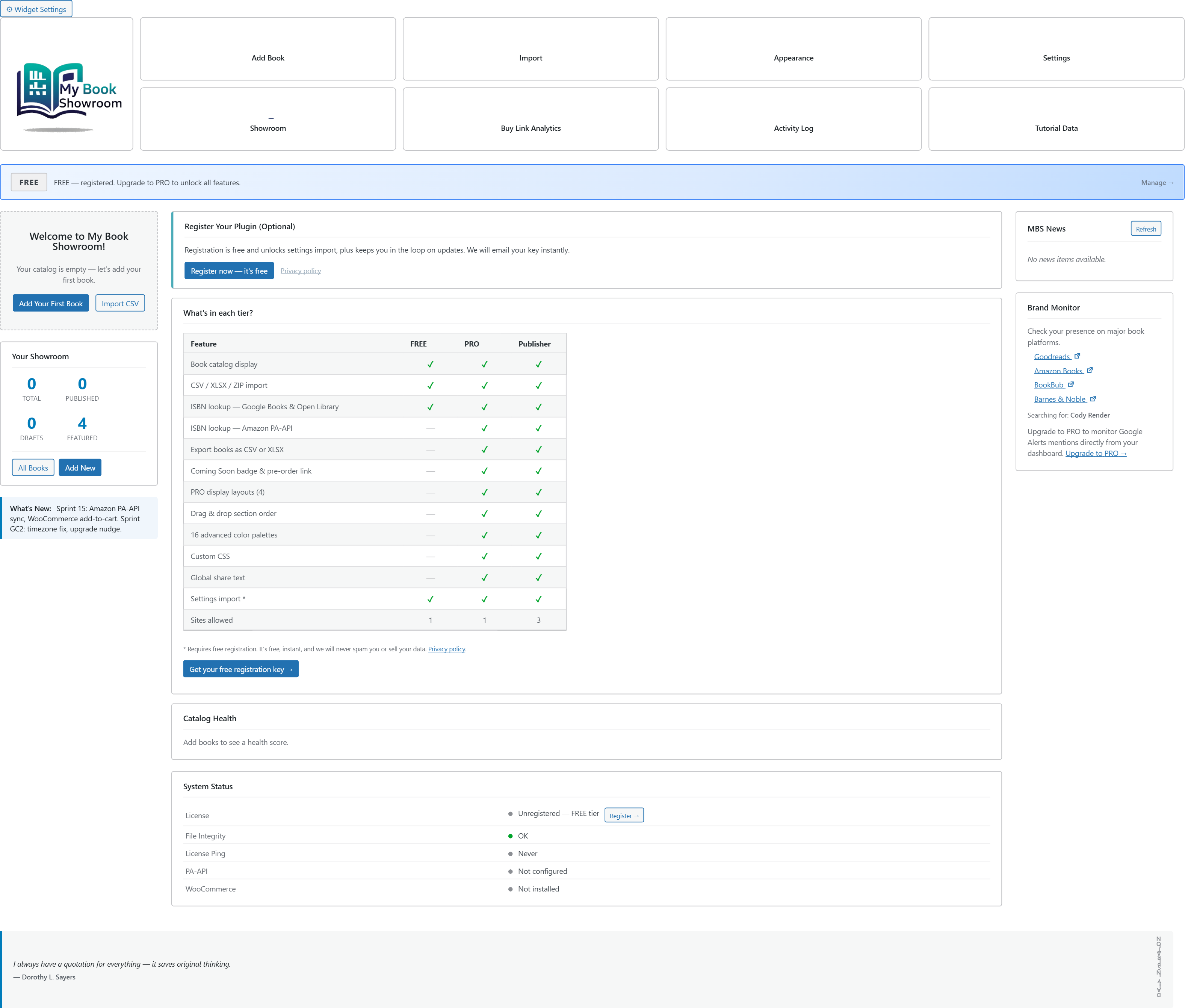
In your WordPress admin, go to My Book Showroom in the left sidebar. The dashboard opens with an action bar of tiles across the top.
Step 2 — Open the Tutorial Data panel
Click the Tutorial Data tile in the action bar. A panel opens below the bar showing the current status — either Not Installed or Installed.

Step 3 — Install the tutorial data
Click Install Tutorial Data. My Book Showroom downloads the sample catalog and adds it to your library. A progress bar tracks the import; it usually takes under a minute depending on your connection.
When it finishes, the badge changes to Installed and two buttons appear: Reinstall and Remove Tutorial Data.

If the data is already installed, the plain Install button is hidden, and attempting to install again is blocked — this prevents duplicate sample books. To refresh the catalog, use Reinstall instead (see Step 5).
Step 4 — What gets installed
The tutorial catalog adds a set of sample books that demonstrate every major feature, including:
- Single-author and co-authored books
- A numbered series, a collection, and a universe
- Multiple formats per book (ebook, paperback, hardcover, audiobook) with buy links
- Audio sample clips and spinning video trailers
- Endorsements, awards, and BISAC / Thema classification codes
- A Coming Soon / pre-order title
Browse them under My Book Showroom → Books, or open the Showroom tile to see them on the front end.
The written and video tutorials all reference this same catalog, so installing it lets you follow along step by step with identical data on your screen.
Step 5 — Reinstall (refresh) the tutorial data
Reinstall removes the existing tutorial catalog and installs a clean copy in one step. Use it if you have edited the sample books while experimenting and want to return them to their original state.
Click Reinstall and confirm. The panel removes the old copy, then re-imports the catalog — you end up with exactly one fresh set, never duplicates.
Step 6 — Remove the tutorial data
When you no longer need the samples, click Remove Tutorial Data and confirm. This deletes every tutorial book, its media (covers, audio, video), and the sample taxonomy terms it created.
Remove deletes only the tutorial catalog. Your own books, authors, series, and settings are never affected — the tutorial data is kept completely separate.
A note on your real catalog
The tutorial catalog is self-contained. It does not change your plugin settings, your license, or any book you created yourself. You can install and remove it as often as you like while you learn the plugin, then remove it for good before you go live.