
My Book Showroom ships a full library of native WordPress blocks, all grouped under a single My Book Showroom category in the block inserter. Each block renders a piece of your catalog — a featured title, a filterable grid, an author directory — and every block has its own settings panel in the editor sidebar. This guide is an orientation: it shows you how to find the blocks, how to adjust them, and what the key blocks do, so you can drop them into any page, post, or template.
What you will need
- My Book Showroom installed and activated, with a registered free key
- At least a few books in your catalog (install the Tutorial Data to follow along)
- A page, post, or block-theme template open in the WordPress block editor
Step 1 — Open the block inserter
Edit any page or post and click the + (block inserter) button in the top-left corner of the editor, or type / in an empty paragraph to search inline. Scroll the inserter panel until you reach the My Book Showroom category — it is prepended to the top of the list so you do not have to hunt for it.
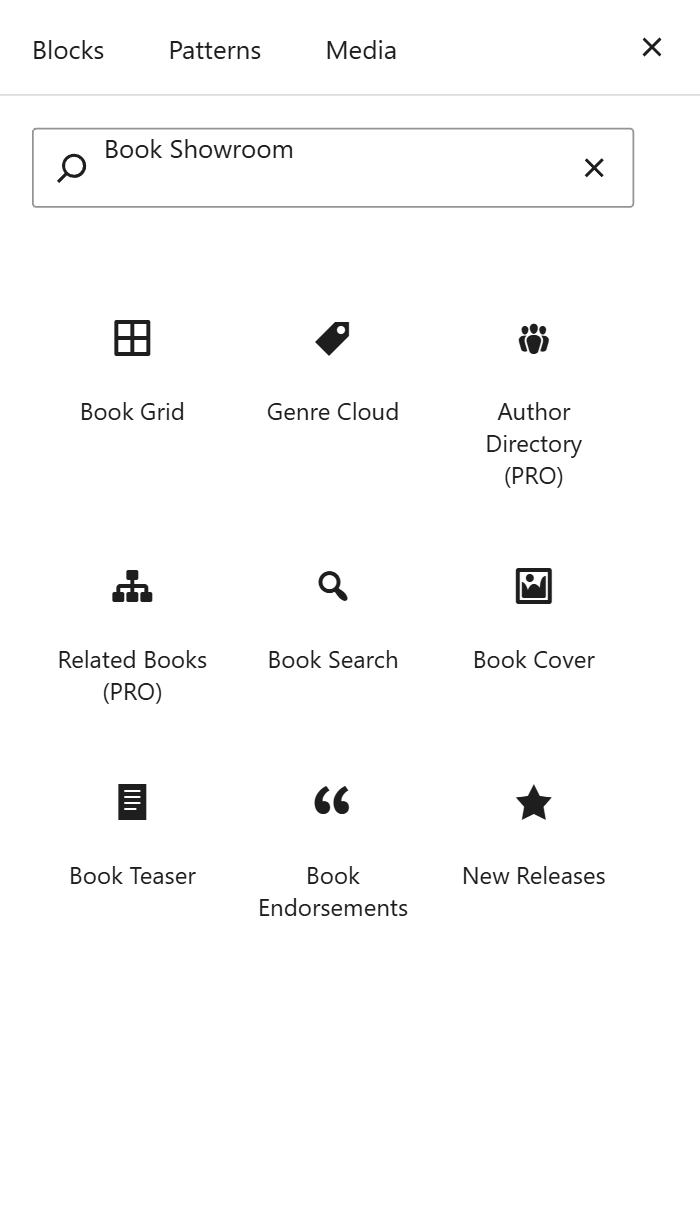
The blocks only appear once the plugin is active. If you do not see the category, confirm the plugin is activated under Plugins, then reload the editor.
Step 2 — Insert a block
Click any block tile to drop it onto the canvas. Most catalog blocks render a live server-side preview right in the editor, so you see real books immediately rather than a placeholder. The free blocks are listed first in the category; PRO blocks follow at the bottom.
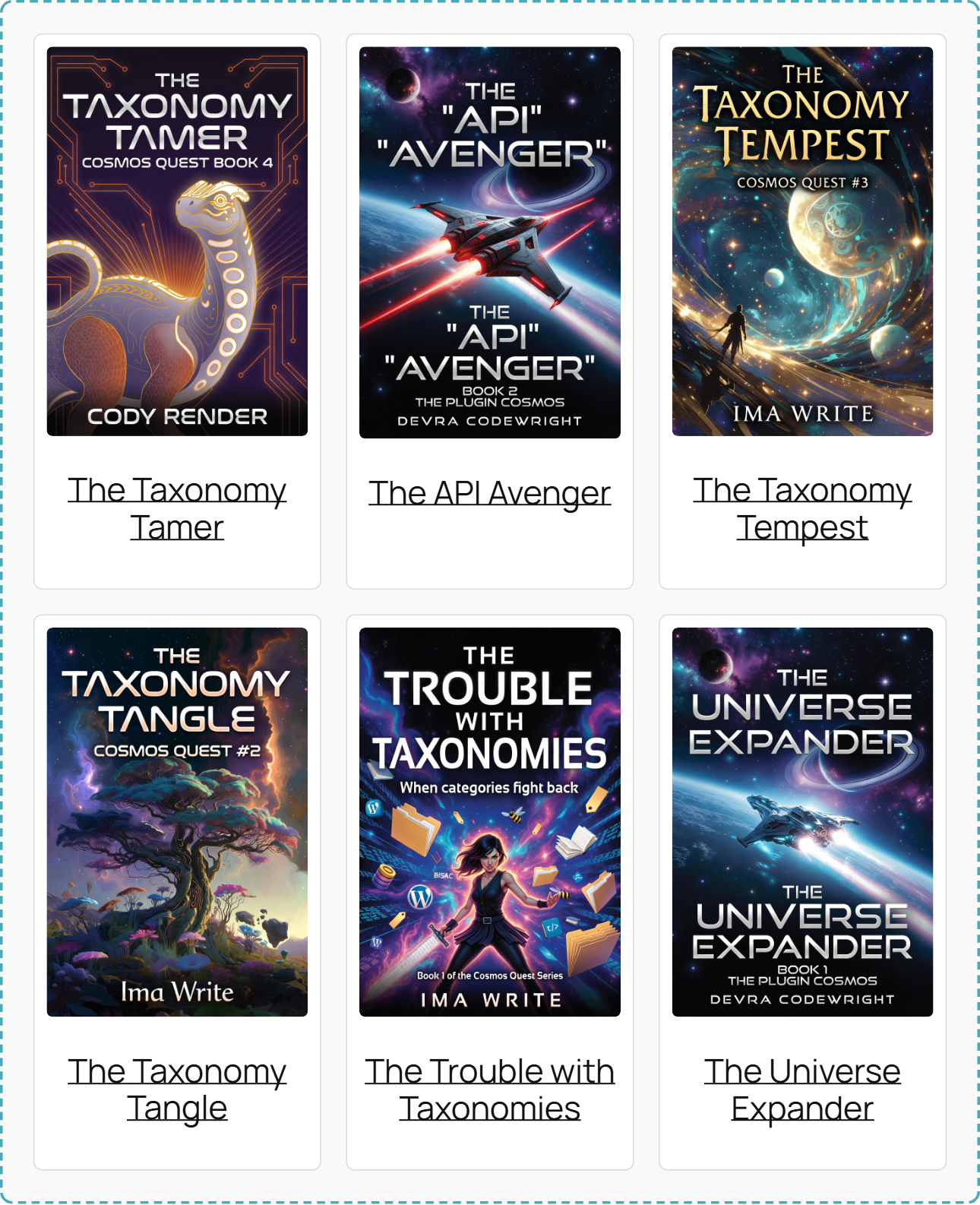
Two ready-made patterns — MBS: 3-column book grid and MBS: Featured book spotlight — also live in the inserter. They are pre-built block arrangements you can drop in and then customize.
Step 3 — Adjust block settings in the sidebar
With a block selected, open the Settings sidebar (the gear icon, top-right). Each My Book Showroom block exposes its own controls there. Common controls include:
- Number of books / limit — how many items to show
- Columns — grid width, typically 1 to 6
- Order by — date added, title, menu order, or random
- Filters — narrow a grid by author, series, genre, or tag
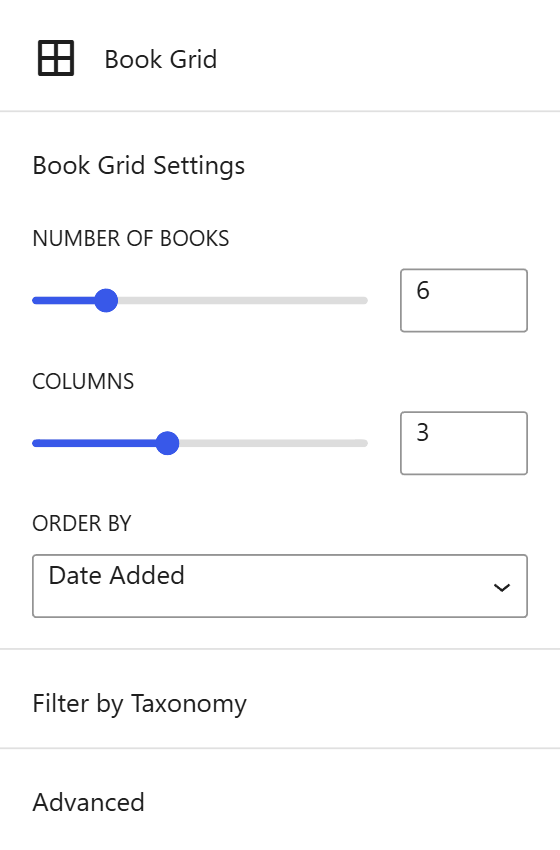
Changes apply to the live preview as you make them, so you can dial in the exact layout before you publish.
Step 4 — The catalog and grid blocks
These blocks display many books at once and are the backbone of most showroom pages:
- Book Catalog — the flagship grid. Set columns, limit, order, layout,
and filter by author, series, genre, or tag. It renders identically to the [mbs_books] shortcode and works in Full-Site Editing templates.
- Book Grid — a lighter filterable grid with per-block column count.
- New Releases — books published within the last N days (default 30).
- Bestseller — books ranked by Amazon sales data (PRO).
- Coming Soon — pre-order and not-yet-released titles (PRO).

Step 5 — The single-book blocks
When you want to spotlight one title, reach for these:
- Featured Book — cover, teaser, and buy links for a chosen book.
- Single Book — a full single-book display.
- Book Cover, Book Teaser, Buy Links, and Endorsements —
individual pieces you can place on their own.
- Related Books — titles that share a genre, series, or collection (PRO).
Each of these has a book picker in its settings panel so you can choose exactly which title it represents.
Step 6 — The directory and discovery blocks
These help readers browse your whole catalog:
- Author Directory — a grid of authors with bios, book counts, and an
A–Z filter (PRO).
- Series Directory — an accordion of every series with reading-order
lists (PRO).
- Genre Cloud — a tag-cloud of genres scaled by book count.
- Term List — a linked grid of all terms in a chosen taxonomy.
- Series, Universe, Collection, Genre, and Tags — each
shows the description plus a grid of the books in that grouping.

Step 7 — The reader-engagement blocks
Finally, a set of blocks invite readers to take action:
- Search — a live AJAX book-search widget.
- Reading Order — a numbered reading-order list for a series (PRO).
- Book Club — the Book Club Resources section for a book (PRO).
- ARC Signup — a reviewer self-nomination form (PRO).
- Timeline — a publication timeline across a book's formats.
Blocks marked PRO register on every site but only render their full output once a PRO license is active. On the free tier they are still visible in the inserter so you can plan your layout.
With the My Book Showroom category, a live preview, and a per-block settings panel, you can assemble a complete showroom without touching a shortcode.