What you will need
- My Book Showroom active (see Guide 01: Quick Start → if not done)
- The email address you will use to register
- The URL of your WordPress site
No credit card or payment is required. The free key is free permanently.
What registering unlocks
A free license key costs nothing and unlocks three things that are not available on an unregistered install:
- Settings Export / Import — back up and restore your MBS configuration
across sites (see Guide 23: Settings Export and Import →)
- ISBN Lookup via Google Books — import book metadata by ISBN without
manual data entry (see Guide 06: ISBN Lookup →)
- Plugin registration notices removed — the Register Plugin banner
and dashboard prompt disappear once the key is active
The free key does not unlock PRO features. For layouts, analytics, audio samples, video trailers, affiliate codes, and more, upgrade to a PRO or Publisher license at dmrstech.com.
Step 1 — Get your free key
Open a browser tab and go to https://www.dmrstech.com.
Click Get My Free Key on the homepage. You will arrive at dmrstech.com/activate.php — a short form asking for your email address. Enter it and click Send My Free License Key.
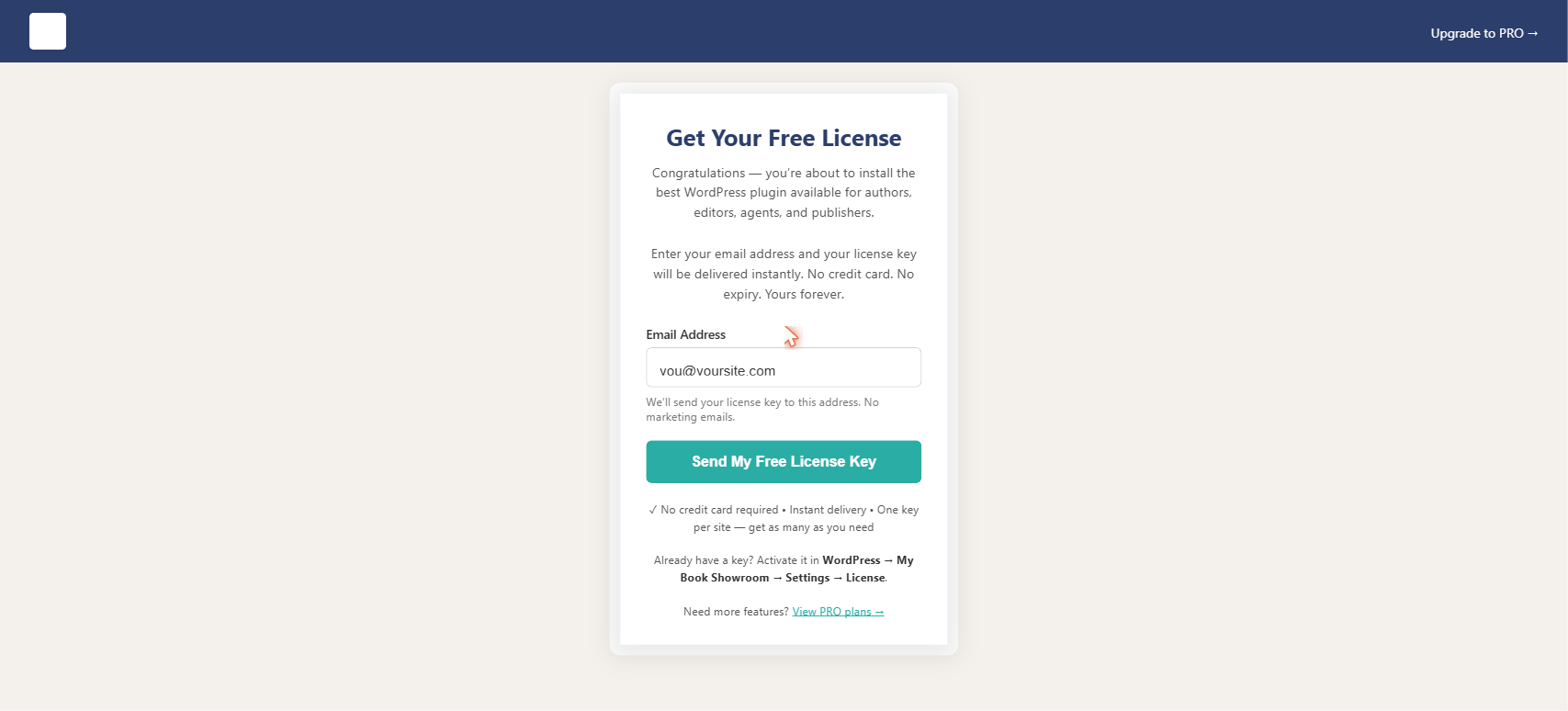
MBS sends the key to your email address immediately. Check your inbox — the message arrives within a minute or two. If you do not see it, check your spam or junk folder.
The free key is tied to one WordPress site URL. If you install MBS on a second site, submit the registration form again with the second site's URL to receive a separate key for that install.
Step 2 — Open the Dashboard tab
In your WordPress admin, go to My Book Showroom → Settings and click the Dashboard tab.
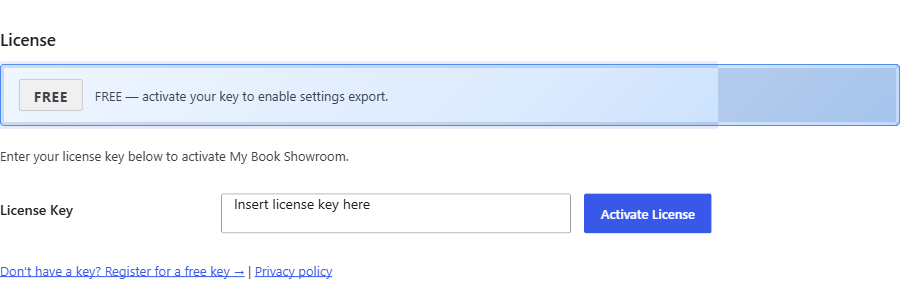
You will see a License Key text field and an Activate License button. The tab also displays the current license state, which reads Unregistered until a key is entered.
There is a shortcut: go to Plugins in the WordPress left sidebar, find My Book Showroom in the list, and click Register Plugin in the action links below it. This link takes you directly to the Dashboard tab.
Step 3 — Enter and activate your key
Open the email from dmrstech.com and copy the license key. It is formatted as a UUID-style string: xxxxxxxx-xxxx-xxxx-xxxx-xxxxxxxxxxxx.
Click the License Key field on the Dashboard tab and paste the key.
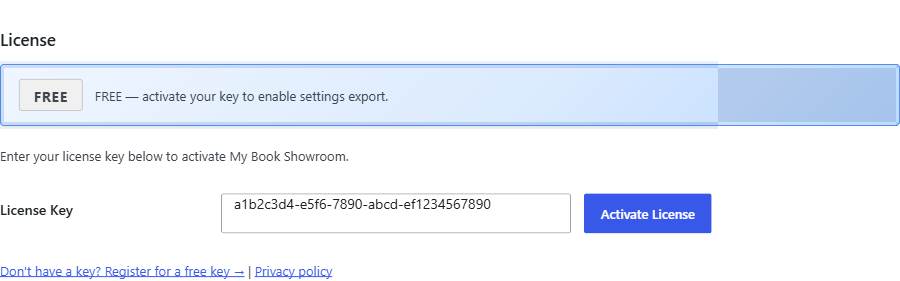
Click Activate License. MBS contacts the dmrstech.com API to verify the key. The verification takes a moment.
Step 4 — Confirm the active state
When verification succeeds the Dashboard tab updates immediately. You will see:
- A green Active – Free License badge in the license state area
- Your registered site URL displayed below the key field
- The key field obscured for security
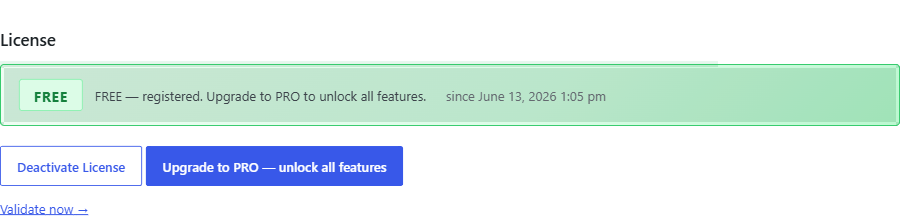
The MBS dashboard also updates: the System Status panel in the lower left of the dashboard now shows a green Registered badge.
If the tab shows an error instead, the most common causes are:
- The key was already activated on a different site URL — submit the
registration form again at dmrstech.com with your current site URL
- A copy-paste error introduced extra spaces — triple-click the field
to select all, then paste again
- The site URL stored in dmrstech.com does not match your WordPress
address — verify your URL in Settings → General in WordPress
Step 5 — Verify the unlocked features
With the free key active, confirm the two primary unlocks are now available:
Settings Export / Import — go to My Book Showroom → Settings → Import / Export tab. You will now see Export and Import controls for your MBS configuration in addition to the book import tools.
ISBN Lookup — go to the same Import / Export tab and click the ISBN Lookup scenario card. The textarea and Look Up ISBNs button are now active. On an unregistered install this card is visible but disabled.
The license states shown in the Dashboard tab are: Unregistered, Pending, Active (Free), Active (PRO), Active (Publisher), and Expired. If your key shows Expired, visit dmrstech.com to renew or contact support.