
What you will need
- My Book Showroom active with at least one published book (see
Guide 02: Add Your First Book →)
- A WordPress page where you want to display your showroom
- Editor access to that page (Block Editor or Classic Editor)
How the showroom reaches your visitors
MBS delivers books to the front end through three complementary mechanisms that work together automatically:
- The
[mbs_showroom]shortcode — paste it into any page to display your
full catalog. Every published mbs_book post is included by default.
- Taxonomy archive pages — MBS auto-registers public archive URLs for
every author, series, genre, and collection. No page setup needed; the URLs are live the moment you add books.
- Individual book pages — each published book has its own URL based on
your WordPress permalink structure. Visitors land there from your showroom grid or from external links.
Step 1 — Create a showroom page
In the WordPress left sidebar go to Pages → Add New.
Give the page a title such as Books, My Books, Bookshelf, or anything that fits your site.

Step 2 — Add the shortcode block
In the Block Editor, click the + icon to add a new block. Search for Shortcode and select the Shortcode block.
Paste the following into the shortcode field:
[mbs_showroom]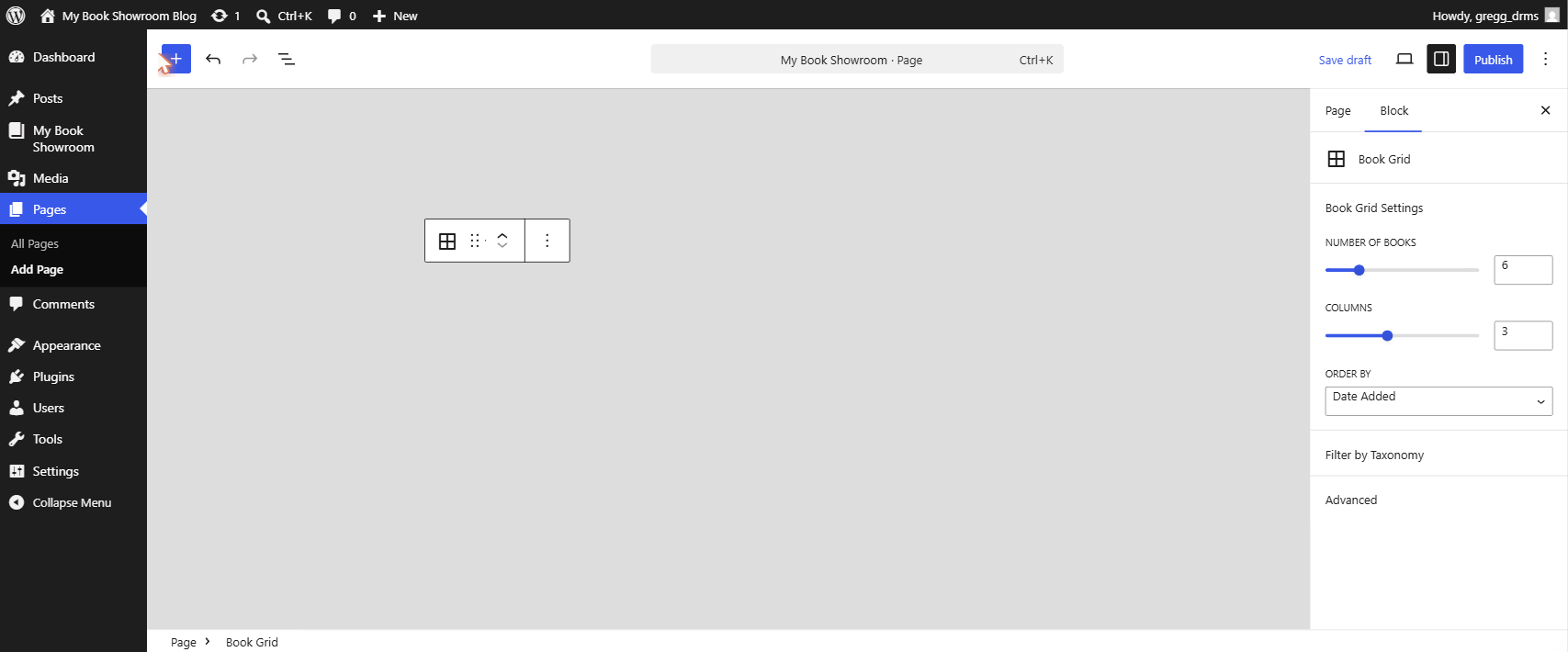
If your site uses the Classic Editor, switch to the Text tab and paste [mbs_showroom] directly into the page body. It renders the same result.
Alternatively, MBS registers a native Gutenberg block called My Book Showroom / Book Grid. Search for it in the block inserter as an alternative to the Shortcode block — it gives you visual controls for columns, layout, and filters directly in the block editor sidebar without writing shortcode attributes by hand.
Step 3 — Publish the page
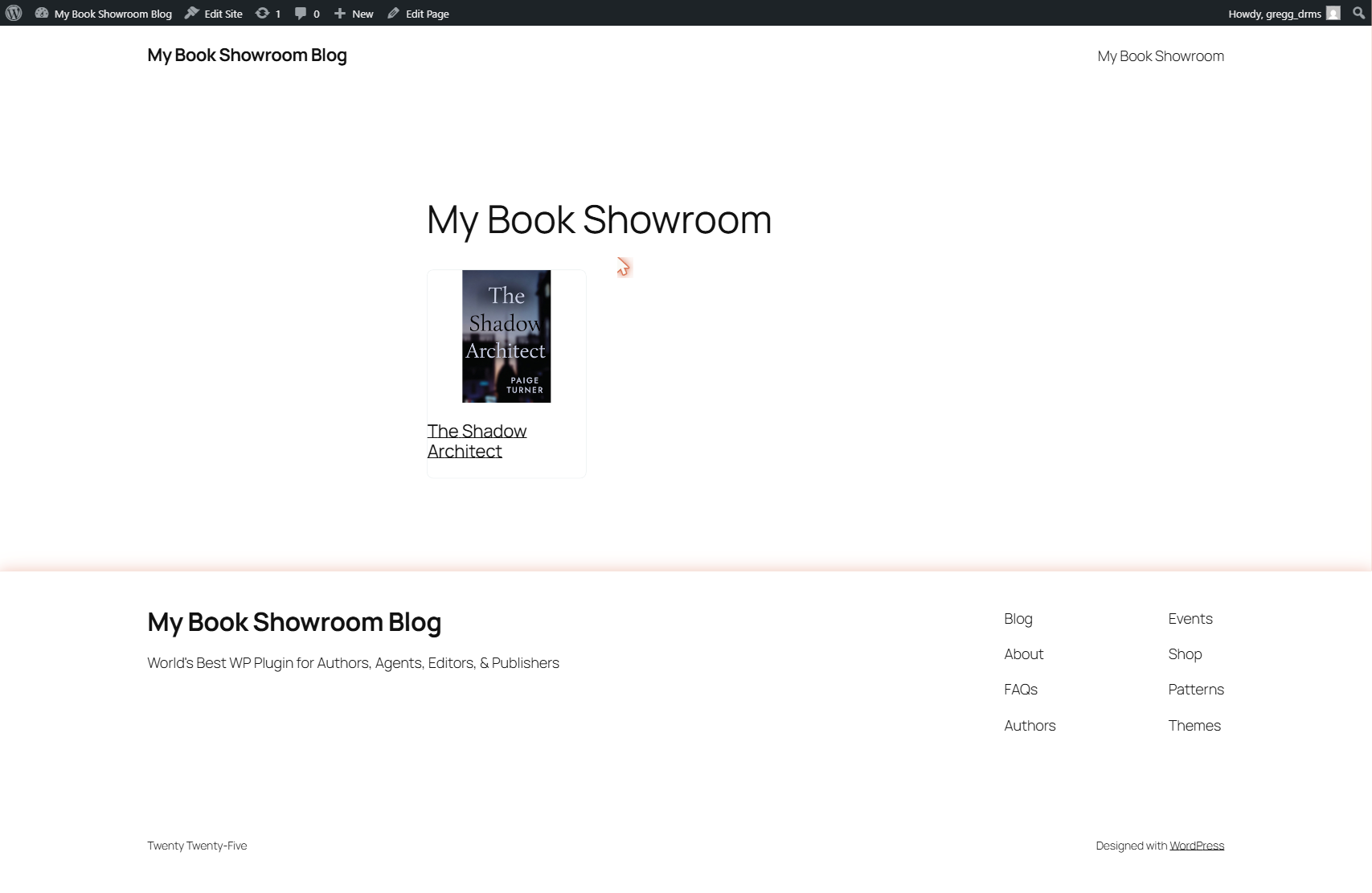
Click Publish (top right). Click View Page in the confirmation bar to see your live showroom.
You will see all your published books displayed in the default Hero layout — large cover cards in a responsive grid. Each card links to the individual book page.
Step 4 — Customize with shortcode attributes
The [mbs_showroom] shortcode accepts attributes that control how and what it displays. All attributes are optional; omit any you do not need.
Layout and display
layout="grid"— switches to a compact cover grid. Other FREE options:
hero (default), card, masonry, list
columns="4"— number of columns in grid-based layouts (default: 3)per_page="12"— how many books appear before pagination kicks inshow_pagination="true"— set tofalseto display all books at once
(use carefully on large catalogs)
Filtering by taxonomy
genre="fantasy"— show only books tagged with thefantasygenre slugauthor="jane-doe"— show only books assigned to that author slugseries="the-riley-series"— show only books in that series slugtag="award-winner"— filter by keyword tag slug
Sorting
orderby="date"— sort by publish date (default). Other values:title,
series_position, menu_order
order="DESC"— descending order (default). Set toASCto reverse
A fully customized shortcode might look like:
[mbs_showroom layout="card" columns="2" genre="romance" per_page="8" order="ASC"]The layout values slider, flip, filter, and popup are available with a PRO license. Using them on a FREE install falls back to the hero layout automatically.
Step 5 — Use focused shortcodes for specific views
MBS includes additional shortcodes for displaying subsets of your catalog on any page or widget area:
[mbs_books]— an alias for[mbs_showroom]; accepts the same attributes[mbs_book id="123"]— embeds a single book card or full detail block;
replace 123 with the WordPress post ID of the book
[mbs_series slug="the-riley-series"]— all books in a specific series,
displayed in reading order
[mbs_collection slug="boxed-set-1"]— all books in a collection[mbs_genre slug="fantasy"]— all books in a genre[mbs_author slug="jane-doe"]— all books by one author[mbs_search]— renders a live search bar that filters books by title,
author, or keyword as the visitor types
You can place any of these shortcodes on any WordPress page, post, or sidebar widget, mixing and matching to build a rich book discovery experience.
Step 6 — Understand the automatic archive pages
MBS registers public taxonomy archive URLs automatically when the plugin activates. No page creation or template editing is needed.
Each taxonomy gets its own archive URL:
- Authors —
yoursite.com/mbs_author/jane-doe/ - Series —
yoursite.com/mbs_series/the-riley-series/ - Genres —
yoursite.com/mbs_genre/fantasy/ - Collections —
yoursite.com/mbs_collection/boxed-set-1/
Visitors arrive on these pages from links in book cards, from your navigation menu, or from external search results. The archive template uses the same responsive grid as the main showroom.
Link to an author archive from your site menu by going to Appearance → Menus, clicking Custom Links, and pasting the archive URL directly. MBS does not add taxonomy archives to menus automatically — add only the ones that make sense for your site.
Step 7 — Configure the book permalink slug
Individual book pages are located at yoursite.com/books/book-title/ by default. The books portion of the URL is set by the plugin and is not currently configurable through the settings screen. If you need to change it, use the mbs_book_rewrite_slug filter in a child theme or custom plugin, then visit Settings → Permalinks and click Save Changes to flush the rewrite rules.
After changing the slug, any external links to the old URL will break. Update your retailer back-matter links, newsletter archives, and any other places you have shared direct book URLs before changing the slug on a live site.
The featured bestseller shortcode (PRO)
The [mbs_bestseller] shortcode renders a prominent, styled highlight block for a single featured book — useful for a homepage hero or newsletter landing page. It requires a PRO license.