Not every link on a book page is a place to buy. Goodreads, StoryGraph, and BookBub are reader communities where people shelve books, follow authors, and get release alerts. My Book Showroom keeps these Reader Platform links separate from your retailer buy buttons, giving them their own section on the book page so readers can discover and track your book without leaving the buying decision in the same breath.
What you will need
- My Book Showroom installed and activated, with a registered free key
- A book to edit
- Your Goodreads, StoryGraph, or BookBub page URLs for that book
Step 1 — Open the Reader Links tab
Edit a book and select the Reader Links tab. It has two sub-sections: Reader Platforms and Buy Links. Make sure you are on Reader Platforms.
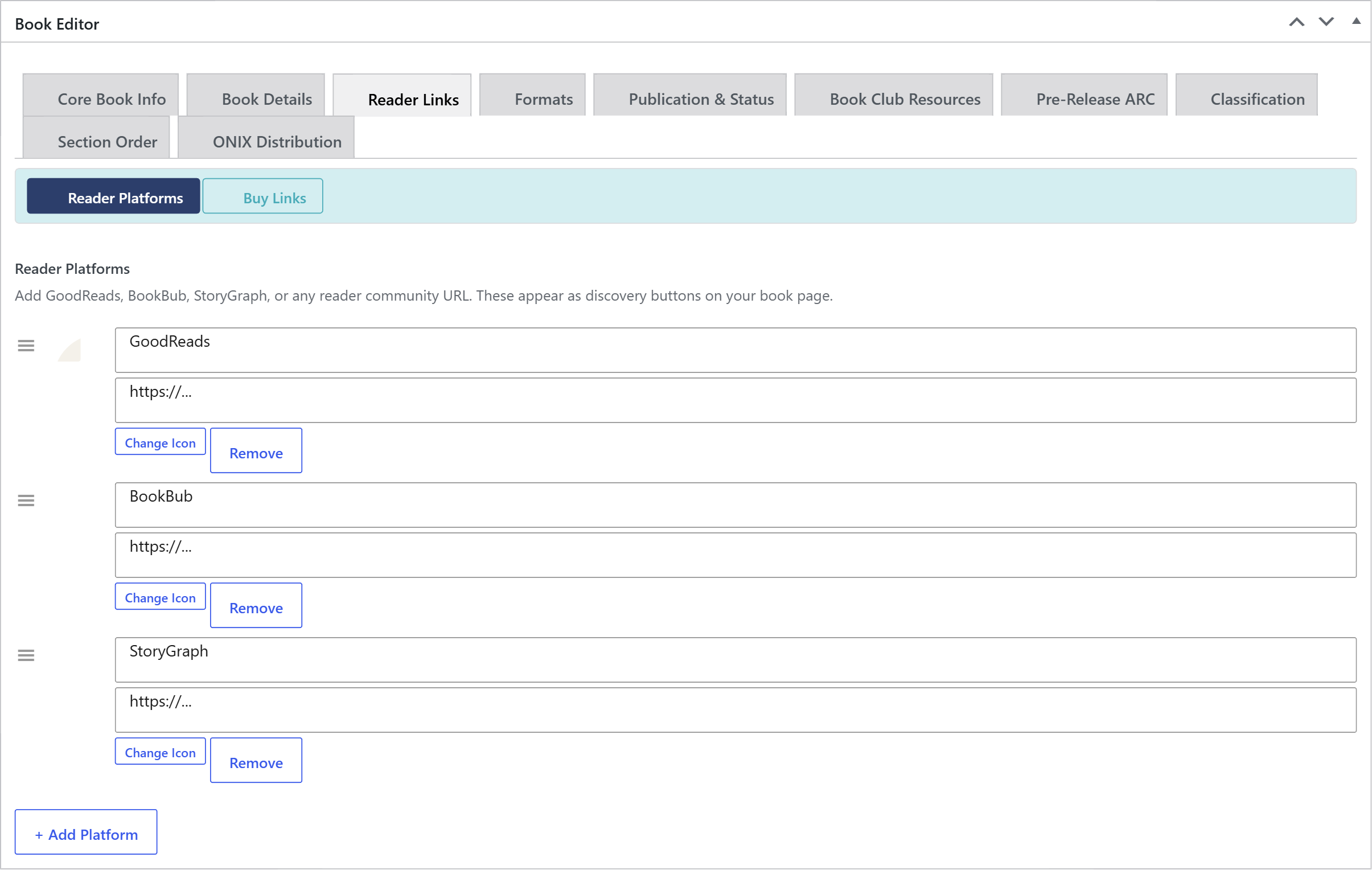
Reader Platforms and Buy Links live side by side under the same tab but are stored and displayed separately. Platforms are for shelving and following; Buy Links are for purchasing.
Step 2 — Fill in the platform URLs
The Reader Platforms section starts pre-seeded with three rows: GoodReads, BookBub, and StoryGraph. Paste your book's page URL into each row you want to use. Leave a row's URL blank to hide that button entirely.
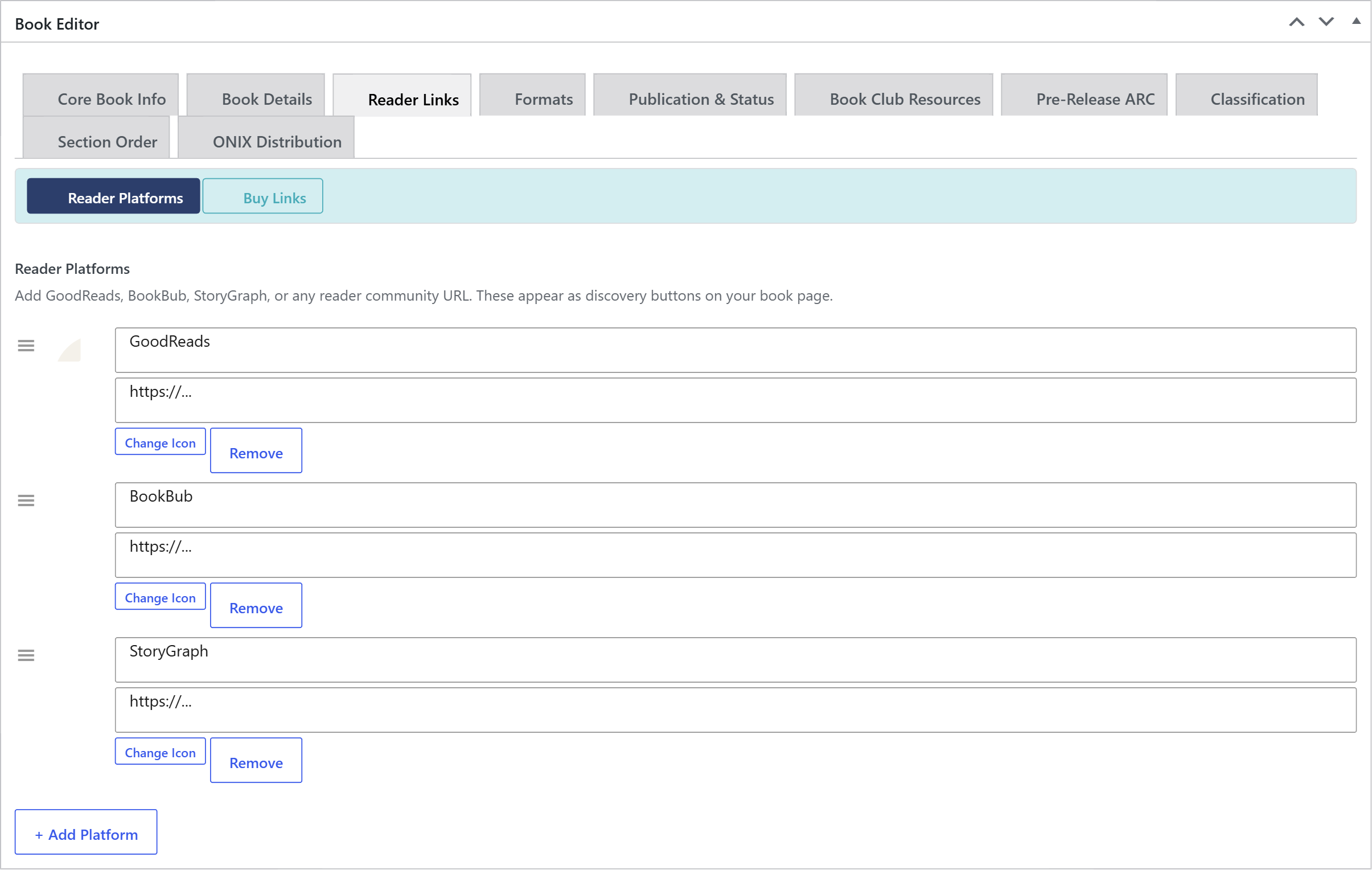
You do not have to fill in all three. A button only appears on the front end when its URL is set, so add just the platforms where your book actually has a page.
Step 3 — Add another platform
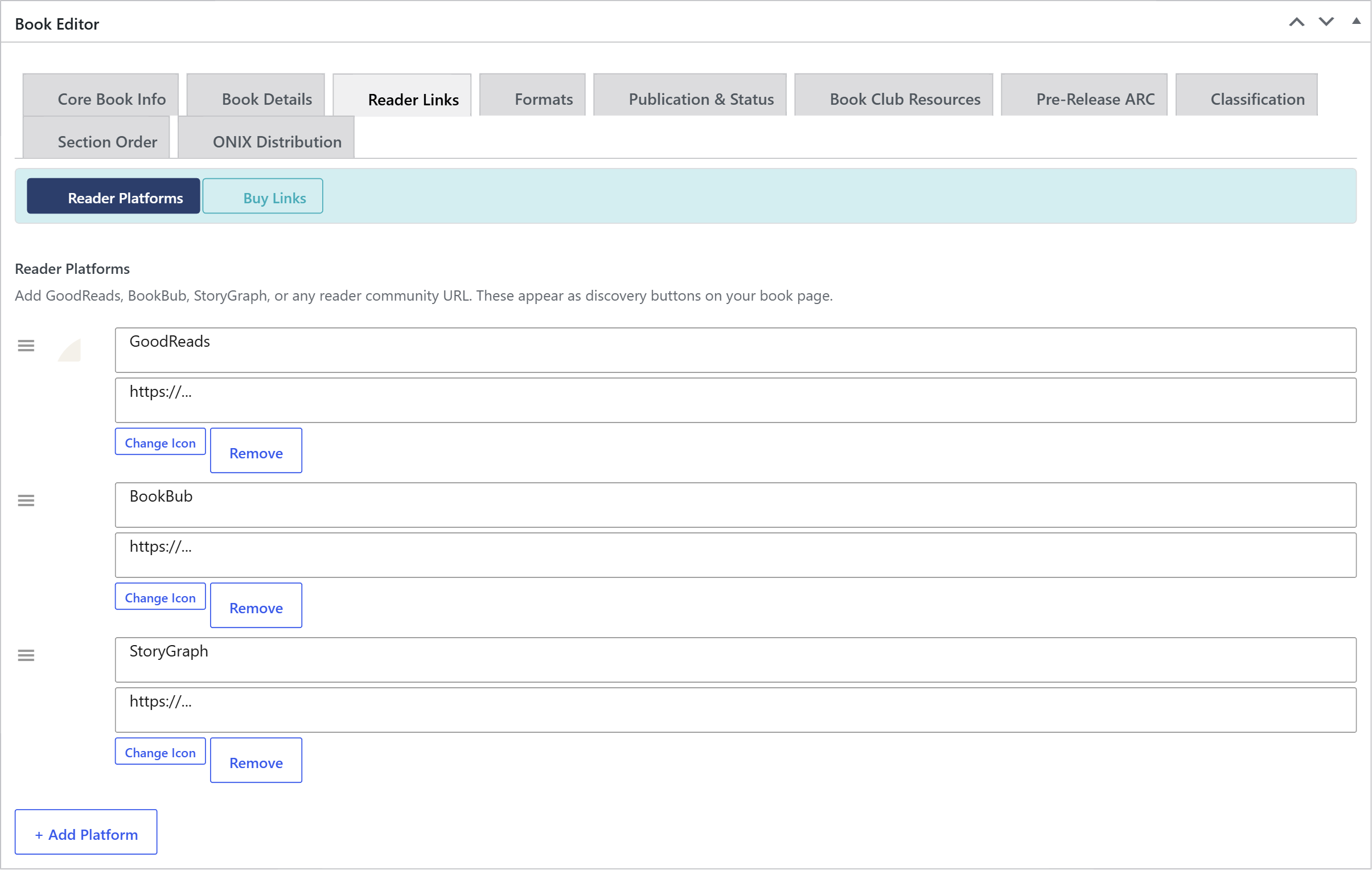
Need a platform beyond the default three? Click + Add Platform to add a new row, give it a label, and paste its URL. This lets you point readers to any reader community or tracking site you like.
Step 4 — Save and reorder
Drag the rows to set the order the buttons appear in, then save the book. The platform links are stored separately from your buy links, so editing one never disturbs the other.
Reader Platform links are a free feature. Custom button icons are a PRO enhancement, but the default branded icons for Goodreads, StoryGraph, and BookBub are included for everyone.
Step 5 — How they differ from buy links
It helps to keep the distinction clear:
- Reader Platform links — Goodreads, StoryGraph, BookBub, and similar.
They are about shelving, following, reviewing, and release alerts. They render as "Add to" / follow buttons in their own zone on the book page.
- Buy Links — retailers such as Amazon, Apple Books, and Barnes &
Noble, plus your format-specific purchase URLs. They are about buying and render as buy buttons.
Keeping them apart means a reader who is not ready to purchase still has a clear, low-pressure way to save your book for later.
Step 6 — How they display on the front end
On the published book page, your reader-platform buttons appear together in a discovery zone, each with its platform label (for example, "Add to Goodreads" or "Add to StoryGraph") and, where available, a branded icon. Only the platforms with a URL show up — the section disappears entirely if no platform links are set.

A few minutes filling in these URLs gives readers an easy path to shelve and follow your book on the communities they already use.