
If you already manage a book catalog in another WordPress plugin, you do not have to re-enter everything by hand. My Book Showroom can read a standard WordPress export file (a WXR .xml file) and migrate your books, authors, series, covers, and buy links across. Several popular plugins are recognized automatically with zero setup; anything else is handled by a guided two-step mapping screen. Every importer on this page is completely free — no license key is required.
What you will need
- My Book Showroom installed and activated
- WordPress admin access on the destination site
- An export file from your old plugin (a
.jsonfile from MyBookTable, or a
.xml WXR file from any other plugin)
Step 1 — Which plugins are supported
My Book Showroom ships with dedicated, zero-mapping importers for these source plugins:
- MyBookTable — imported from its native
.jsonexport, including
affiliate-link settings.
- Novelist
- WP Books Gallery
- Genesis / Osom Author Pro
- RS WP Books Showcase
- GS Books Showcase
For these six, the field mapping is already built in: My Book Showroom reads the file, recognizes the source, and migrates every field it understands without asking you to match columns.
Migrating from a plugin that is not on the list? You can still bring your books across using the generic WXR path with guided field mapping (Step 5).
All of these importers are FREE-tier. Competitor migration is never gated behind a license key — the goal is to get your catalog into My Book Showroom with as little friction as possible.
Step 2 — Export a file from your old plugin
The export step happens in your old plugin, before you touch My Book Showroom.
MyBookTable: In MyBookTable, go to Books → Export and download the JSON file. (MyBookTable exports ship without a file extension — that is normal, and My Book Showroom accepts them anyway.)
Everything else: Use WordPress's built-in exporter. Go to Tools → Export, choose your book post type (for example Books or Book), and download the .xml file. This is a standard WXR file and contains every book post and its custom fields.
If your old catalog is very large, the WordPress exporter lets you export in batches. The WXR importer accepts files up to 50 MB; split a bigger export into date ranges and import each part in turn.
Step 3 — Open the Migrate panel
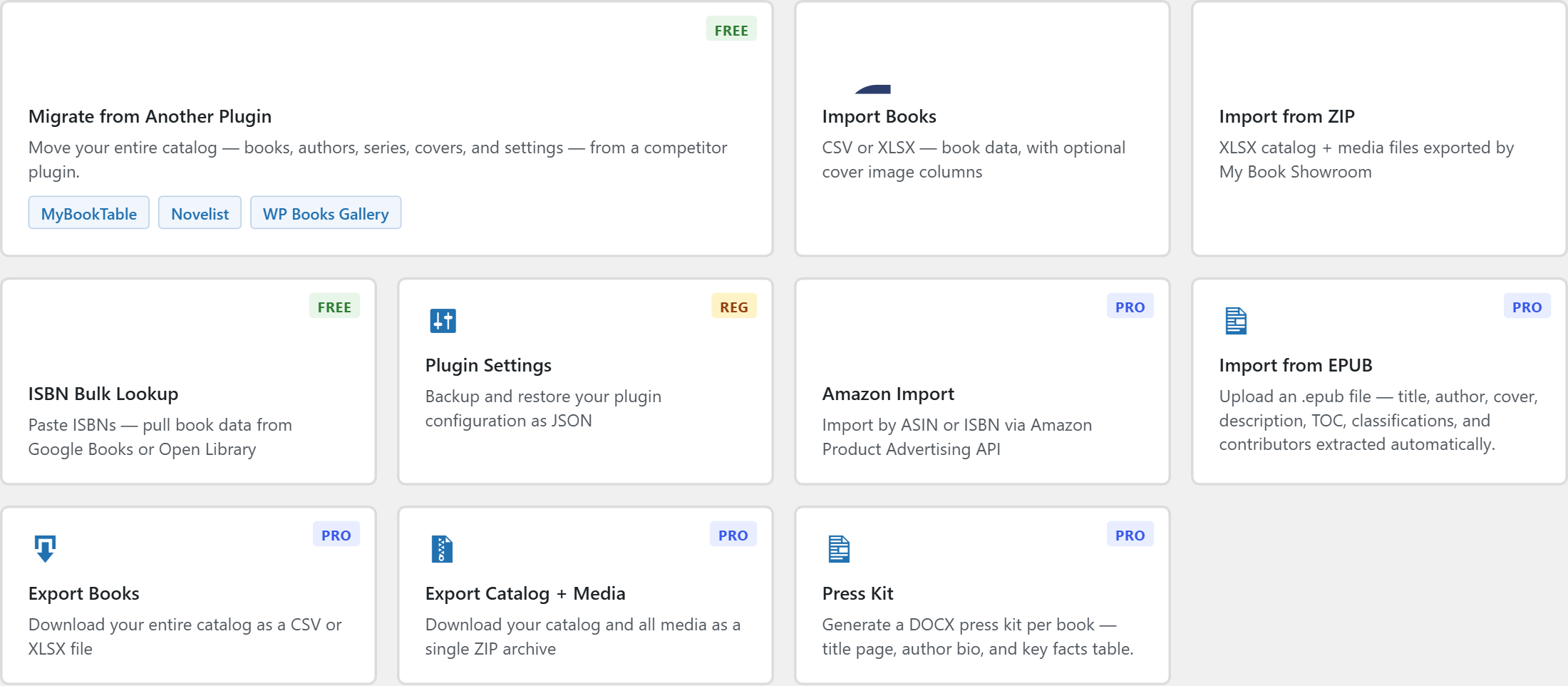
In your WordPress admin, go to My Book Showroom → Import / Export. On the scenario card grid, click the wide Migrate from Another Plugin card (marked FREE).
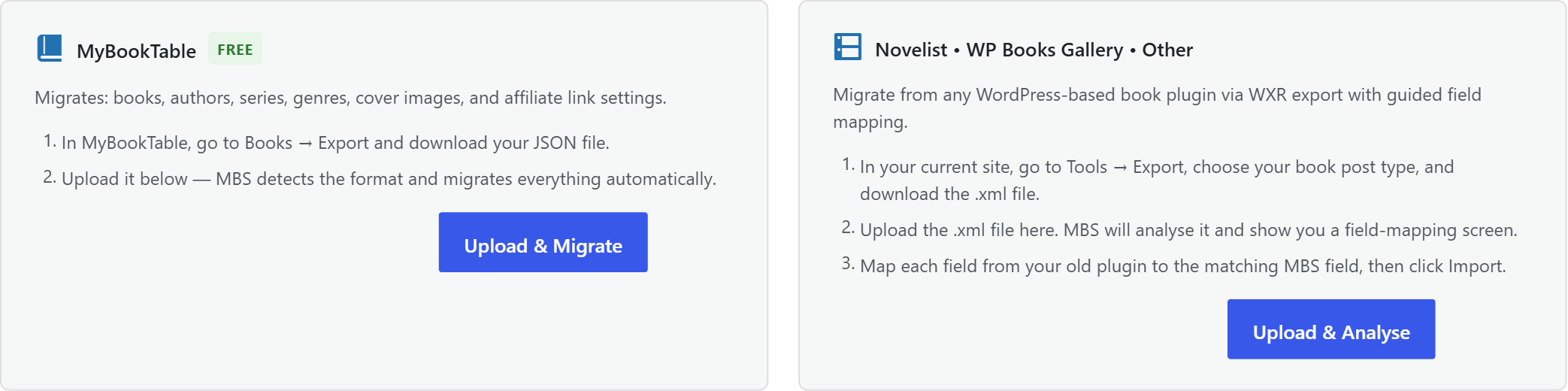
The panel opens with two paths: a dedicated MyBookTable path on the left, and a Novelist • WP Books Gallery • Other WXR path on the right.
Step 4 — Migrate from MyBookTable
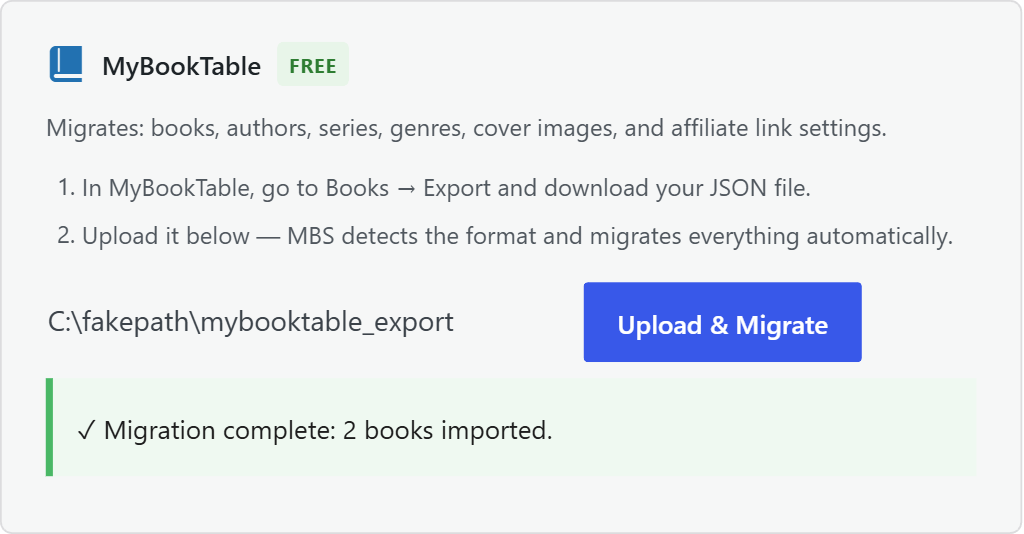
If you are coming from MyBookTable, use the left-hand path:
- Click the file picker and choose your MyBookTable
.jsonexport. - Click Upload & Migrate.
A progress bar tracks the import. My Book Showroom detects the format automatically and migrates your books, authors, series, genres, cover images, and affiliate-link settings in a single pass — there is no column-mapping step. When it finishes, the status line reports how many books were imported and how many affiliate settings were applied.
Step 5 — Migrate any other plugin (guided WXR mapping)
For Novelist, WP Books Gallery, Genesis Author Pro, RS WP Books, GS Books Showcase, or any other WordPress book plugin, use the right-hand WXR path. It works in two passes: first My Book Showroom analyses your file, then you map the fields and run the import.
Pass 1 — Upload and analyze. Choose your .xml file and click Upload & Analyze. My Book Showroom streams the file, collects every custom field it contains, and tries to recognize the source plugin.
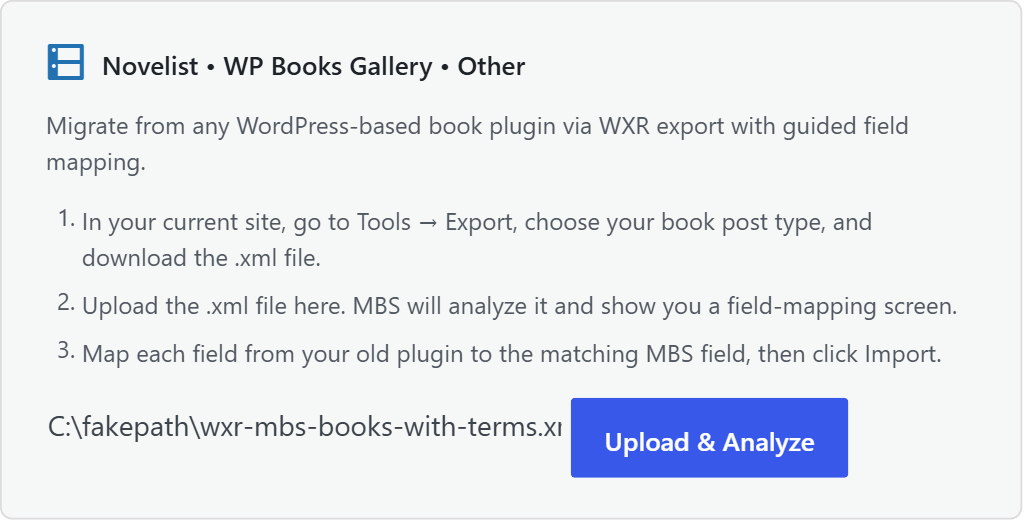
Pass 2 — Map your fields. A mapping table appears. The left column lists each field found in your export; the right column is a dropdown of My Book Showroom target fields (Publisher, ISBN-13, ASIN, Publication Date, Series Name, Synopsis, Word Count, and more). For each field, choose the matching My Book Showroom field. Anything you leave set to Skip this field is ignored.
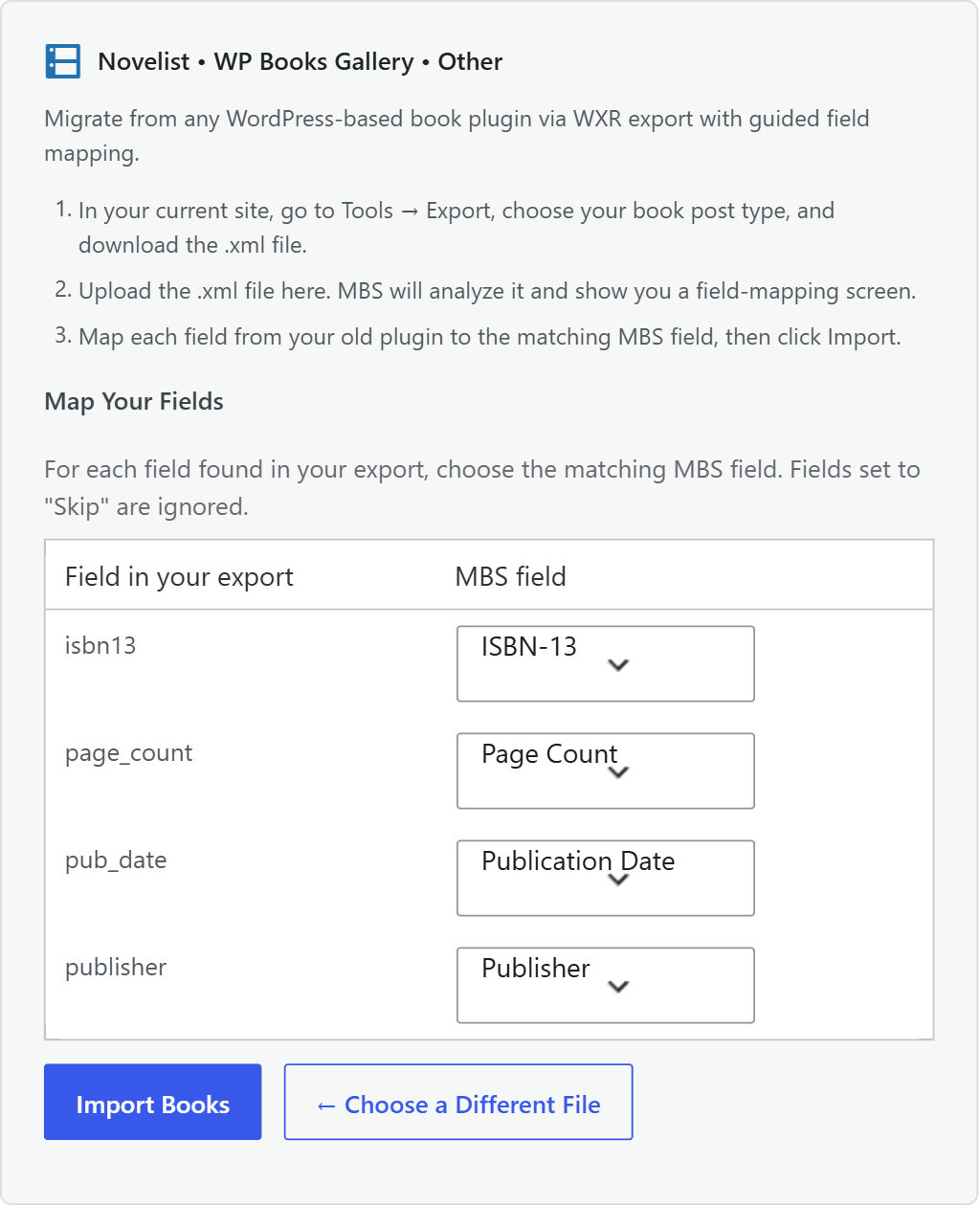
When the mapping looks right, click Import Books. The book title and body content always come across automatically — you only map the custom fields.
For the six recognized source plugins, the dedicated importer does the mapping for you, so you will not need to match every field by hand. The generic mapping screen is there for plugins My Book Showroom has not seen before.
Step 6 — Review the results
When the import completes, the status line shows how many books were imported and how many were skipped. Some importers also list notes — for example, when a source book had an extra format that shares an ISBN with the primary edition, its purchase link is preserved and a note explains what happened.
Browse your migrated catalog under My Book Showroom → Books. Open a few titles to confirm covers, series, and buy links came across as expected.
Cover images that were stored only as attachment IDs in the old plugin cannot always be carried over — an attachment ID is specific to the old site. Where the export included the WordPress featured image, the cover is migrated; where it did not, you may need to re-upload a handful of covers. Buy links are rebuilt from their URLs, so the retailer is detected automatically.
A note on settings
This migration moves your books and catalog data. It does not import another plugin's display settings or your My Book Showroom configuration — those are separate. After migrating, set your appearance and layout preferences in My Book Showroom → Settings, then publish your showroom page.