
When you move your books to a new domain, set up a staging site, or hand a catalog to another author, you want everything to travel together: the book records and the cover images, banners, trailers, audio samples, and author headshots. The Export Catalog + Media feature packs your whole catalog into a single ZIP archive that the Import from ZIP feature unpacks on the destination site, recreating each book and sideloading its media into the new media library.
This is different from a CSV import (which is book data only, see the CSV import guide) and from a settings export (which carries your configuration, not your books, see the Settings Import / Export guide). Catalog + Media is the full-catalog, media-included round trip.
What you will need
- A PRO (or PUB) license on both the source and destination sites
- WordPress admin access on both sites
- Enough disk space for the ZIP — media can make these archives large
Step 1 — Open the Export Catalog + Media panel
On the source site, go to My Book Showroom → Import / Export and click the Export Catalog + Media card (marked PRO).
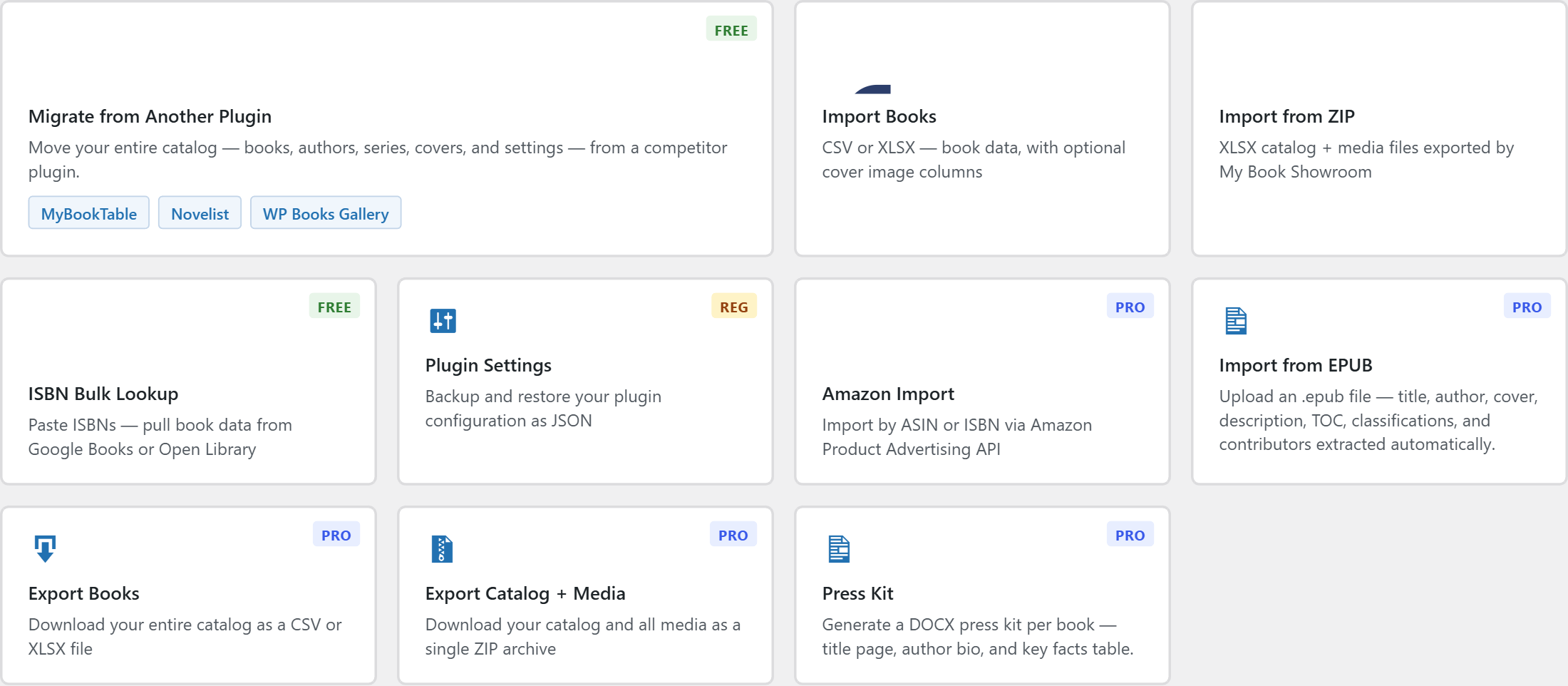
The panel explains exactly what the archive will contain: a catalog.xlsx spreadsheet plus media subfolders.

Step 2 — Build the ZIP
Click Export Catalog + Media as ZIP. My Book Showroom queries every published book, builds the catalog spreadsheet, copies each linked media file into the archive, and streams the finished ZIP to your browser. The file is named my-book-showroom-export-{date}.zip.
The export reads all book and format data through the catalog serializer, so the spreadsheet always reflects the current state of your library at the moment you click export. Re-export any time you want a fresh snapshot.
Step 3 — What is inside the archive
The ZIP contains one spreadsheet and a set of media subfolders:
catalog.xlsx— a 13-tab workbook holding all book data: Books,
Formats, Buy Links, Endorsements, Contributors, Awards, Memberships, Discussion Questions, Downloadable Files, ARC Reviewers, Section Order, Taxonomy, and a Manifest tab recording the schema version and book count.
covers/— book cover imagesbanners/— series, collection, and universe bannerstrailers/— book trailer videosspinning-videos/— per-format spinning / 3D book videosaudio/— per-format audio samplesauthor-headshots/— author and contributor photosfiles/— book club downloadable files
Each media file is named with collision-resistant initials, and the spreadsheet records which file belongs to which book, so the link is never lost.
Your plugin settings are not included in this archive. Appearance, layout, license, and configuration travel separately through the Plugin Settings export card (see the Settings Import / Export guide). Importing a catalog ZIP never overwrites the destination site's settings.
Step 4 — Move the ZIP to the new site
Download the ZIP and transfer it to the destination machine however you like — a download then upload, a file share, or cloud storage. No special handling is required; it is a normal ZIP file.
Step 5 — Import on the destination site
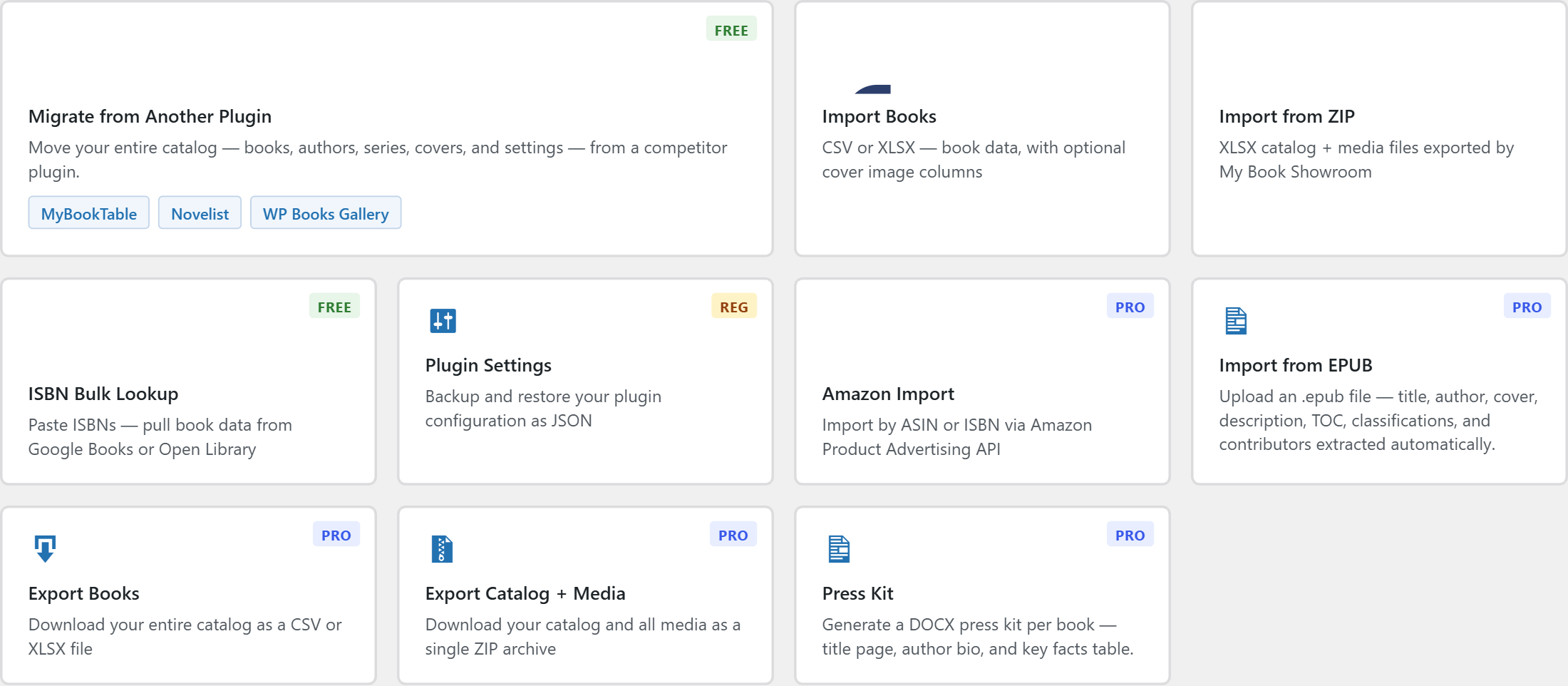
On the destination site, go to My Book Showroom → Import / Export and click the Import from ZIP card.
Drag your ZIP onto the drop zone (or click to choose it), then click Import Archive.
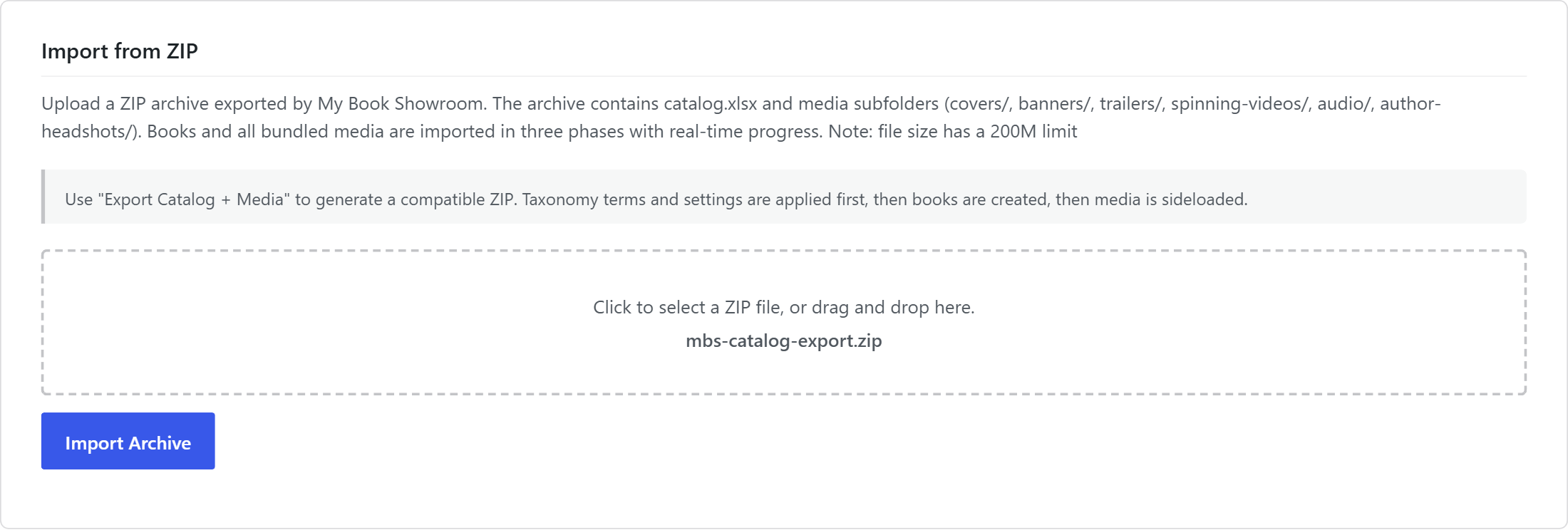
The import runs in three phases with a live progress bar:
- Taxonomy terms are restored first, so authors, series, genres, and other
terms exist before books reference them.
- Books are created from the catalog spreadsheet.
- Media is sideloaded — each cover, banner, trailer, audio clip, and
headshot is pulled from the archive into the destination media library and re-linked to its book.
The uploaded archive can be up to 200 MB. If your catalog with media is larger, contact support about splitting the export, or import in batches by exporting a subset of books at a time.
Step 6 — Verify the imported catalog
When the import finishes, the status panel reports how many books were created and lists any media files it could not find. Browse My Book Showroom → Books on the destination site and open a few titles to confirm covers, series membership, buy links, and section order all came across.
Because the export records the fully-resolved section order for every book, each imported book reproduces its original page layout regardless of the destination site's global defaults. Set your appearance and settings separately, and your migrated catalog is ready to publish.