
This PRO feature adds a reader-facing ARC signup form to your book pages so prospective reviewers can apply themselves, and it connects My Book Showroom to your email service provider (ESP) so subscribers and reviewers flow into your lists automatically.
This is different from the ARC Management guide. That guide covers sending review copies to reviewers you already know. This guide covers letting new readers raise their hand to become reviewers, plus connecting your newsletter platform. The two work together: applications collected here can be promoted into your ARC reviewer roster.
What you will need
- A PRO or Publisher license, activated in My Book Showroom
- An account with a supported email platform (optional, for list sync)
- A published book to place the signup form on
Step 1 — Connect your email platform
Go to My Book Showroom → Settings and open the Email / Newsletter tab. Under Platform, choose your provider from the Email Platform dropdown. Supported platforms include Mailchimp, MailerLite, ConvertKit (Kit), Brevo, Sendy, ActiveCampaign, GetResponse, Campaign Monitor, Moosend, Flodesk, and Author.Email.
Paste your API Key into the field. For Sendy and ActiveCampaign you must also fill in the Account URL field that appears.
Click Test Connection to confirm the credentials work.

Your API key is stored encrypted. To replace it later, type a new key; to keep the existing one, leave the field blank when you save.
Step 2 — Choose your lists
Once connected, set your lists in the Lists section:
- Default List — used by the reader signup widget and new-release broadcasts.
- ARC Reviewer List — reviewers added in the ARC metabox sync here.
- Broadcast List — used for new-release broadcast emails.
In the Features section you can also turn on Automatically sync ARC reviewers to email list, show the subscriber signup widget on book and author pages, and enable the broadcast queue.
Sendy does not support tags, so the auto-tagging options (book, series, genre) have no effect when Sendy is the selected platform.
Step 3 — Set compliance options
In the Compliance section, enable Double Opt-in (recommended for GDPR / CASL compliance) and edit the Consent Text shown next to the consent checkbox on the front-end signup form. One link tag is allowed in the consent text.
Step 4 — Protect the form with CAPTCHA
Scroll to ARC Signup CAPTCHA and pick a CAPTCHA Provider: None, reCAPTCHA v3 (Google), hCaptcha, or Cloudflare Turnstile. When you select a provider, its Site Key and Secret Key fields appear — paste the keys from that provider's dashboard.
The ARC signup form already includes a hidden honeypot field and a per-IP rate limit (three applications per book per hour); adding a CAPTCHA layers on bot protection for public-facing forms.
Step 5 — Set up application notifications
Under ARC Signup Notifications, tick Send me an email when a new ARC signup application is submitted and, optionally, enter a Notification email address. Leave the address blank to use your site admin email. Save the tab.
Step 6 — Add the signup form to a book page
Edit the book where you want reviewers to apply. Add the ARC Signup block to the content. By default it shows on the book it lives on; you can set a specific book in the block if needed.
You can customize the block's heading, button label, success message, the optional message field, and the consent text.
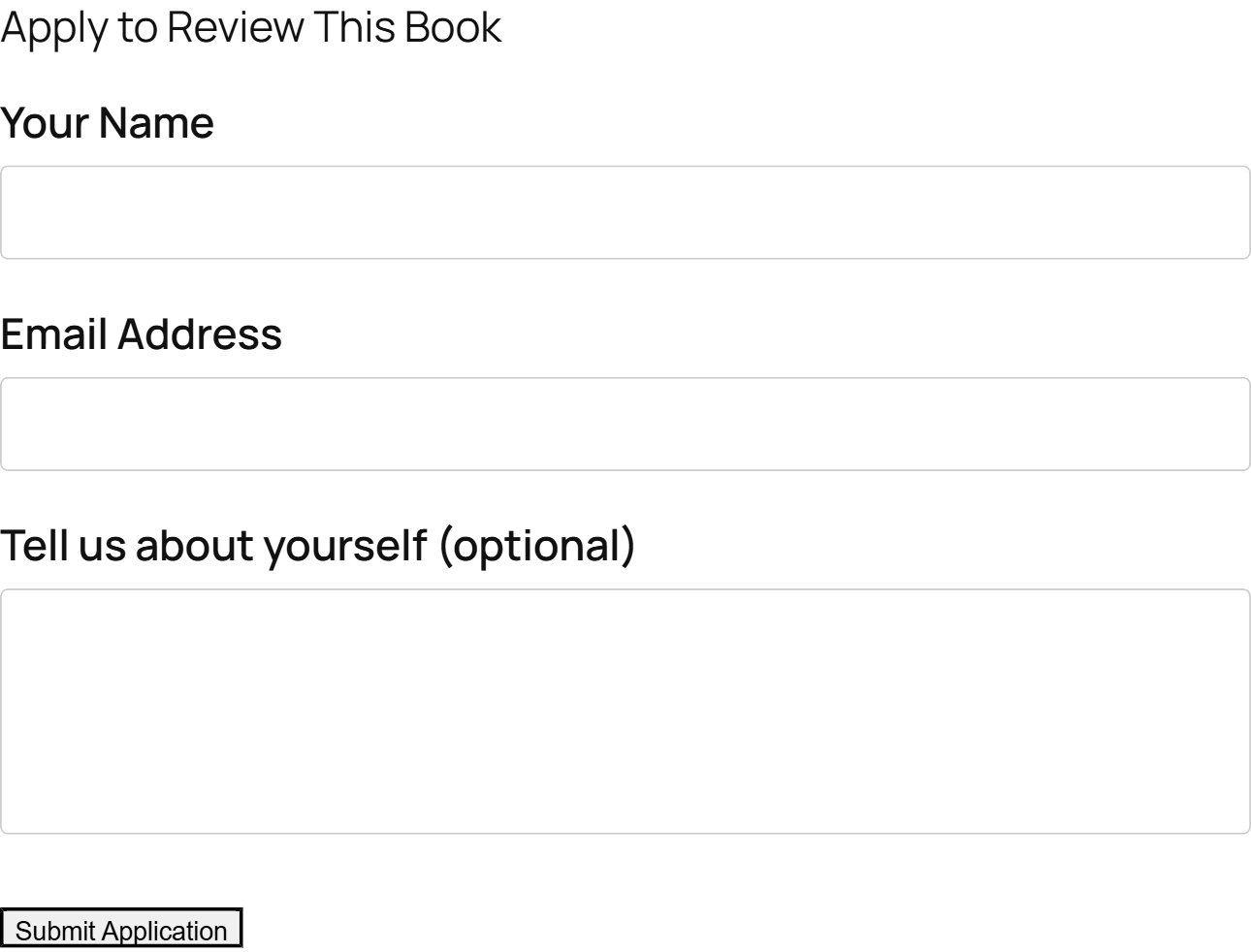
On the free tier the block outputs nothing — the form appears only with an active PRO license.
Step 7 — Collect and review applications
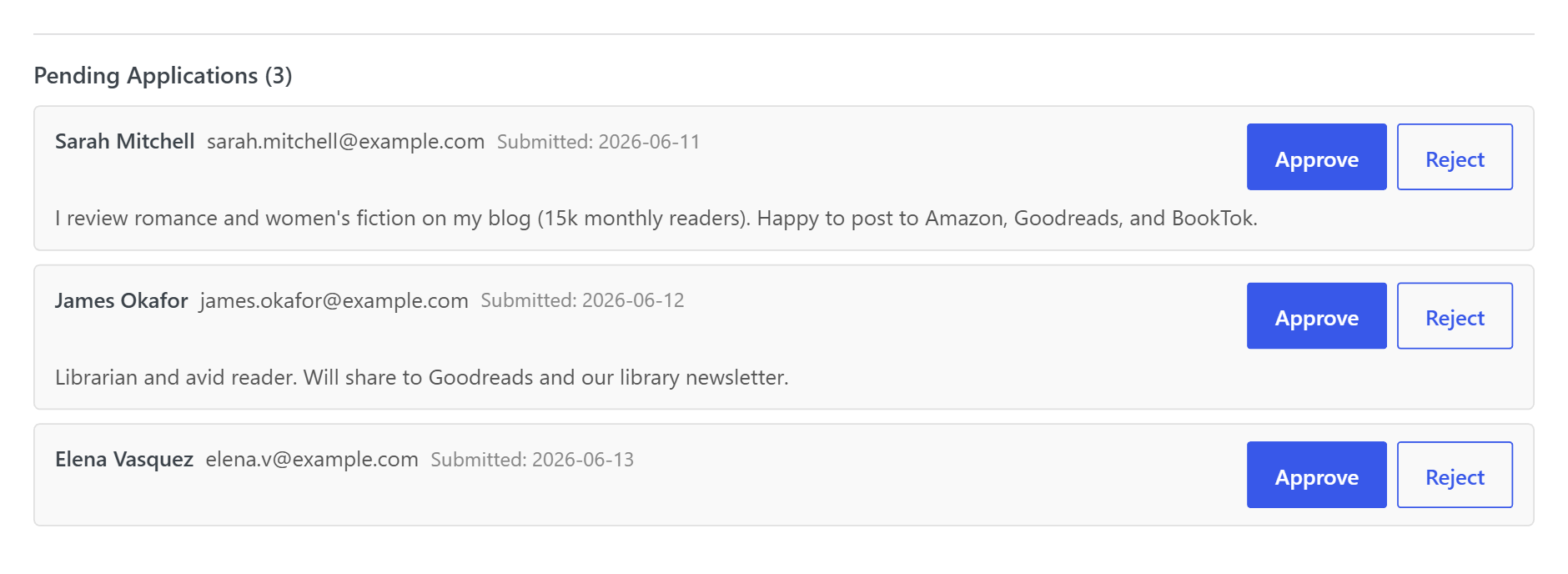
When a reader submits the form, My Book Showroom validates the entry (name, email, consent, CAPTCHA), blocks duplicates for the same book, records the applicant, and — if enabled — emails you a notification with the applicant's name, email, message, and a link to review.
Applicants then appear in the book's ARC metabox, where pending applicants can be reviewed and approved.
How it fits with ARC Management
Use this guide to attract reviewers and grow your newsletter; use the ARC Management guide to fulfil review copies to the reviewers you accept. With the ESP connection in place, approved reviewers and new subscribers land in the right lists automatically — so your launch list grows on autopilot from your own book pages.